
1. Taw qhia
Thank you for choosing the EasySMX T37 Wireless Switch Pro Controller. This manual provides detailed instructions for setting up, operating, maintaining, and troubleshooting your controller. Please read this manual carefully before use to ensure optimal performance and longevity of your device. This controller is compatible with Nintendo Switch, Switch Lite, and Switch OLED consoles.
2. Khoom Tshajview
The EasySMX T37 is a wireless gamepad designed for an enhanced gaming experience on Nintendo Switch systems. It features an ergonomic design, dual turbo vibration, and 6-axis gyro motion control.

Duab 2.1: Pem hauv ntej view of the EasySMX T37 Wireless Switch Pro Controller, showcasing its ergonomic shape and button layout.
3. Teeb tsa
3.1 Pairing with Nintendo Switch
- Qhib koj lub Nintendo Switch console.
- Los ntawm HOME Menu, xaiv Cov tswj > Hloov Grip / Order.
- On the EasySMX T37 controller, press and hold the SYNC khawm (located on the top edge of the controller) for 3 seconds until the LED indicators start flashing rapidly.
- Once the controller is successfully paired, the player LED(s) on the bottom of the controller will light up solid.
3.2 Kev them nyiaj rau tus tswj
Connect the provided USB-C charging cable to the USB-C port on the controller and the other end to a USB power source (e.g., Switch dock, USB wall adapter, computer USB port). The LED indicators will show charging status and turn off when fully charged.
4. Cov lus qhia ua haujlwm
4.1 Basic Controls
The controller features standard button layouts for Nintendo Switch compatibility:
- Cov Khawm A/B/X/Y: Cov nyees khawm ua haujlwm.
- D-Pad: Kev nkag mus rau qhov taw qhia.
- Cov Sticks Analog Sab laug/Sab xis: Kev txav mus los thiab kev tswj lub koob yees duab.
- L/R/ZL/ZR Buttons: Cov nyees khawm ntawm lub xub pwg nyom thiab lub khawm ua kom raug.
- Tsev khawm: Returns to the Switch HOME Menu.
- Khawm ntes: Thaij duab thaij.
- Cov nyees khawm PLUS (+) / MINUS (-): Pib/Xaiv cov haujlwm.

Image 4.1: A user holding the EasySMX T37 controller, demonstrating the comfortable grip and accessible button placement during gameplay.
4.2 Turbo muaj nuj nqi
The Turbo function allows for rapid, automatic pressing of a button, useful in action or arcade games.
- Activate Turbo: Press and hold the desired action button (A/B/X/Y/L/R/ZL/ZR), then press the Turbo khawm (T button). The button will now auto-fire.
- Kho Turbo Ceev: Thaum tuav lub Turbo khawm, txav lub Right Analog Stick Up or Down to cycle through three speeds: 5 shots/s, 12 shots/s, and 20 shots/s.
- Deactivate Turbo: Repeat the activation step (hold the action button, then press the Turbo button) or press and hold the Turbo khawm for 5 seconds to clear all Turbo settings.
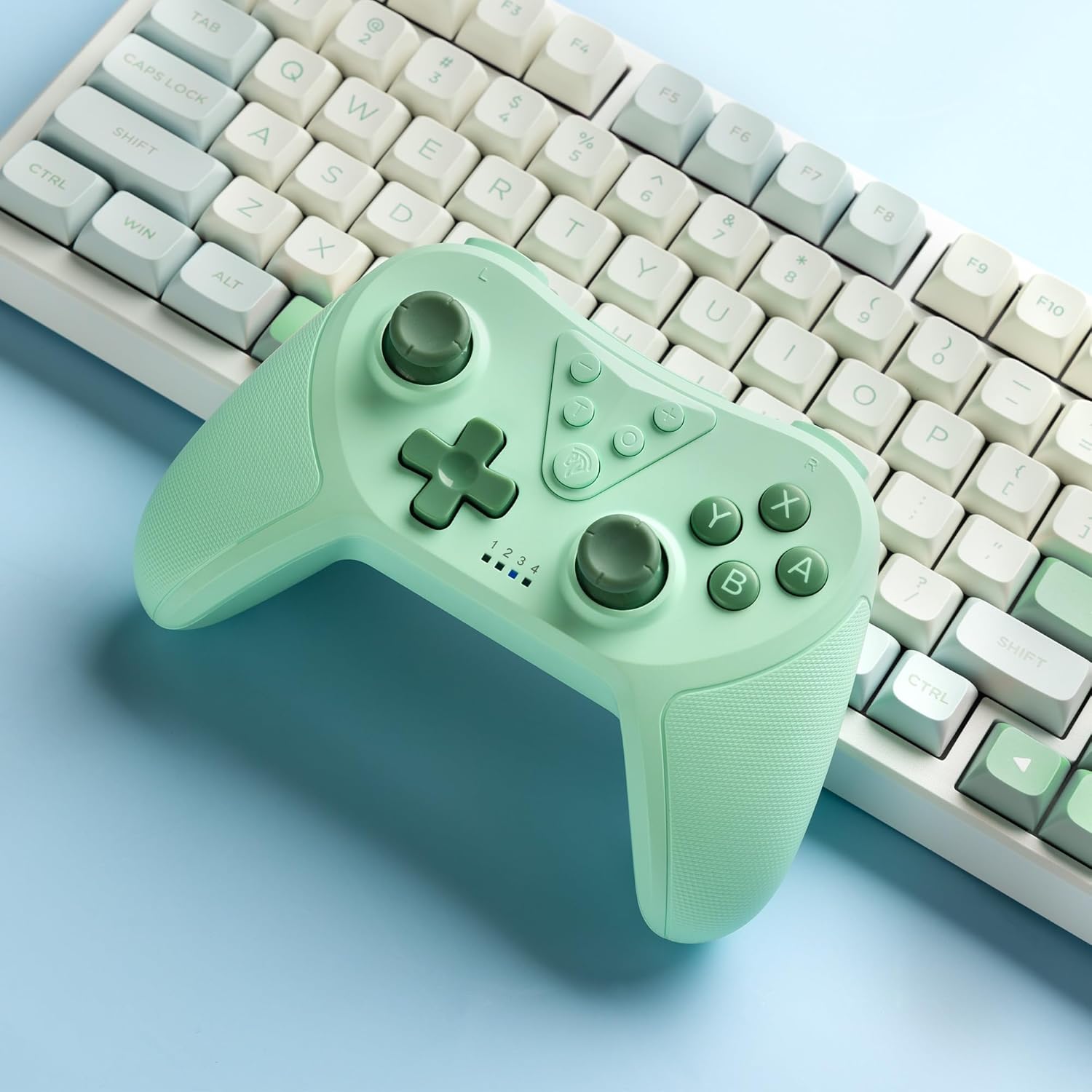
Image 4.2: Illustration of the Turbo function on the EasySMX T37 controller, showing the three adjustable speeds: 5, 12, and 20 shots per second.
4.3 Kev hloov kho kev vibration
The controller features dual motors for adjustable vibration feedback, enhancing immersion in games.
- Kho Vibration Intensity: Nias thiab tuav lub Turbo khawm, ces txav lub Left Analog Stick Up or Down to cycle through four vibration levels: 0% (off), 30%, 70%, and 100%.

Image 4.3: Visual representation of the Dual Vibration feature on the EasySMX T37 controller, indicating four intensity levels from 0% to 100%.
4.4 6-Axis Gyro Motion Control
The built-in 6-axis gyroscope provides precise motion sensing, allowing for intuitive control in games that support motion input.

Image 4.4: Illustration depicting the 6-Axis Gyro Motion Control feature of the EasySMX T37 controller, showing how it interacts with a game on the Nintendo Switch screen.
5. Kev tu
- Ntxuav: Siv ib daim ntaub mos, qhuav los ntxuav tus tswj. Tsis txhob siv cov tshuaj hnyav lossis cov khoom siv abrasive.
- Cia: Khaws tus maub los rau hauv qhov chaw txias, qhuav kom deb ntawm tshav ntuj ncaj qha thiab qhov kub thiab txias.
- Kev kho roj teeb: Txhawm rau kom lub roj teeb lub neej ntev, tsis txhob tso tawm tag nrho cov maub los nquag. Them nws tsis tu ncua, txawm tias tsis siv rau lub sijhawm ntev.
- Tsis txhob poob: Tiv thaiv lub maub los ntawm kev poob thiab kev cuam tshuam, uas tuaj yeem ua rau cov khoom sab hauv puas tsuaj.
6. Kev daws teeb meem
6.1 Controller Not Connecting
- Xyuas kom tus maub los tau them.
- Verify the Switch console is updated to the latest system version.
- Try re-pairing the controller by following the steps in Section 3.1.
- If issues persist, try resetting the controller by inserting a thin object into the small reset hole (if present, usually on the back) for a few seconds.
6.2 Buttons Unresponsive or Lagging
- Xyuas kom tus maub los tau them tag nrho.
- Move closer to the Switch console to ensure a strong wireless connection.
- Check for any physical obstructions or debris around the buttons.
- Rov kho dua tus maub los.
6.3 Controller Not Charging
- Ensure the USB-C cable is securely connected to both the controller and the power source.
- Sim siv lwm USB-C cable los yog lub hwj chim adapter.
- Xyuas kom tseeb tias lub zog fais fab ua haujlwm tau zoo.
7. Cov lus qhia tshwj xeeb
- Qauv: T37
- Kev sib txuas: Wireless (Bluetooth)
- Compatibility: Nintendo Hloov, Hloov Lite, Hloov OLED
- Nta: Dual Turbo Function, Adjustable Vibration, 6-Axis Gyro Motion Control, Ergonomic Design
- Product Identifier (ASIN): B0CTTWN84L
8. Warranty thiab Support
For warranty information, technical support, or further assistance, please refer to the official EasySMX website lossis tiv tauj lawv cov neeg siv khoom ncaj qha. Khaws koj daim ntawv txais yuav khoom rau kev lees paub.