
1. Taw qhia
The YESIDO TV10 4G HD Wireless Screen Display Receiver is designed to wirelessly mirror content from your smartphone, tablet, or laptop to a larger display such as a TV or projector. It supports 4K resolution and is compatible with various operating systems, including iOS, Android, and Windows, utilizing technologies like Miracast and AirPlay.
2. Cov ntaub ntawv kev nyab xeeb
- Khaws lub cuab yeej kom deb ntawm dej thiab cov av noo ib puag ncig.
- Tsis txhob tso lub cuab yeej mus rau qhov kub thiab txias.
- Tsis txhob tso tseg lossis ua rau lub cuab yeej raug cuam tshuam.
- Use only the provided power cable or a certified 5V/1A USB power adapter.
- Tsis txhob sim disassemble lossis kho lub cuab yeej koj tus kheej. Hu rau cov neeg ua haujlwm tsim nyog.
3. Cov ntsiab lus ntawm pob
- YESIDO TV10 4G Wireless Screen Display Receiver
- USB Fais Fab Cable nrog Wi-Fi Antenna
- Cov neeg siv phau ntawv
4. Khoom Tshajview
The YESIDO TV10 4G features a compact design with an integrated HDMI connector and a USB port for power and the external Wi-Fi antenna. It is designed for easy portability and discreet installation behind your display.
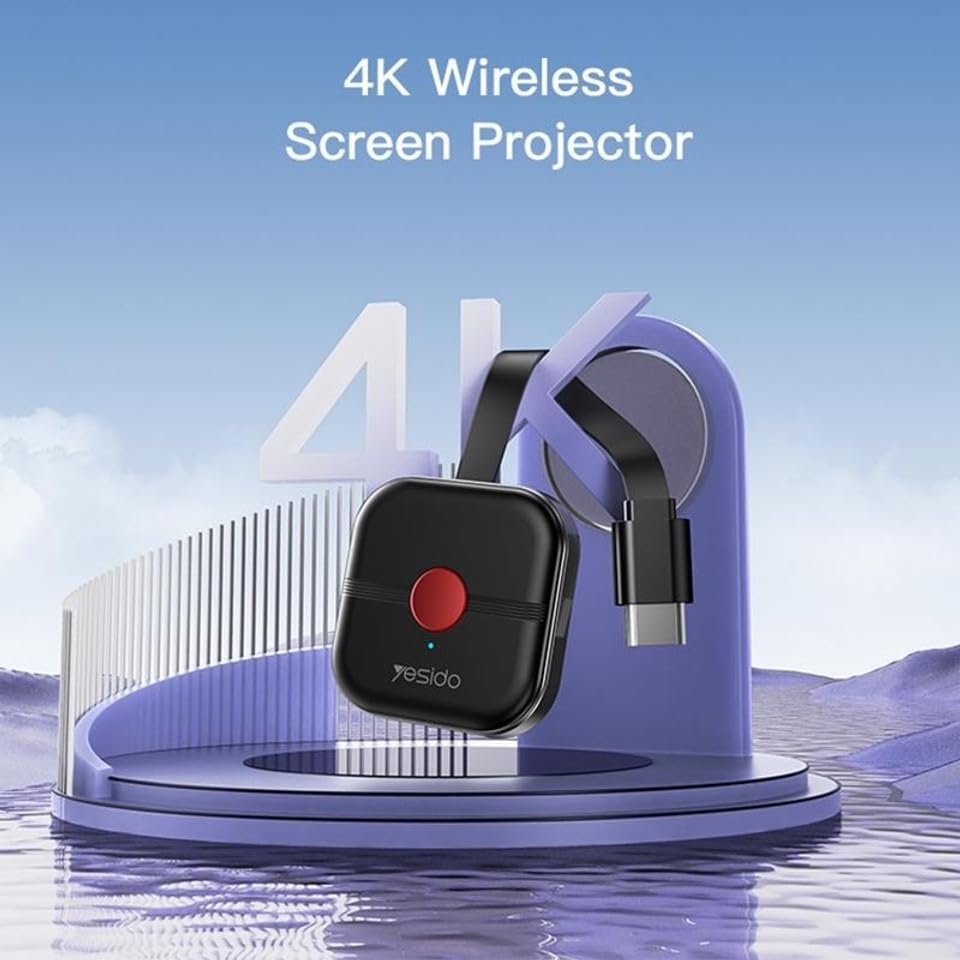
Image: The YESIDO TV10 4G dongle connected to an HDMI port on the back of a television, with its USB power cable and external antenna visible. This illustrates the compact setup.
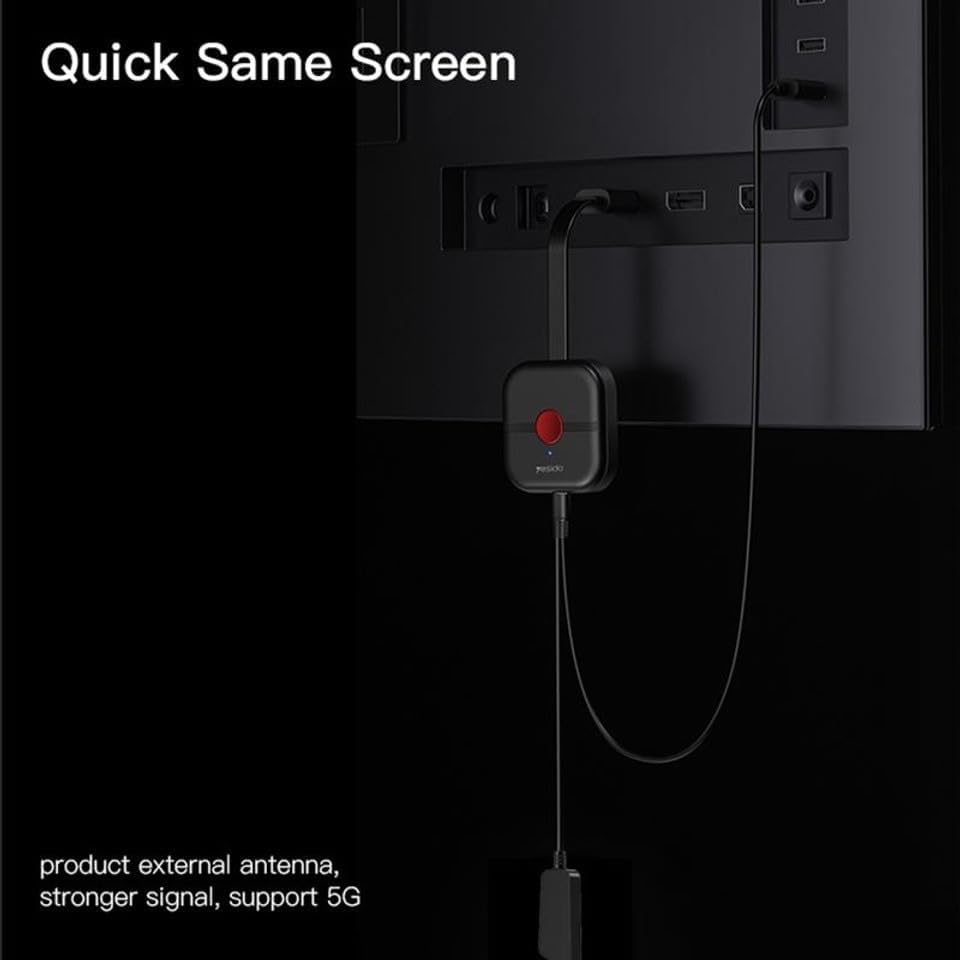
Image: An illustrative diagram showcasing the high-performance main control chip, emphasizing its efficiency and stability for reliable wireless display.
5. Teeb tsa
5.1 Txuas lub cuab yeej
- Plug the YESIDO TV10 4G into an available HDMI port on your TV or projector.
- Connect the USB power cable to the micro-USB port on the dongle.
- Plug the other end of the USB power cable into a USB power adapter (5V/1A recommended) or a USB port on your TV that provides sufficient power.
- Ensure the external Wi-Fi antenna is positioned for optimal signal reception.
- Switch your TV/projector's input source to the corresponding HDMI port. You should see the YESIDO TV10 4G startup screen.
5.2 Txuas rau Wi-nkaus
- On the TV screen, locate the Wi-Fi network name (SSID) and password displayed by the YESIDO TV10 4G.
- On your smartphone, tablet, or laptop, go to Wi-Fi settings and connect to the YESIDO TV10 4G's Wi-Fi network.
- Qhib a web browser on your device and enter the IP address displayed on the TV screen (e.g., 192.168.x.x) to access the dongle's settings page.
- From the settings page, select 'Internet' or 'Wi-Fi Setup' and connect the dongle to your home Wi-Fi network. This allows the dongle to access the internet and for your device to maintain internet connectivity while mirroring.
6. Cov lus qhia ua haujlwm
6.1 Screen Mirroring (iOS/Android/Windows)
Once the YESIDO TV10 4G is connected to your home Wi-Fi network, you can initiate screen mirroring from your compatible device:
- Rau cov khoom siv iOS (AirPlay): Swipe down from the top-right corner (or up from the bottom for older models) to open Control Center. Tap 'Screen Mirroring' or 'AirPlay Mirroring' and select the YESIDO TV10 4G from the list.
- For Android Devices (Miracast/Smart View/Kev Tshaj Tawm Screen): Go to your device's settings and look for 'Smart View', 'Screen Cast', 'Wireless Display', 'MirrorShare', or similar options. Select the YESIDO TV10 4G from the detected devices.
- For Windows Devices (Project to a wireless display): Xovxwm Windows yuam sij + P, then select 'Connect to a wireless display'. Choose the YESIDO TV10 4G from the list.
6.2 Duab Zoo
The YESIDO TV10 4G supports up to 4K HD picture quality, providing clear and detailed visuals for your mirrored content.
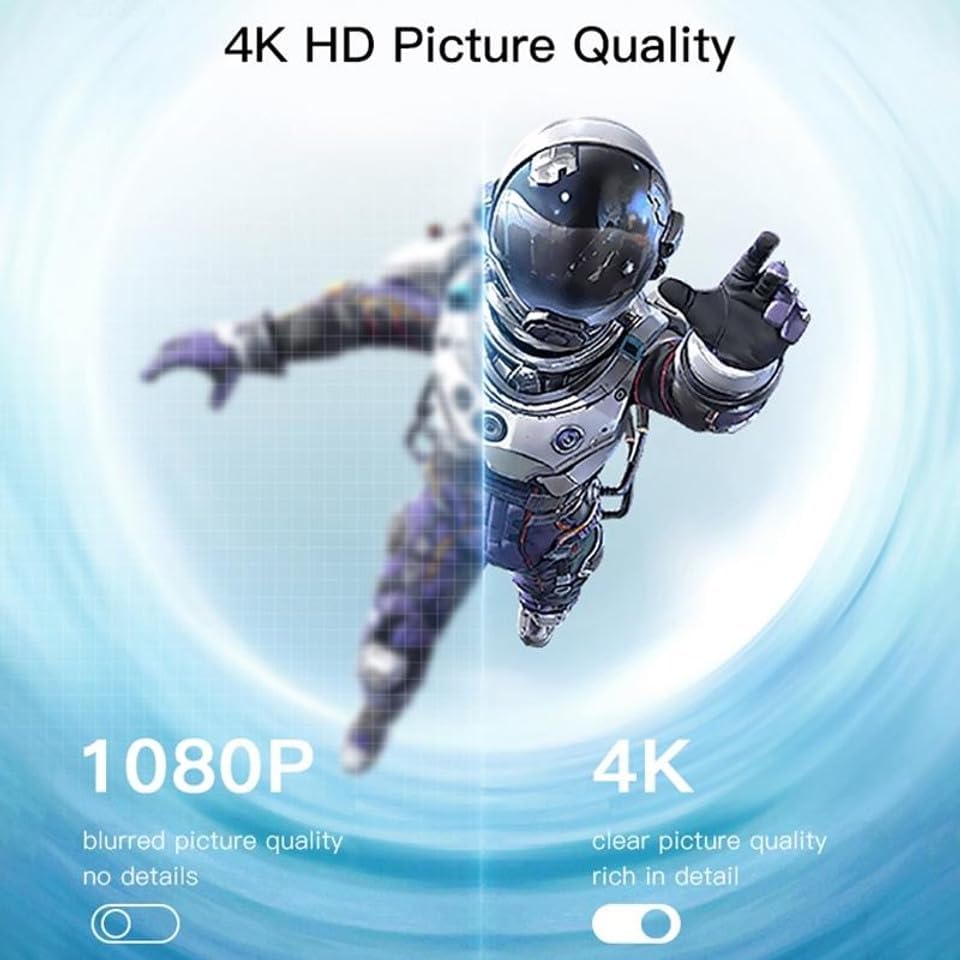
Image: A visual comparison demonstrating the difference between 1080P (blurred, no details) and 4K (clear, rich in detail) picture quality, highlighting the enhanced clarity offered by 4K resolution.
6.3 Kab rov tav thiab ntsug Screen Hloov
The device supports flexible screen orientation, allowing you to switch between horizontal and vertical display modes freely, depending on your content and viewhauv kev nyiam.

Image: Two display setups, one showing content in a standard horizontal landscape mode and the other in a vertical portrait mode, illustrating the device's ability to switch screen orientation.
7. Kev tu
- Ntxuav lub cuab yeej nrog ib daim ntaub mos, qhuav. Tsis txhob siv cov tshuaj ntxuav kua los yog aerosols.
- Xyuas kom lub cuab yeej yog unplugged ua ntej ntxuav.
- Khaws lub cuab yeej rau hauv qhov chaw txias, qhuav thaum tsis siv.
8. Kev daws teeb meem
- Tsis muaj zaub ntawm TV: Ensure the dongle is properly plugged into the HDMI port and receiving power. Check that the TV input source is set to the correct HDMI port.
- Unstable connection/lag: Ensure the dongle's Wi-Fi antenna is positioned optimally. Reduce distance between the dongle and your Wi-Fi router/mirroring device. Check for interference from other wireless devices.
- Tsis tuaj yeem txuas rau Wi-Fi: Double-check the Wi-Fi password. Ensure the dongle is within range of your router. Try restarting the dongle and your router.
- Tsis muaj suab: Check the audio settings on your mirroring device and your TV. Ensure the TV's volume is not muted.
- Device not found for mirroring: Ensure your mirroring device's Wi-Fi is on and it's connected to the same network as the dongle (if applicable). Restart both devices.
9. Cov lus qhia tshwj xeeb
| Feature | Specification |
|---|---|
| Hom | YESIDO |
| Qauv | TV10 4G |
| Hom Connector | HDMI |
| Xim | Dub |
| Yam khoom Dimensions (L x W x H) | 50 x 30 x 40 mm |
| UPC | 723326980084 |
| Kev sib txuas wireless | 2.4G wifi |
| Max Kev Daws Teeb Meem | 4K HD ua |
10. Warranty thiab Support
Rau cov ntaub ntawv pov thawj thiab kev txhawb nqa kev pabcuam, thov saib cov ntaub ntawv muab thaum lub sijhawm yuav khoom lossis tiv tauj koj lub khw muag khoom. Khaws koj cov ntaub ntawv pov thawj ntawm kev yuav khoom rau txhua qhov kev lees paub.