
1. Taw qhia
The EazeID M950 is a versatile label maker designed for home, office, and school use. It offers two primary printing modes: direct input via its integrated QWERTY keyboard and wireless control through the 'Print Master' mobile application via Bluetooth. Featuring a rechargeable battery and a backlit LCD screen, the M950 provides convenience and clarity for all your labeling needs. This manual provides detailed instructions for setting up, operating, and maintaining your device.
2. Cov ntsiab lus ntawm pob
Thov xyuas kom meej tias txhua yam khoom teev hauv qab no suav nrog hauv koj pob:
- 1 x EazeID M950 Label Maker
- 1 x 3M21 Black on White Label tape (12mm*4M)
- 1 x Type-C Data Cable
- 1 x Packaging box
- 1 x User Manual (cov ntaub ntawv no)

Figure 2.1: EazeID M950 Label Maker package contents.
3. Khoom Tshajview
The EazeID M950 Label Maker features a compact design with an integrated QWERTY keyboard and a backlit LCD screen for ease of use. It utilizes thermal printing technology, eliminating the need for ink or toner.

Daim duab 3.1: Pem hauv ntej view of the EazeID M950 Label Maker and accessories.

Figure 3.2: Key features and components of the EazeID M950 Label Maker.
4. Teeb tsa
4.1 Kev them nyiaj yug ntaus ntawv
The M950 Label Maker is equipped with a built-in 1200mAh rechargeable lithium battery. Before first use, or when the battery is low, charge the device using the provided Type-C USB cable.
- Connect the Type-C end of the cable to the charging port on the side of the label maker.
- Connect the USB-A end of the cable to a 5V-2A charging adapter (not included) or a compatible USB port.
- The device will indicate charging status on the LCD screen. A full charge typically takes 1-2 hours.
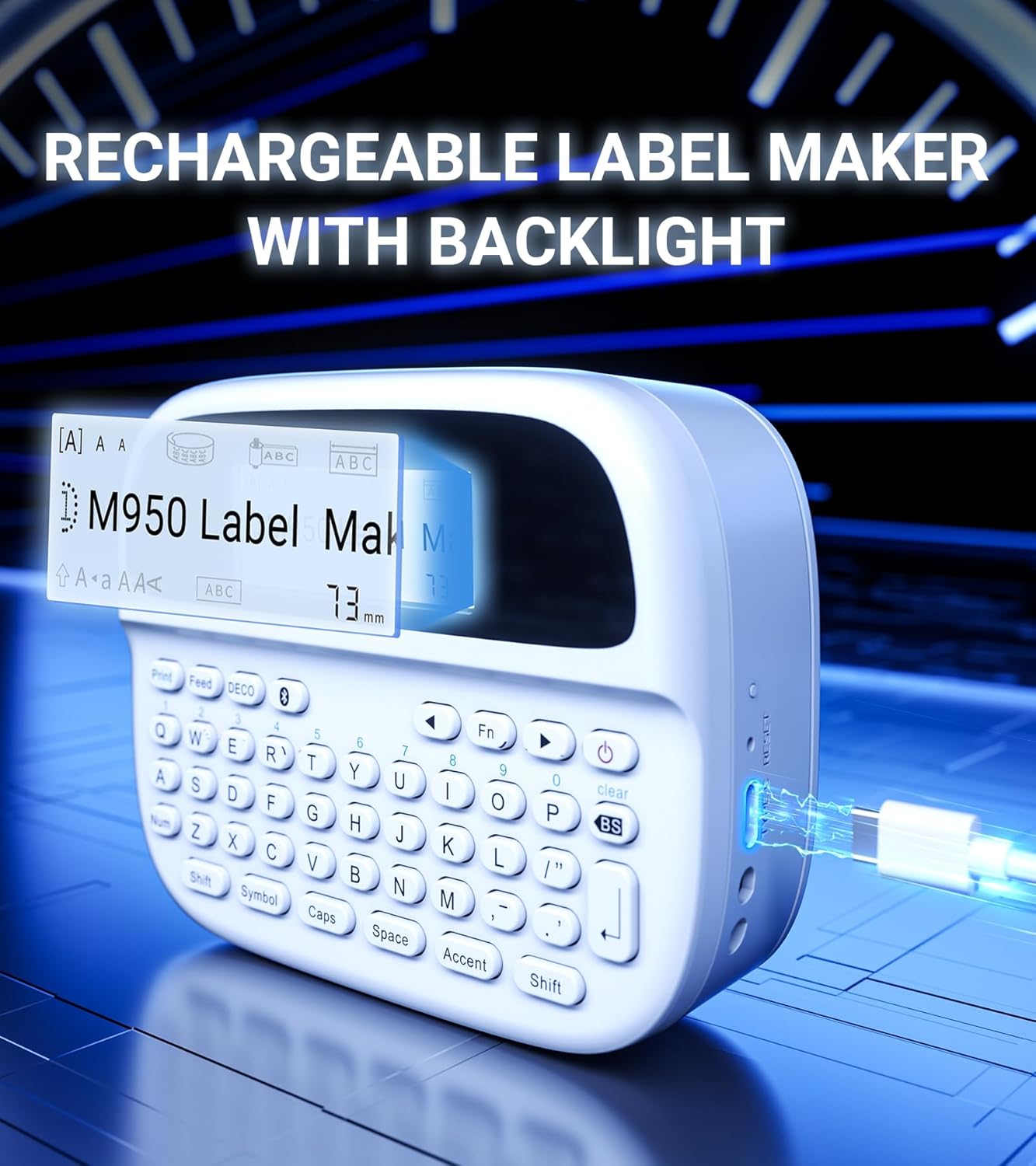
Figure 4.1: Charging the EazeID M950 Label Maker.
4.2 Kev Txhim Kho Daim Ntawv Sau Npe
To install or replace the label tape cassette:
- Ensure the label maker is powered off.
- Locate the tape compartment cover on the top of the device. Gently open the cover.
- Insert the label tape cassette into the compartment, ensuring it clicks into place. The tape should feed smoothly out of the slot.
- Kaw daim kab xev npog kom ruaj ntseg.

Daim duab 4.2: Sab hauv view of the M950 label maker showing tape cassette placement.
5. Cov lus qhia ua haujlwm
5.1 Hwj chim Rau/Tawm
- Txhawm rau qhib: Nias thiab tuav lub Hwj chim button (usually marked with a power symbol) until the LCD screen illuminates.
- Txhawm rau tua hluav taws: Nias thiab tuav lub Hwj chim khawm dua kom txog thaum lub vijtsam tua.
5.2 Direct Printing via QWERTY Keyboard
The M950 features an ergonomic QWERTY keyboard for direct label creation.
- Hwj chim On: Turn on the label maker.
- Input Text: Use the QWERTY keyboard to type your desired label text. The text will appear on the backlit LCD screen.
- Formatting Options: Use the function keys (e.g., Fn, Cim, Caps, Suab nrov) to access various fonts, sizes, symbols, and other formatting options.
- Sau: Nias lub Luam tawm button to generate the label.
- Txiav: Use the built-in cutter to cleanly separate the printed label from the tape roll.

Figure 5.1: Using the QWERTY keyboard for direct label printing.
5.3 Bluetooth App Printing (Print Master App)
For advanced features and customization, connect your M950 to the 'Print Master' app via Bluetooth.
- Rub tawm App: Download the 'Print Master' app from your device's app store (available on Android and iOS).
- Power On & Bluetooth: Turn on the label maker and ensure Bluetooth is enabled on both the label maker and your smartphone.
- Txuas: Open the 'Print Master' app. The app will search for nearby EazeID label makers. Select 'EazeID M950' from the list to connect.
- Design Label: Use the app's interface to create your label. The app offers a vast library of customizable templates, over 1000 patterns, 100+ frames, 100+ fonts, barcodes, and QR codes.
- Sau: Once your label is designed, tap the 'Print' icon in the app.
- Txiav: Use the built-in cutter on the label maker to separate the printed label.

Figure 5.2: The EazeID M950 supports both keyboard and Bluetooth app printing modes.

Figure 5.3: Connecting to the 'Print Master' app via Bluetooth.
6. Kev tu
6.1 Ntxuav lub cuab yeej
To ensure optimal performance and longevity of your label maker:
- Fais fab lub cuab yeej ua ntej ntxuav.
- Use a soft, dry cloth to wipe the exterior of the label maker.
- For the print head, gently wipe with a cotton swab lightly dampnrog cawv isopropyl. Cia kom qhuav tag ua ntej siv.
- Tsis txhob siv cov tshuaj abrasive los yog cov kuab tshuaj.
6.2 Roj Teeb Kho
Txhawm rau kom lub roj teeb lub neej ntev tshaj plaws:
- Tsis txhob tso lub roj teeb tas li ntau zaus.
- Them lub cuab yeej tsis tu ncua, txawm tias tsis siv tas li los xij.
- Khaws lub cuab yeej rau hauv qhov chaw txias, qhuav thaum tsis siv rau lub sijhawm ntev.
7. Kev daws teeb meem
If you encounter issues with your EazeID M950 Label Maker, refer to the following common problems and solutions:
| Teeb meem | Ua Tau | Kev daws |
|---|---|---|
| Cov cuab yeej tsis siv hluav taws xob | Lub roj teeb tsawg; Lub cuab yeej ua haujlwm tsis zoo | Them lub cuab yeej tsawg kawg yog 30 feeb. Yog tias tseem tsis teb, hu rau kev pabcuam. |
| No print or faint print | Tape installed incorrectly; Print head dirty; Low battery | Reinstall tape cassette. Clean the print head. Charge the device. |
| Kev sib txuas Bluetooth ua tsis tiav | Bluetooth off; App not updated; Device too far | Ensure Bluetooth is enabled on both devices. Update 'Print Master' app. Move label maker closer to smartphone. Restart both devices. |
| Labels are difficult to peel | Specific label tape characteristic | Ensure you are using genuine EazeID label tape. Try bending the label backing slightly to separate. |
8. Cov lus qhia tshwj xeeb
Technical specifications for the EazeID M950 Label Maker:
- Qauv Lub Npe: EazeID M950 Label Maker
- Tshuab luam ntawv: Kub
- Kev daws teeb meem luam tawm: 203 DPI
- Kev sib txuas: Bluetooth, USB Type C
- Qhov Loj Tshaj Plaws ntawm Cov Xov Xwm: 12mm (0.47 nti)
- Roj teeb: 1200mAh Lithium Ion (rechargeable, suav nrog)
- Tswj txoj kev: App (Print Master), QWERTY Keyboard
- Tshwj xeeb nta: Backlit LCD Screen, Built-in Cutter, Portable
- Khoom Dimensions: Kwv yees li 1 x 1 x 1 nti
- Yam khoom hnyav: 1.06 puj
- Cov Cheebtsam suav nrog: Label maker, tape, USB-C cable, user manual

Figure 8.1: EazeID M950 Label Maker dimensions and key features.
9. Warranty thiab Support
The EazeID M950 Label Maker comes with a limited warranty. For specific warranty terms and conditions, please refer to the warranty card included in your product packaging or visit the official EazeID webqhov chaw.
For technical support, troubleshooting assistance, or inquiries about replacement parts and accessories, please contact EazeID customer service through the contact information provided on the official website lossis koj lub platform yuav khoom.