
Khoom Tshajview
The Mesqool CR1025 Digital Alarm Clock is a versatile bedside device combining multiple functions. It features a clear LED display, Bluetooth 5.0 connectivity for audio streaming, a digital FM radio with station presets, dual USB charging ports (Type-C and USB-A), and an adjustable night light. Designed for convenience, it includes a 5-level dimmer for display brightness, adjustable volume, 12/24-hour format, snooze function, and battery backup to retain settings during power outages.
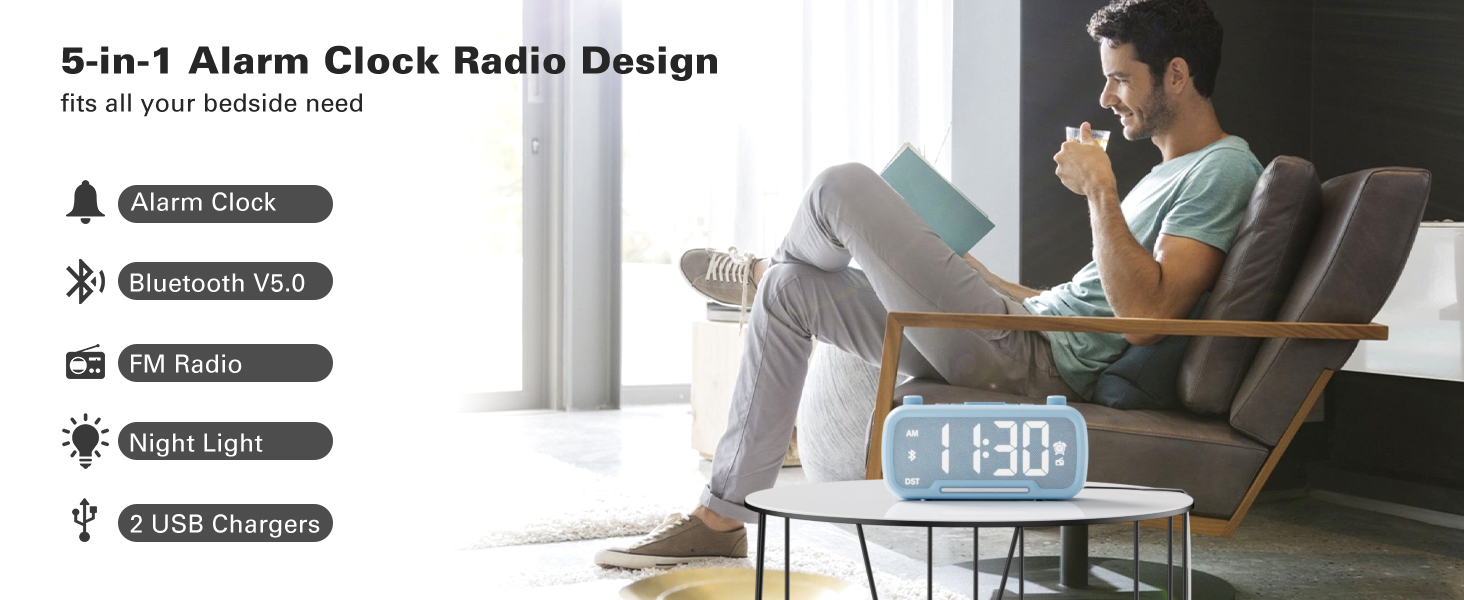
Image: The Mesqool CR1025 Digital Alarm Clock showcasing its 5-in-1 features: Alarm Clock, Bluetooth V5.0, FM Radio, Night Light, and 2 USB Chargers.
Teeb cov lus qhia
1. Fais fab kev twb kev txuas
- Connect the provided AC adapter to the clock and plug it into a standard wall outlet. The clock requires AC power for primary operation.
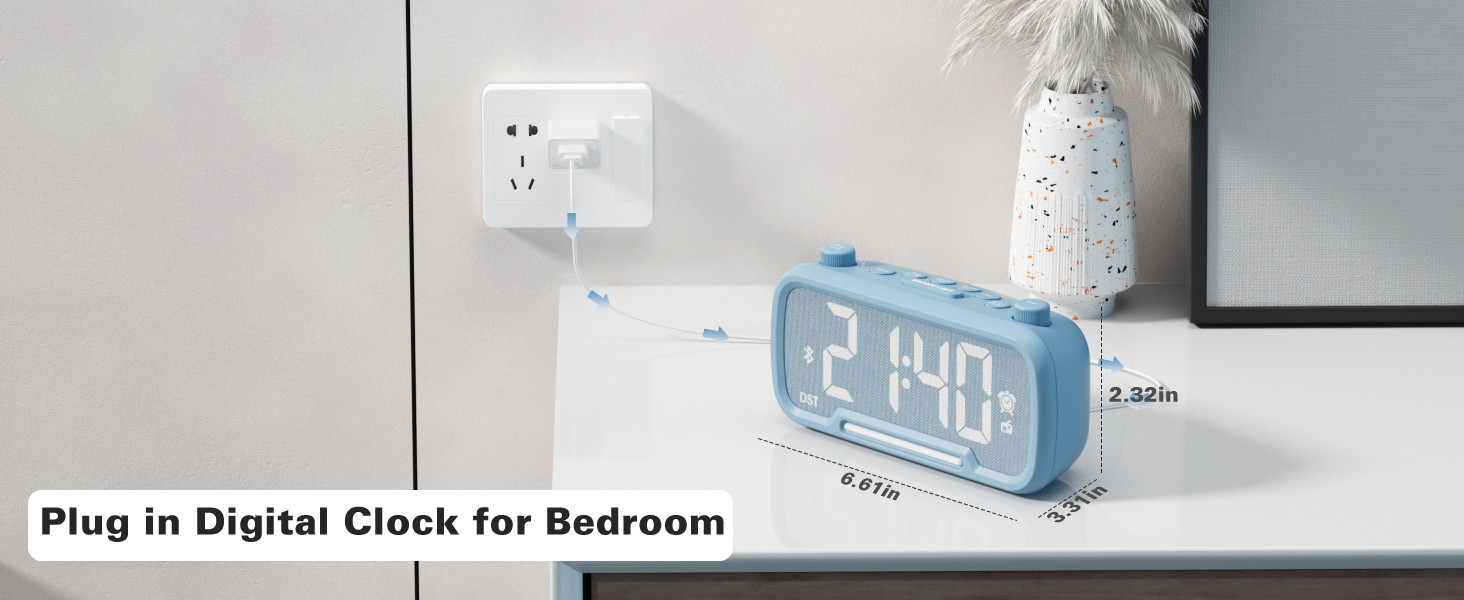
Image: The Mesqool CR1025 Digital Alarm Clock connected to a wall outlet via its power adapter, illustrating the power connection.
2. Roj Teeb Rov Qab
- The clock includes a CR2032 battery for backup. This battery preserves time and alarm settings during a power outage, but the display will not be lit.
3. Lub Sij Hawm Teem sijhawm
- Nias lub Sijhawm 12/24 button once. The hour digits will flash.
- Rotate the left knob (Sleep Timer/Vol) to adjust the hour.
- Nias lub Sijhawm 12/24 khawm dua. Cov lej feeb yuav ci ntsa iab.
- Rotate the right knob (Scan) to adjust the minute.
- Nias lub Sijhawm 12/24 button once more to confirm and exit time setting.
Video: Demonstrates how to set the time, adjust the 12/24 hour format, and activate/deactivate DST mode on the alarm clock.
4. 12/24 Teev Sijhawm Teev Sijhawm
- Nias thiab tuav lub Sijhawm 12/24 button for 2 seconds to switch between 12-hour and 24-hour time formats.
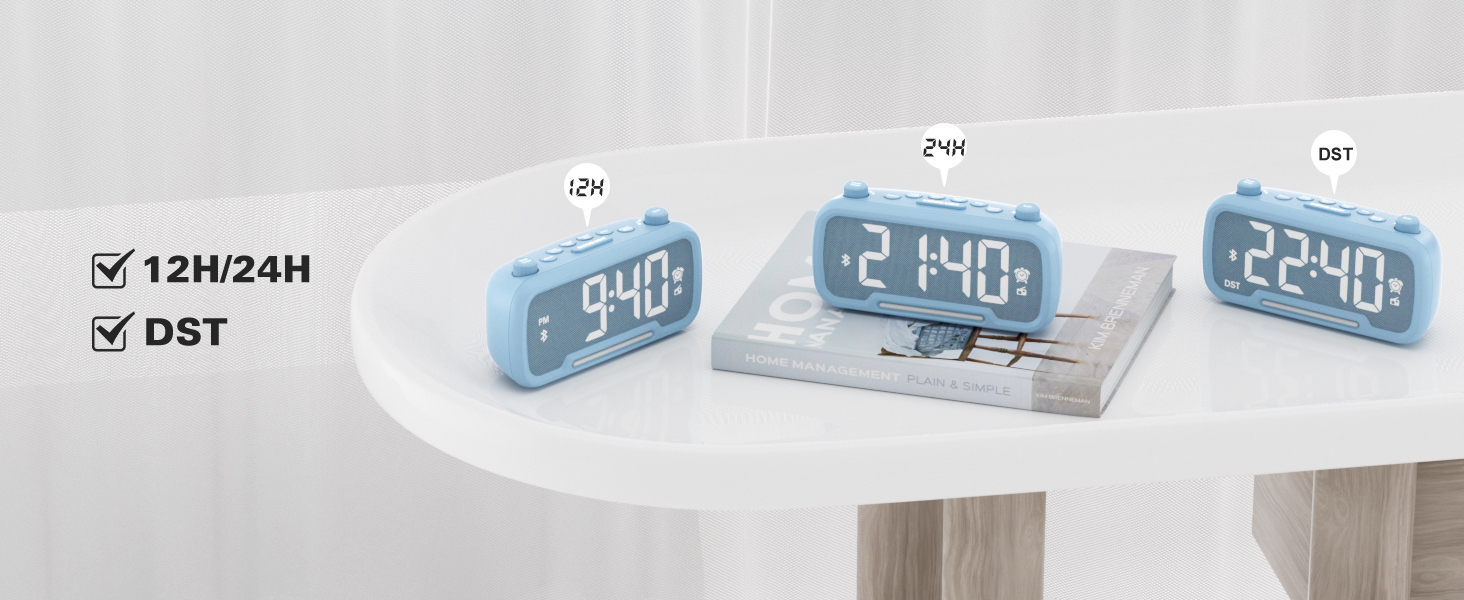
Image: The clock display showing both 12-hour (PM) and 24-hour time formats, along with the DST indicator.
5. Daylight Saving Time (DST) Mode
- Nias lub Dimmer DST button to enter or exit DST mode. When active, the DST indicator will appear on the display.
- Refer to the video above for a demonstration of DST mode activation.
Cov lus qhia ua haujlwm
1. Bluetooth hais lus
- Nias lub Hom fais fab button repeatedly until "bt" appears on the display, indicating Bluetooth mode. The Bluetooth icon will flash.
- On your device, search for "CR1025" in the Bluetooth settings and pair.
- Once connected, the Bluetooth icon will stop flashing.
Video: Demonstrates how to activate Bluetooth mode and pair with a device.

Image: Illustrates the Bluetooth 5.0 speaker functionality, showing the clock connected to a smartphone playing music.
2. FM xov tooj cua ua haujlwm
- Nias lub Hom fais fab button repeatedly until the radio icon lights up on the display, indicating FM radio mode.
- Auto-Scan: Nias lub Luam theej duab button to automatically search and store up to 20 stations.
- Phau Ntawv Nrhiav: Tig lub Luam theej duab knob to browse frequencies manually.
- Txuag Preset: Txhawm rau txuag chaw nres tsheb, nias thiab tuav lub Preset Pair button for 2 seconds. The display will show "P01", "P02", etc. Rotate the Luam theej duab knob to select a preset number, then press Preset Pair rov cawm.
- Kho qhov ntim: Turn the left knob (Sleep Timer/Vol) to adjust the volume (16 levels, L01-L16).
Video: Demonstrates FM radio tuning, auto-scan, and saving preset stations.

Image: The clock displaying an FM radio frequency, indicating its radio function.
3. Lub Ceeb Toom Teeb
- Nias thiab tuav lub Tswb button for 2 seconds. The hour digits will flash.
- Rotate the left knob (Sleep Timer/Vol) to adjust the alarm hour.
- Nias lub Tswb khawm dua. Cov lej feeb yuav ci ntsa iab.
- Rotate the right knob (Scan) to adjust the alarm minute.
- Nias lub Tswb button once more to select the alarm sound: either a buzzer or the last played FM radio station.
- Rotate the left knob (Sleep Timer/Vol) to adjust the alarm volume (L01-L16).
- Nias lub Tswb button again to confirm and activate the alarm. The alarm icon will appear on the display.
- To cancel the alarm, press the Tswb khawm ib zaug. Lub cim ceeb toom yuav ploj mus.
Video: Demonstrates setting the alarm time, choosing alarm sound (radio or buzzer), and adjusting alarm volume.
4. Ntsig muaj nuj nqi
- Thaum lub tswb nrov nrov, nias lub pob SNOOZE / TEEB button to activate the snooze function. The alarm will pause for 9 minutes and then sound again.
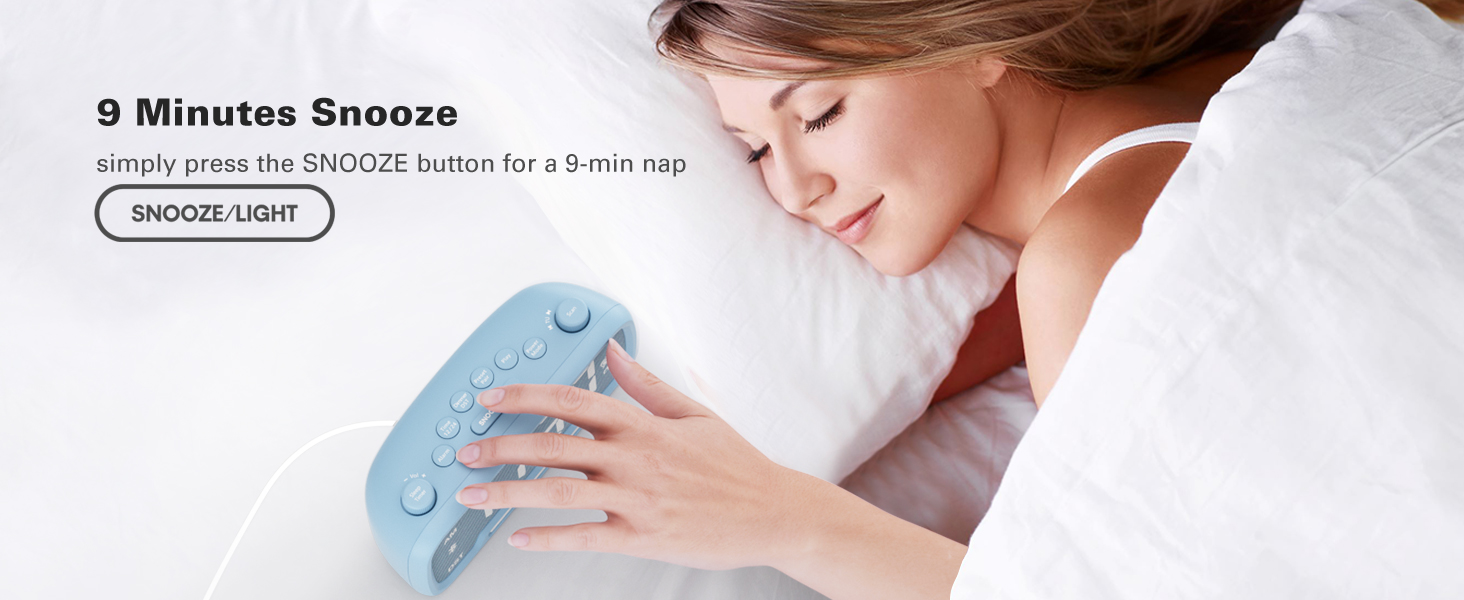
Image: A hand pressing the SNOOZE/LIGHT button on the clock, illustrating the 9-minute snooze feature.
5. Night Light & Dimmer
- Hmo Ntuj Teeb: Nias lub SNOOZE / TEEB button to turn the night light on or off.
- Zaub Dimmer: Nias lub Dimmer DST button repeatedly to cycle through 5 brightness levels for the main display (L01-L05).
Video: Shows how to adjust the display brightness using the dimmer function.

Image: The clock with its warm night light illuminated, providing ambient lighting.

Duab: Ntau yam views of the clock demonstrating the five different brightness levels of its display.
6. Sleep Timer Setting
- When using FM radio or Bluetooth speaker, press the Pw tsaug zog Timer khawm.
- Rotate the left knob (Sleep Timer/Vol) to select the desired duration: 15, 30, 60, 90, 120 minutes, or OFF. The device will automatically turn off after the selected time.
Video: Illustrates how to set the sleep timer for the FM radio or Bluetooth speaker.
7. Chaw Them Nqi USB
- The clock features one USB-A and one Type-C charging port (5V/1A each).
- Connect your smartphone, tablet, or other USB-powered devices to these ports for charging.
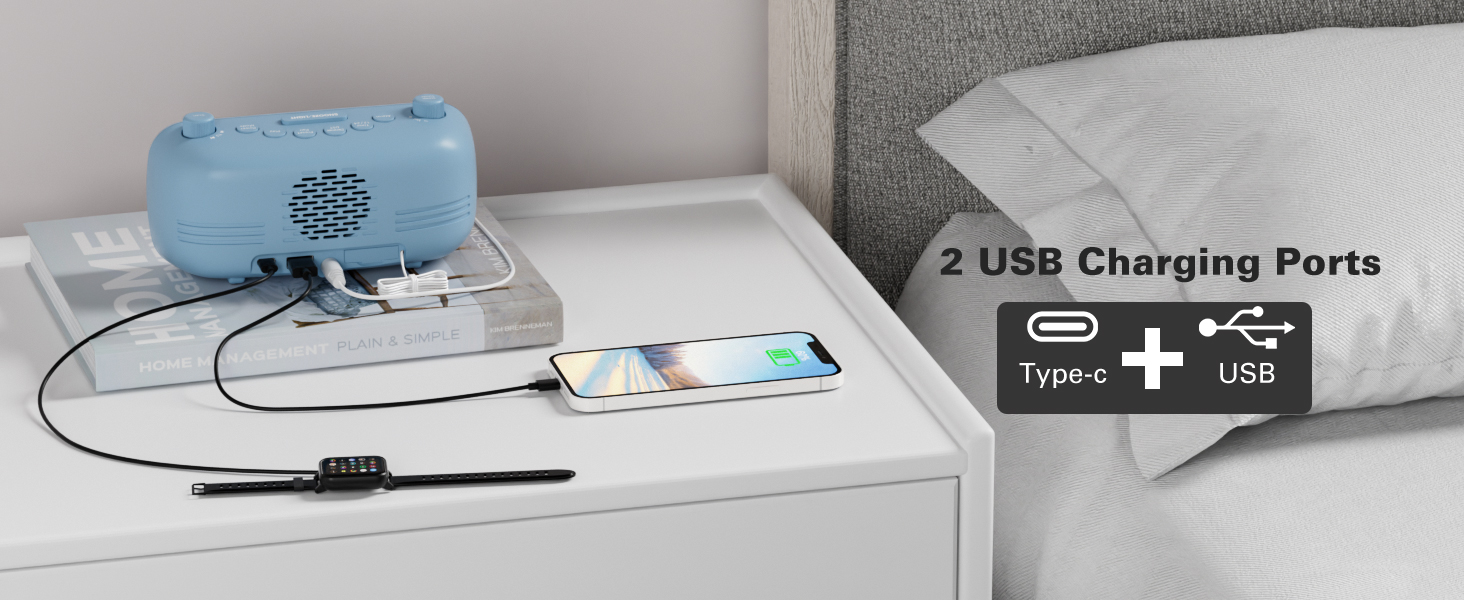
Image: The back of the clock showing the USB-A and Type-C charging ports with devices connected for charging.
Kev tu
- Ntxuav: Use a soft, dry cloth to clean the surface of the clock. Avoid abrasive cleaners or solvents.
- Cia: If storing the device for an extended period, disconnect it from power and remove the backup battery. Store in a cool, dry place.
Kev daws teeb meem
- Tsis muaj zog / tso saib tawm: Ensure the AC adapter is securely plugged into both the clock and a working power outlet. Check if the backup battery is correctly installed.
- Lub tswb tsis suab: Verify that the alarm is set and activated (alarm icon visible). Check the alarm volume level.
- Kev Txais Xov Tooj Cua FM Tsis Zoo: Extend the antenna fully. Try repositioning the clock to improve signal reception.
- Bluetooth Pairing Teeb meem: Ensure the clock is in Bluetooth mode and the Bluetooth icon is flashing. Make sure your device's Bluetooth is on and within range. Try restarting both the clock and your device.
- Kev Them Nyiaj USB Tsis Ua Haujlwm: Ensure the clock is powered on. Check the charging cable and device for proper connection.
Specifications
| Feature | Paub meej |
|---|---|
| Hom | Mesqool |
| Qauv nab npawb | TIAB SA 1025 |
| Xim | Xiav (raws li cov khoom tam sim no) |
| Hom zaub | Digital |
| Tshwj xeeb nta | Adjustable Brightness, Adjustable Volume, Alarm, Charging Port, Radio |
| Khoom Dimensions | 3.31 "W x 2.32" H |
| Hwj chim Source | Corded Electric (AC adapter) |
| Chav tsev | Chav pw |
| Khoom siv | Yas |
| Yam Nyhav | 7.7 hli |
| Roj teeb | 1 CR2032 battery required (included for backup) |
| Connectivity Technology | Bluetooth 5.0, AC adapter |
| FM Xov tooj cua Range | 87.5-108 MHz |
Warranty thiab Support
Mesqool products are designed for reliability and performance. For product support, troubleshooting assistance, or warranty inquiries, please contact Mesqool customer service.
Contact information can typically be found on the product packaging, the official Mesqool website, los yog los ntawm koj lub khw muag khoom.