
Taw qhia
The WAFTING Wallet Tracker Card (Model HB12) is a wireless, rechargeable smart tracking device designed to help you locate important items such as wallets, luggage, and other valuables. It integrates seamlessly with the Apple Find My network, allowing you to track your items globally using your iOS device. This manual provides essential information on setting up, operating, maintaining, and troubleshooting your tracker card.
Khoom Tshajview

Duab: Pem hauv ntej thiab nram qab view of the WAFTING Wallet Tracker Card, showcasing nws cov slim profile and wireless charging symbol on the back.
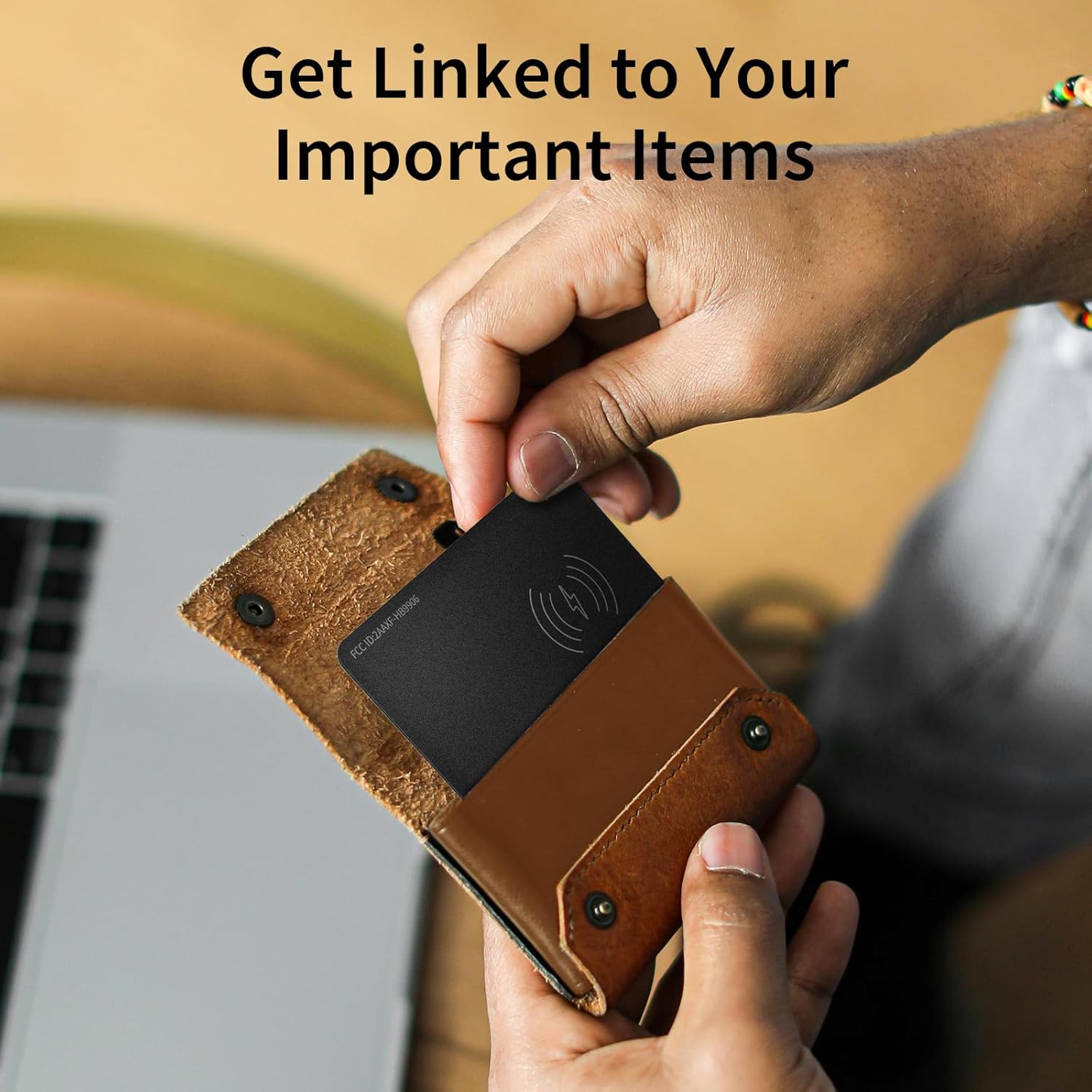
Duab: A hand demonstrating how the slim tracker card fits into a standard wallet, highlighting its compact design.
The WAFTING Wallet Tracker Card is designed to be as thin as a credit card, making it ideal for placement in wallets, purses, or luggage without adding significant bulk. It features wireless charging capability and integrates with Apple's Find My network for global tracking.
Teeb tsa
- Kev them nqi pib: Before first use, fully charge the tracker card. Place the card on any standard wireless charger with the side featuring the wireless icon facing down. A color-changing LED light will indicate charging status. A full charge can last up to 6 months.

Duab: The tracker card placed on a wireless charging pad, illustrating the charging process.
- Pairing with Apple Find My:
- Ensure your iOS device is updated to the latest version.
- Qhib Apple Nrhiav Kuv app ntawm koj lub iPhone lossis iPad.
- Navigate to the "Items" tab and tap the "+" icon to add a new item.
- Follow the on-screen instructions to pair your WAFTING Wallet Tracker Card. The card will be detected automatically when in pairing mode.
- Once paired, you can name your tracker and assign an emoji for easy identification.
Nco tseg: This device is compatible only with iOS devices and the Apple Find My network. Android devices are not supported.

Duab: An iPhone displaying the Apple Find My app interface, showing the tracker card's location and options.
Cov lus qhia ua haujlwm
- Locating Nearby Items (Play Sound): If your item is within Bluetooth range (up to 164 feet), you can trigger the tracker card to emit a loud alarm.
- Qhib Nrhiav Kuv app.
- Select your WAFTING Wallet Tracker Card from the "Items" list.
- Tap "Play Sound" to activate the alarm. The sound will help you pinpoint the item's location, even if it's hidden or covered.

Duab: An iPhone screen displaying the Find My app, with an illustration of sound waves emanating from a wallet, indicating the "Play Sound" feature.
- Left Behind Reminder: Receive instant notifications if you leave your tracked item behind.
- This feature is automatically enabled once paired.
- When the tracker card moves out of your iPhone's Bluetooth range, you will receive a pop-up notification via the Find My app.
- The notification will also show the last known location of your item on the map.

Duab: An iPhone screen showing a "wallet left behind" notification, with people walking away in the background, illustrating the reminder feature.
- Lost Mode (Finding Far Away): If your item is lost outside of your Bluetooth range, you can activate Lost Mode.
- In the Find My app, select your tracker card and activate "Lost Mode."
- You can enter your contact information (phone number or email) so that anyone who finds your item can contact you directly.
- The Find My network, composed of millions of Apple devices worldwide, will anonymously detect your lost item and update its location in your app. You will receive a notification when it's detected.

Duab: An iPhone displaying a map with multiple location pins, representing the global reach of the Apple Find My network for tracking items.
- Kev Tiv Thaiv Tus Kheej: The tracker card itself does not store any personal information. All location data is anonymized and encrypted by the Find My network, ensuring your privacy and data security. There are no monthly fees or subscriptions required to use the WAFTING Wallet Tracker Card.
Kev tu
- Kev them nyiaj yug: Recharge the card wirelessly when the battery is low. A single full charge provides up to 6 months of use. Ensure the wireless charging symbol on the card is facing down on the charging pad.
- Ntxuav: Wipe the card with a soft, dry cloth. Avoid using abrasive cleaners or solvents.
- Cia: Store the card in a cool, dry place when not in use for extended periods.
Kev daws teeb meem
| Teeb meem | Ua Tau | Kev daws |
|---|---|---|
| Card not appearing in Find My app. | Not paired, out of battery, or too far from iOS device during pairing. | Ensure card is charged. Bring card close to your iOS device and attempt pairing again. Verify Bluetooth is enabled on your iOS device. |
| Alarm sound is too low or not playing. | Card is covered, obstructed, or out of Bluetooth range. | Ensure the card is not deeply buried or covered by thick materials. Move closer to the item. Check battery level. |
| "Left Behind" reminder not working. | Bluetooth connection interrupted or feature disabled. | Ensure Bluetooth is active on your iOS device. Check Find My app settings to confirm "Notify When Left Behind" is enabled for the tracker. |
| Inaccurate location in Find My app. | Limited Apple devices in the area, or environmental interference (e.g., metal objects). | Location accuracy relies on the density of Apple devices. In areas with fewer devices, location updates may be less frequent or precise. Metal wallets or cases may interfere with signal. |
| Card seems to turn on/off unexpectedly. | Accidental button press (if applicable, though this model is designed to be button-less for wallet use). | The WAFTING HB12 model is designed without an external button to prevent accidental activation. If experiencing unexpected behavior, ensure the card is not being physically damaged or bent, which could affect internal components. Recharge the device fully. |
Specifications
- Qauv nab npawb: HB 12
- Khoom Dimensions: 3.34"L x 2.12"W x 0.11"Th (8.48 cm x 5.38 cm x 0.28 cm)
- Yam khoom hnyav: 1.41 ooj (40 grams)
- Kev sib txuas: Bluetooth
- Roj teeb: 1 Lithium Ion battery (included, rechargeable)
- Roj teeb lub neej: Txog li 6 lub hlis ntawm kev them nqi tag nrho
- Kev them nyiaj yug: Wireless Charging
- Khoom siv: Acrylonitrile Butadiene Styrene (ABS)
- Xim: Dub
- Compatibility: Apple Find My network (iOS devices only)
- Chaw tsim tshuaj paus: SHENZHEN HOMELEAD ELECTRONICS CO.,LTD.
Warranty thiab Support
The WAFTING Wallet Tracker Card comes with a manufacturer's warranty. For specific warranty terms and conditions, please refer to the documentation included with your product packaging or visit the official WAFTING website. For technical support, troubleshooting assistance beyond this manual, or warranty claims, please contact WAFTING customer service through their official channels. Contact information can typically be found on the product packaging or the brand's official webqhov chaw.