
1. Taw qhia
This manual provides essential information for setting up, operating, maintaining, and troubleshooting your Alienware AW Pro Wireless Gaming Headset. Please read this manual thoroughly before using the product to ensure optimal performance and longevity.

Figure 1: Alienware Pro Wireless Gaming Headset and accessories.
2. Cov ntsiab lus ntawm pob
Xyuas kom tseeb tias txhua yam khoom muaj nyob hauv koj pob:
- Alienware Pro Wireless Headset
- USB-C Wireless Dongle
- USB-A rau USB-C Adapter
- USB-A rau USB-C Cable
- Detachable Boom Mic
- Mic Shield
- Cov ntaub ntawv (cov ntaub ntawv no)
3. Teeb tsa
3.1 Pib Them Nqi
Before first use, fully charge your headset. Connect the provided USB-A to USB-C cable to the headset's USB-C port and a power source. A full charge provides up to 75 hours of battery life via Bluetooth (ANC off) or 70 hours via 2.4GHz (ANC off). A 15-minute rapid charge can provide up to 8 hours of playback (ANC off).
3.2 Txuas Lub Microphone
Insert the detachable boom mic into the designated port on the left earcup. Ensure it is securely connected. The mic shield can be placed over the microphone for reduced plosive sounds.
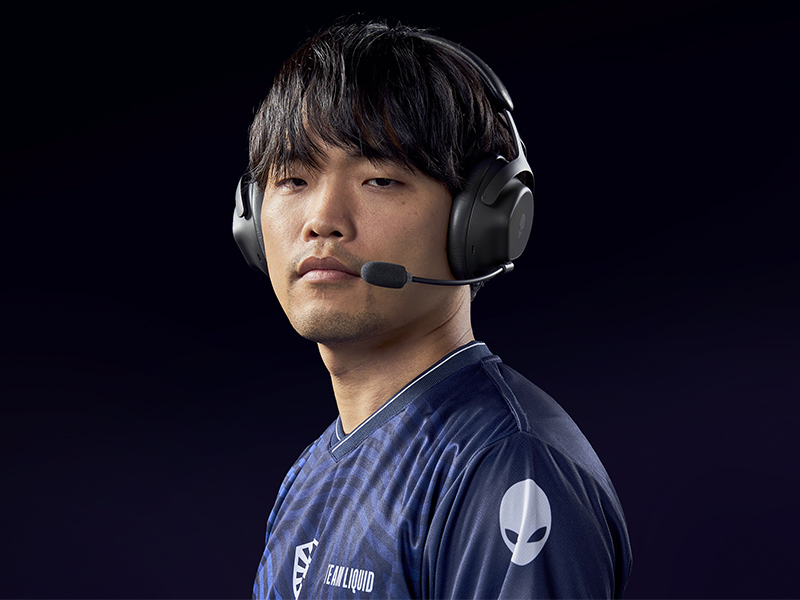
Figure 2: Attaching the detachable boom microphone.
3.3 Kev xaiv kev sib txuas
The headset supports tri-mode connectivity: 2.4GHz wireless, Bluetooth 5.3, and USB wired connection.
3.3.1 Kev Sib Txuas Lus Wireless 2.4GHz
- Insert the USB-C Wireless Dongle into a compatible USB-C port on your device (PC, gaming console). Use the USB-A to USB-C adapter if your device only has USB-A ports.
- Power on the headset. It should automatically connect to the dongle. The LED indicator on the headset will confirm connection.
3.3.2 Bluetooth txuas
- Fais fab tuag rau ntawm pob ntseg.
- Activate Bluetooth pairing mode on the headset (refer to the operating controls section for specific button presses).
- On your device (PC, mobile, etc.), go to Bluetooth settings and select "Alienware Pro Headset" from the list of available devices.
- The headset supports Bluetooth 5.3 with a range of up to 30 meters.
3.3.3 USB Wired Kev Txuas
Connect the headset directly to your device using the USB-A to USB-C cable for a wired audio and charging connection.
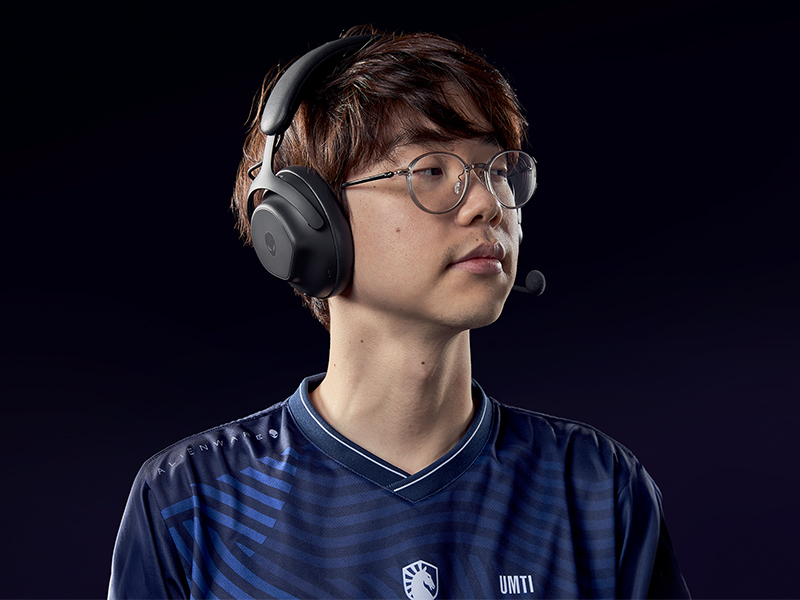
Figure 3: Connectivity options with dongle and adapter.
3.4 Software Installation
For full customization and advanced features, install the Alienware Command Center software on your PC. This software allows you to tailor your sound experience, including Dolby Atmos integration, and manage headset settings.
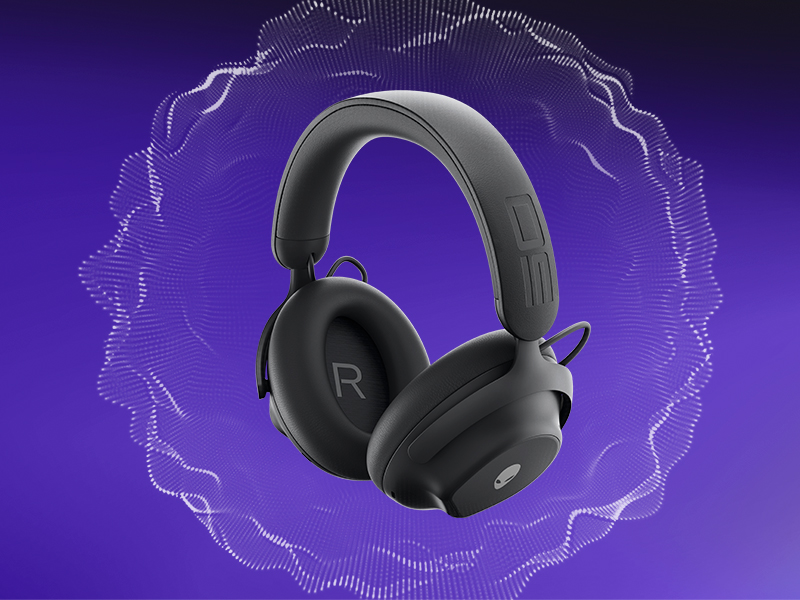
Figure 4: Customizing audio settings via Alienware Command Center.
4. Ua haujlwm lub mloog pob ntseg
4.1 Controls Tshajview
The headset features intuitive controls for power, volume, microphone, and ANC modes. Refer to the product diagram for exact button locations.
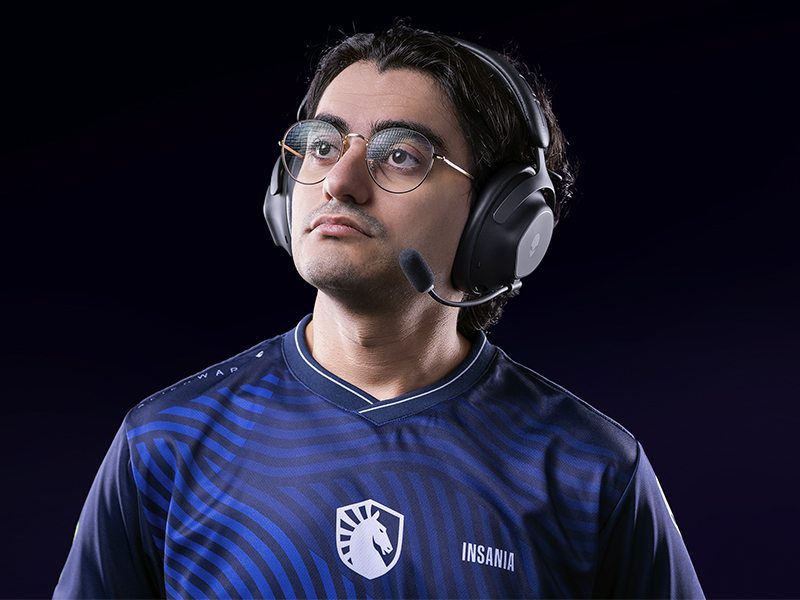
Figure 5: Built-in controls on the headset.
4.2 Suab Nta
4.2.1 50mm Graphene-Coated Drivers
The headset is equipped with 50mm graphene-coated dynamic drivers, providing high-fidelity audio with a frequency response up to 40 KHz for an immersive sound experience.
Video 1: Demonstration of Alienware 50mm Graphene-Coated Drivers technology.
4.2.2 Active Noise Cancellation (ANC)
Engage Active Noise Cancellation to minimize external distractions and maintain focus during gameplay or other activities. The headset features Hybrid Noise Cancellation technology.
Video 2: Explanation of Alienware Active Noise Cancellation feature.
4.2.3 Hom Transparency
Transparency Mode allows you to hear your surroundings without removing the headset, useful for situational awareness.
4.3 Kev siv lub microphone
The two-mic AI Noise Cancellation system focuses on your voice, ensuring clear communication by filtering out background noise. Adjust microphone volume and settings via the Alienware Command Center software.
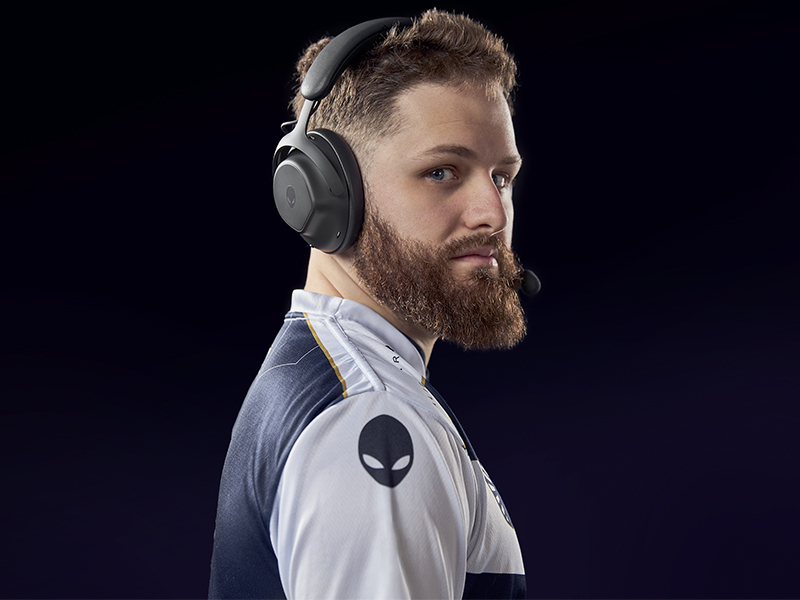
Figure 6: Two-Mic AI Noise Cancellation in action.
5. Kev tu
5.1 Kev ntxuav
To clean your headset, use a soft, dry cloth. Avoid abrasive cleaners, solvents, or harsh chemicals. For earcups, gently wipe with a slightly damp ntaub thiab tso cai rau cua kom qhuav tag ua ntej siv.
5.2 Cia khoom
Store the headset in a cool, dry place away from direct sunlight and extreme temperatures. When not in use, it is recommended to store it in a protective case to prevent damage.
6. Kev daws teeb meem
If you encounter issues with your Alienware Pro Wireless Gaming Headset, refer to the following common solutions:
6.1 No Audio or Intermittent Sound
- Tshawb xyuas kev sib txuas: Ensure the 2.4GHz dongle is properly inserted, or Bluetooth is correctly paired. For wired connection, verify the USB cable is secure.
- Lub zog thiab roj teeb: Confirm the headset is powered on and has sufficient battery charge.
- Volume Levels: Check both the headset's volume control and your device's audio output settings.
- Audio Source: Ensure the correct audio output device is selected on your computer or console.
- Drivers/Software: Update your audio drivers and Alienware Command Center software to the latest version.
6.2 Cov teeb meem microphone
- Kev sib txuas ntawm Microphone: Ensure the detachable boom mic is fully inserted into its port.
- Mute Status: Xyuas seb lub microphone puas tau kaw suab ntawm lub mloog pob ntseg lossis hauv koj lub cuab yeej qhov chaw.
- Ntaus Ntaus: Verify that the Alienware Pro Headset microphone is selected as the default input device in your system's sound settings.
- Software Settings: Adjust microphone sensitivity and AI Noise Cancellation settings within Alienware Command Center.
6.3 Teeb meem kev sib txuas
- Re-pair Bluetooth: If Bluetooth connection is unstable, unpair and re-pair the headset with your device.
- Dongle Re-connection: For 2.4GHz, try unplugging and re-inserting the USB dongle.
- Kev cuam tshuam: Txav deb ntawm lwm yam khoom siv wireless uas yuav ua rau muaj kev cuam tshuam.
- Firmware Hloov Tshiab: Check for and install any available firmware updates for the headset via Alienware Command Center.
7. Cov lus qhia tshwj xeeb
| Feature | Paub meej |
|---|---|
| Qauv Lub Npe | AW Pro Headset |
| Connectivity Technology | Bluetooth / 2.4 GHz radio frequency / USB |
| Wireless Kev Sib Txuas Lus Technology | 2.4GHz, Bluetooth 5.3 |
| Bluetooth Ntau | 30m ua |
| Tsis Siv Neeg Tswj | Hybrid Noise Cancellation |
| Hom Tsav Tsheb | Dynamic Driver (50mm Graphene-Coated) |
| Zaus teb | 40 KHz |
| Roj teeb lub neej | Up to 75 Hours (Bluetooth, ANC off) |
| Them sij hawm | 15 minutes for up to 8 hours playback (ANC off) |
| Microphone | Detachable Boom Mic with 2-Mic AI Noise Cancellation, Beamforming |
| Tshwj xeeb nta | Hearing Protection, Transparency Mode |
| Compatible Devices | Gaming Consoles, Computers, Mobile Devices |
| Yam Nyhav | 11 ooj (312g) |
| Khoom Dimensions | 3.55 x 5.91 x 8.07 po (9.02 x 15.01 x 20.50 cm) |
| UPC | 884116469728 |
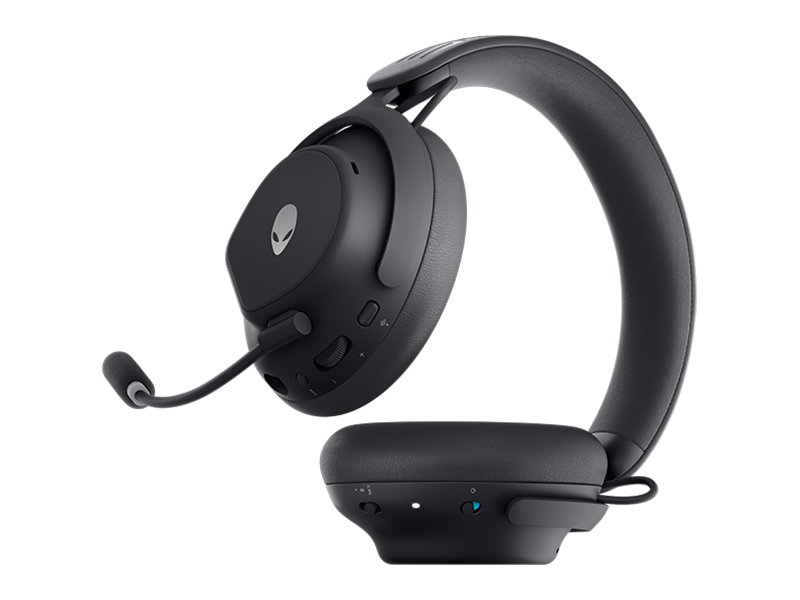
Figure 7: Headset dimensions.
8. Warranty thiab Support
For warranty information, technical support, or further assistance, please visit the official Alienware or Dell support website. You can find drivers, firmware updates, and detailed troubleshooting guides there.
Chaw tsim tshuaj paus: Dell