

1. Taw qhia
This manual provides comprehensive instructions for the safe and effective use of your Pericat PJ108 Projector. Please read this manual thoroughly before operating the device and retain it for future reference.

Image 1.1: The Pericat PJ108 Projector displaying various streaming service icons and a smartphone screen mirroring content. This image illustrates the projector's primary function and connectivity options.
2. Cov ntsiab lus ntawm pob
Xyuas kom tseeb tias txhua yam khoom teev hauv qab no suav nrog hauv koj pob:
- PJ108 Projector (x1)
- HDMI Cable (x1)
- Kev Tswj Chaw Taws Teeb (x1)
- Phau ntawv qhia (x1)
- Cable fais fab (x1)
- AV Cable (x1)
3. Khoom Tshajview
3.1. Dimensions and Portability
The PJ108 projector is designed for portability, featuring compact dimensions of approximately 6.7 x 5.5 x 2.55 inches and a weight of 1.37 pounds.

Image 3.1: A person placing the compact Pericat PJ108 Projector into a handbag, illustrating its small size and portability. The image also shows the projector's approximate dimensions: 7 inches (L), 5.5 inches (W), and 2.7 inches (H).
3.2. Cov Chaw Nkag/Tawm
The projector is equipped with multiple ports for versatile connectivity:
- Chaw nres nkoj HDMI: For connecting devices such as TV sticks, gaming consoles (Xbox, PS3/4/5), PCs, and laptops.
- USB Chaw nres nkoj: Rau kev txuas USB drives mus ua si media files.
- Chaw nres nkoj AV: Txhawm rau txuas cov cuab yeej qub siv AV cable nrog.
- 3.5mm Lub mloog pob ntseg Jack: For connecting external audio devices like headphones or speakers.
- DC HAUV: Fais fab tswv yim chaw nres nkoj.

Duab 3.2: Ib qho ntxaws view of the rear panel of the Pericat PJ108 Projector, highlighting its various connectivity ports including AV, HDMI, USB, and DC IN. This image demonstrates the projector's versatile connection options for different devices.
4. Teeb tsa
4.1. Tso Rau
Position the projector on a stable, flat surface or mount it according to your preference. Ensure there are no obstructions to the air inlets and outlets to prevent overheating.
- Projection nrug: The optimal projection distance ranges from 4.1 feet to 17.5 feet.
- Screen Loj: This distance allows for a display size between 35 inches and 200 inches.
- Ib puag ncig: For best performance, use the projector in a dark environment.
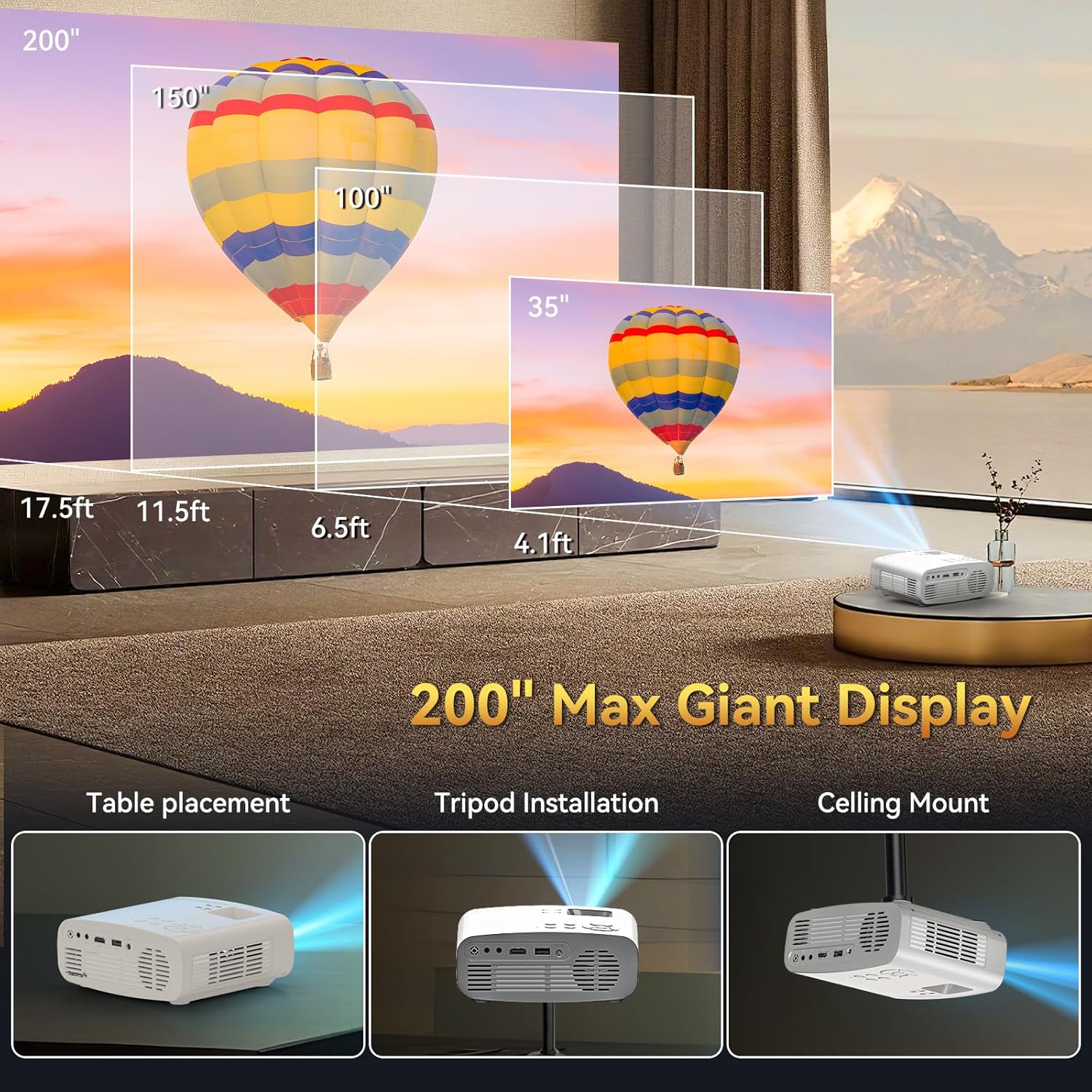
Image 4.1: An illustration demonstrating the flexible projection distances and corresponding screen sizes (35", 100", 150", 200") achievable with the Pericat PJ108 Projector, ranging from 4.1 feet to 17.5 feet. This image also shows different placement options: table, tripod, and ceiling mount.
4.2. Fais fab kev twb kev txuas
- Connect the power cable to the DC IN port on the projector.
- Txuas qhov kawg ntawm lub hwj chim cable rau hauv lub qhov hluav taws xob.
4.3. Kev Kho Kom Pom Tseeb thiab Keystone
Adjust the focus ring on the projector lens until the image is clear. Use the keystone correction feature (usually a dial or digital setting) to correct any trapezoidal distortion, ensuring a rectangular image.
4.4. Kev xaiv Mounting
The projector supports various installation methods:
- Table Placement: Muab lub projector tso rau ntawm qhov chaw tiaj tus.
- Tripod Installation: Mount the projector onto a compatible tripod.
- Qab nthab Mount: Install the projector on the ceiling using a suitable mount (mount not included).

Image 4.2: An illustrative image showcasing the three primary installation methods for the Pericat PJ108 Projector: table placement, tripod installation, and ceiling mount. This highlights the projector's adaptability to different viewhauv ib puag ncig.
5. Cov lus qhia ua haujlwm
5.1. Fais fab / Off
Nias lub pob fais fab ntawm lub projector lossis lub chaw taws teeb tswj kom qhib lossis kaw lub cuab yeej.
5.2. Xaiv qhov chaw
Use the 'Source' button on the projector or remote control to select the desired input source (HDMI, USB, AV, Screen Mirroring).
5.3. Kev sib txuas wireless
5.3.1. Wi-nkaus Kev Txuas
The projector supports dual-band 2.4G and 5G Wi-Fi for stable online video and music streaming. Ensure both your smart device and the projector are connected to the same Wi-Fi network.

Image 5.1: An illustration depicting the Wi-Fi 6 wireless connection capability of the Pericat PJ108 Projector, showing compatibility with Windows, iOS, and Android devices. It also contrasts wired (HDMI/USB) and wireless connection methods.
5.3.2. Kev Txuas Hluav Taws Xob
The projector features Bluetooth 5.3 technology, allowing connection to wireless Bluetooth headsets or speakers for an enhanced audio experience. The built-in 15W speaker provides clear sound quality.

Image 5.2: The Pericat PJ108 Projector positioned among a Bluetooth speaker and wireless headphones, illustrating its Bluetooth 5.3 functionality for connecting to external audio devices.
5.4. Screen Mirroring
The projector supports screen mirroring from smartphones and tablets. However, due to copyright restrictions, direct screen mirroring of content from streaming services like Netflix, Amazon Prime, Disney, and Hulu is not supported. To view content from these platforms, connect a TV stick (e.g., Fire TV Stick) to the projector's HDMI port.

Image 5.3: The Pericat PJ108 Projector connected to a TV stick, displaying a user interface with various streaming applications such as Netflix, Amazon Prime, and Hulu. This image demonstrates how to access copyrighted content via a TV stick.
5.5. Zoom muaj nuj nqi
The projector includes a 50-100% zoom function, allowing you to adjust the screen size without moving the projector. This feature is accessible via the projector's menu or remote control.

Image 5.4: An illustration showing the 50-100% zoom function of the Pericat PJ108 Projector, demonstrating how the projected image size can be adjusted without physically moving the projector.
6. Kev tu
6.1. Kev ntxuav
- Lens: Siv daim ntaub mos mos uas tsis muaj plaub uas tsim tshwj xeeb rau cov tsom iav kom maj mam so lub tsom iav projector. Tsis txhob siv cov khoom siv uas ua rau tawv lossis cov tshuaj lom neeg hnyav.
- Sab nrauv: Clean the projector's exterior with a soft, dry cloth.
- Ntiav: Periodically check and clean the air inlets and outlets to ensure proper ventilation and prevent dust buildup, which can affect performance and lifespan.
6.2. Cia
When not in use, store the projector in a cool, dry place, away from direct sunlight and extreme temperatures. Protect it from dust and moisture.
7. Kev daws teeb meem
7.1. Teeb Meem Kev Sib Txuas Wi-nkaus
- Teeb meem: Projector cannot connect to Wi-Fi.
- Kev daws: Due to potential compatibility issues with the WPA3 protocol, it is recommended to set your router's encryption mode to "WPA2" or "WPA2/WPA3" to ensure a smooth connection.
- Kev daws: Ensure both your smart device and the projector are connected to the same Wi-Fi network.
7.2. Tsis muaj duab lossis duab tsis zoo
- Teeb meem: Tsis muaj duab tso tawm.
- Kev daws: Check power connections and ensure the projector is turned on. Verify the correct input source is selected.
- Teeb meem: Duab plooj.
- Kev daws: Kho lub nplhaib tsom rau ntawm lub lens.
- Teeb meem: Distorted image (trapezoid shape).
- Kev daws: Use the keystone correction feature to adjust the image shape.
- Teeb meem: Image is dim.
- Kev daws: Ensure the projector is used in a dark environment for optimal brightness.
7.3. No Audio
- Teeb meem: No sound from the projector or connected speakers.
- Kev daws: Check the volume settings on the projector and any connected audio devices. Ensure Bluetooth devices are properly paired. If using HDMI, verify the audio output settings on the source device.
7.4. Screen Mirroring Restrictions
- Teeb meem: Cannot mirror copyrighted content from streaming apps (Netflix, Hulu, etc.).
- Kev daws: This is a copyright restriction. To view such content, connect a TV stick (e.g., Fire TV Stick) to the projector's HDMI port.
8. Cov lus qhia tshwj xeeb
| Feature | Specification |
|---|---|
| Hom | Pericat |
| Qauv | PJ 108 |
| Native Resolution | 1920 x 1080 p |
| 4K Txhawb | Yog lawm |
| Qhov sib piv piv | 10000:1 ua |
| Brightness | 150 ANSI Lumens |
| Connectivity Technology | Wi-Fi (2.4G/5G), Bluetooth 5.3, HDMI, USB, 3.5mm Jack, AV |
| Zaub Loj | 35 "-200" |
| Projection nrug | 4.1-17.5 ft |
| Zoom muaj nuj nqi | 50-100% |
| Kho Kom Raug Ntsiab | ± 15 ° Phau ntawv |
| Built-in Speaker | 15 W |
| Khoom Dimensions | 6.7 x 5.5 x 2.55 po |
| Yam Nyhav | 1.37 puj |
9. Warranty thiab Support
Pericat is committed to product quality and customer satisfaction. The PJ108 Projector comes with a lifetime service warranty.
- Kev Pabcuam Cov Neeg Siv Khoom: 24/7 customer service is available to assist with any issues.
- Rov qab: A 30-day no-reason return policy is provided.
- Hloov: A 1-year free replacement policy is offered.
If you encounter any problems, please contact our customer service team for assistance.

Image 9.1: Icons representing Pericat's customer support commitments: 24-hour service, 30-day return policy, 1-year free replacement, and lifetime support.