
1. Taw qhia
The MiBOXER HZ5 5-in-1 LED Controller is a versatile device designed for managing various LED lighting systems. It supports both Zigbee 3.0 and 2.4G wireless communication, offering flexible control for single color, dual white (CCT), RGB, RGBW, and RGB+CCT LED lights. This controller integrates seamlessly with compatible smart home systems and offers precise control over brightness, color, and color temperature.
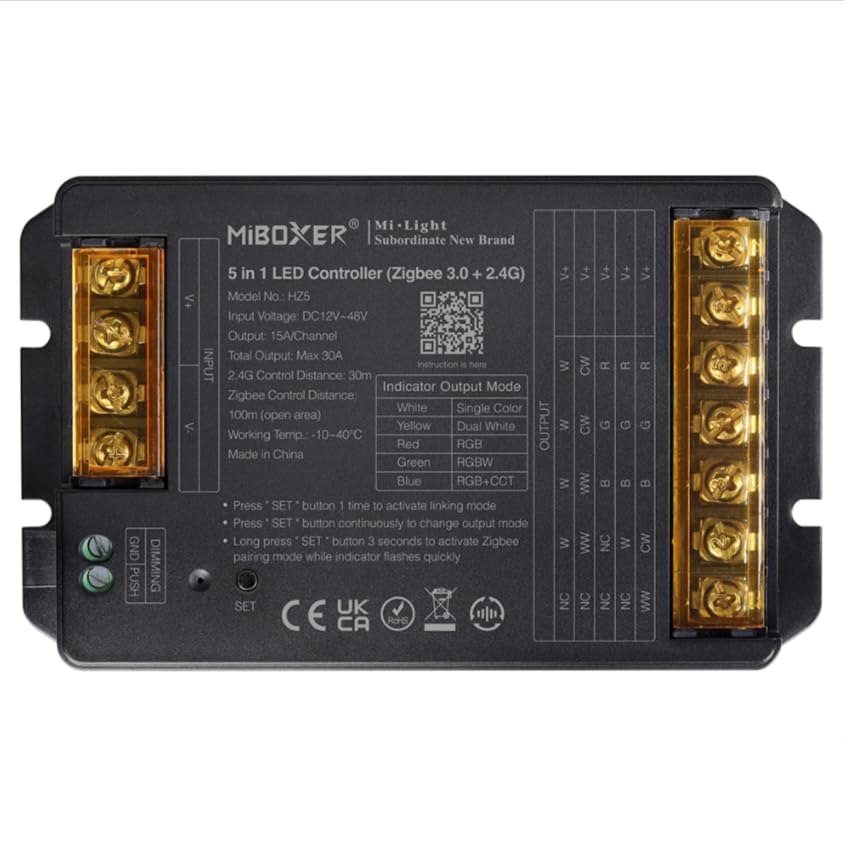
Image 1: MiBOXER HZ5 5-in-1 LED Controller device.
2. Cov ntaub ntawv kev nyab xeeb
- Always disconnect power before installing or performing maintenance on the controller or connected LED strips.
- Xyuas kom cov input voltage (DC12-24V) and output current (Max 6A/Channel, Total Max 12A) ratings are strictly observed to prevent damage to the device or LED strips.
- Do not expose the controller to moisture, water, or extreme temperatures (-10~40°C).
- Cov cuab yeej no yog npaj rau kev siv sab hauv tsev nkaus xwb.
- Yog tias koj tsis paub meej txog cov kauj ruam teeb tsa, nrog ib tus kws hluav taws xob uas tsim nyog tham.
3. Khoom Nta
- Zigbee 3.0 Standard Protocol: Ensures broad compatibility with Zigbee-enabled smart home hubs.
- 5-hauv-1 Kev Sib Tw: Supports single color, dual white (CCT), RGB, RGBW, and RGB+CCT LED lights.
- Extensive Color Control: Offers 16 million colors adjustable, saturation adjustable, and color temperature adjustable.
- PUSH Dimming Support: Allows for simple brightness adjustment using a push switch.
- Hom Dynamic: Built-in 18 dynamic modes with jumping and gradually changing effects (for 2.4G remote control).
- 2.4G Wireless Technology: Provides stable control with a range of up to 30 meters.
- App and Voice Control: Compatible with smart apps and voice assistants like Alexa and Google Assistant.
4. Kev teeb tsa thiab kev teeb tsa
4.1 Cov lus qhia txuas
Proper wiring is crucial for the correct operation of the LED controller. Refer to the diagrams below for different LED strip configurations. Always ensure power is disconnected before making any connections.
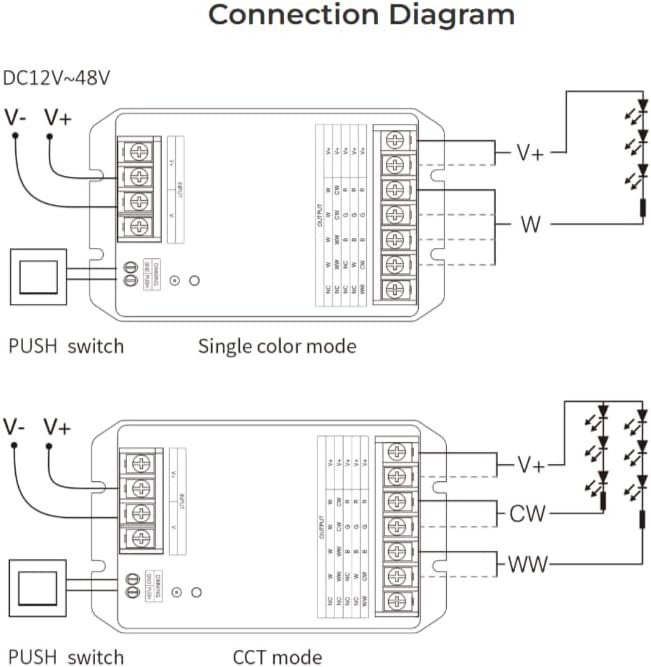
Image 2: Wiring diagrams for Single Color and CCT (Dual White) LED strips. Connect the V+ and V- terminals for power input. For Single Color, connect the LED strip's positive to V+ and negative to W. For CCT, connect the LED strip's positive to V+, warm white to WW, and cool white to CW.

Image 3: Wiring diagrams for RGB, RGBW, and RGB+CCT LED strips. Connect the V+ and V- terminals for power input. For RGB, connect the LED strip's positive to V+, Red to R, Green to G, and Blue to B. For RGBW, add the White channel to W. For RGB+CCT, add Warm White to WW and Cool White to CW.
4.2 Pairing and App Integration
The HZ5 controller supports both 2.4G remote control and smart app integration via Zigbee 3.0. To pair the device with a remote or app, follow these steps:
- Fais fab ntawm lub cuab yeej.
- Activate Linking Mode: Press the 'SET' button on the controller once to activate linking mode. The indicator light will flash.
- Activate WiFi Pairing Mode: For app control, long press the 'SET' button for 3 seconds. The indicator light will flash quickly, indicating it's ready for WiFi pairing.
- Kev teeb tsa App: Open your compatible smart home app (e.g., MiBoxer Smart app), select 'Add Device', and follow the on-screen instructions to discover and add the controller. Ensure Bluetooth is enabled on your phone for easier device discovery.
Video 1: This video demonstrates the wiring instructions for a MiBOXER controller, which is applicable to the HZ5 model for proper connection of LED strips.

Image 4: Example of the mobile application interface for controlling LED lighting, showing color selection and brightness adjustment.

Image 5: The MiBOXER HZ5 controller is compatible with popular voice assistants such as Amazon Alexa and Google Assistant for convenient hands-free operation.
5. Cov lus qhia ua haujlwm
5.1 Switching Output Modes
The HZ5 controller can operate in different output modes depending on the connected LED strip type. The indicator light on the controller changes color to show the current output mode:
- Liab: RGB hom
- Ntsuab: RGBW hom
- Xiav: RGB+CCT mode
- Daj: Single Color mode
- Phaib: Dual White (CCT) mode
To change the output mode, press the 'SET' button continuously until the desired indicator color is displayed.
5.2 Tswj ntawm App
Once paired with the smart app, you can control your LED lighting with various functions:
- Xim xaiv: Use the color wheel to choose from 16 million colors.
- Kev hloov Brightness: Adjust the brightness level from 1% to 100%.
- Xim kub: For CCT and RGB+CCT strips, adjust the color temperature from warm white to cool white.
- Dynamic Scenes: Select from pre-programmed dynamic modes or create custom scenes.
- Music Sync: Some apps may offer music synchronization features.
- Teem sijhawm: Set timers and schedules for automatic on/off or scene changes.
Video 2: This video demonstrates app control for a similar 5-in-1 LED strip controller (WL5), showcasing color, brightness, and scene adjustments. The functionality is comparable to the HZ5 model.
Video 3: Another demonstration of app control for a MiBOXER 5-in-1 LED strip controller (WL5), highlighting various color and mode selections. This provides a visual guide to the HZ5's app capabilities.
6. Kev tu
- Ntxuav: Use a soft, dry cloth to clean the controller. Do not use harsh chemicals or abrasive cleaners.
- Cia: Khaws lub maub los rau hauv qhov chaw txias, qhuav kom deb ntawm tshav ntuj ncaj qha thiab qhov kub thiab txias heev thaum tsis siv ntev.
- Hloov tshiab Firmware: Periodically check the MiBOXER app for any available firmware updates to ensure optimal performance and access to new features.
7. Kev daws teeb meem
- Tsis muaj zog: Ensure the power adapter is correctly connected and providing the specified DC12-24V. Check all wiring connections.
- LEDs tsis teb: Verify that the LED strip is correctly wired to the controller according to the specific mode (Single Color, CCT, RGB, RGBW, RGB+CCT). Check if the correct output mode is selected on the controller.
- Pairing Issues: If the controller fails to pair with the app or remote, ensure the device is in the correct pairing mode (single press for linking, long press for WiFi pairing). Try resetting the controller by disconnecting and reconnecting power, then re-attempt pairing.
- Kev Tswj Xyuas Tsis Tu Ncua: Check for potential interference from other 2.4G devices. Ensure the controller is within the 30-meter control distance from the remote or WiFi router.
- Incorrect Colors: If RGB/RGBW/RGB+CCT colors are incorrect, double-check the wiring of the R, G, B, W, CW, WW channels to ensure they match the LED strip's configuration.
8. Cov lus qhia tshwj xeeb
| Feature | Paub meej |
|---|---|
| Qauv nab npawb | HWV 5 |
| Cov lus qhia Voltage | DC12-24V |
| Tso zis tam sim no | 6A/Channel |
| Tag nrho cov zis | Max 12A |
| Control Distance (2.4G) | 30m ua |
| Ua haujlwm kub | -10 ~ 40 ° C |
| Qhov Loj (L x W x H) | 134mm x 81mm x 24mm (kwv yees) |
| Yam Nyhav | 6.2 hli |

Image 6: Technical drawing showing the dimensions of the MiBOXER HZ5 controller.
9. Warranty thiab Support
This product is typically covered by a standard manufacturer's warranty against defects in materials and workmanship. Please refer to your purchase documentation or contact the retailer for specific warranty terms and duration.
For technical support, troubleshooting assistance, or further inquiries, please contact MiBOXER customer service or visit their official webqhov chaw. Khaws koj daim ntawv yuav khoom ua pov thawj ntawm kev yuav khoom rau kev lees paub.