
Taw qhia
This manual provides detailed instructions for the JZK Voice Remote Control, designed as a replacement or secondary remote for NVIDIA Shield TV Pro models from 2015, 2017, and 2019. This remote features voice search capabilities and an ergonomic design for comfortable use. Please read this manual thoroughly before operating your device.
Ntim Cov Ntsiab Lus
Xyuas kom tseeb tias txhua yam khoom muaj nyob hauv koj pob:
- 1 x JZK Voice Remote Control
- 1 x Phau Ntawv Qhia Siv (Daim ntawv no)
Note: 2x AAA batteries are required and are not included in the package.

Image: Contents of the JZK remote control package, including the remote and a small user guide.
Teeb tsa
1. Kev teeb tsa roj teeb
- Nrhiav lub roj teeb hauv qab ntawm lub chaw taws teeb tswj.
- Xaub lub roj teeb npog cia kom qhib nws.
- Insert two (2) AAA batteries, ensuring the correct polarity (+ and -) as indicated inside the compartment.
- Xaub lub roj teeb npog rov qab rau hauv qhov chaw kom txog thaum nws nyem ruaj ntseg.

Image: The remote control with its battery cover removed, illustrating where to insert two AAA batteries.
2. Pairing lub chaw taws teeb tswj
The remote control uses an infrared connection. For initial setup or re-pairing, follow these steps:
- Ensure your NVIDIA Shield TV is powered on and within 1 foot (approx. 30 cm) of the remote control.
- On your NVIDIA Shield TV, navigate to Settings > Device Preferences > Remotes & Accessories.
- Nias thiab tuav lub Rov qab khawm thiab lub Tsev button simultaneously on the JZK remote control until the remote's indicator light begins to flash.
- The NVIDIA Shield TV should detect the new remote. Select it from the list of available devices to complete the pairing process.
- Once paired, the remote's light will stop flashing, and you can begin using it.
If pairing fails, ensure the batteries are correctly installed and charged, and try the process again. You may also need to restart your NVIDIA Shield TV.
Cov lus qhia ua haujlwm
Paub koj tus kheej nrog cov nyees khawm thiab lawv cov haujlwm:

Image: Detailed button layout of the JZK remote control with labels for each function.
| Tsis muaj. | Khawm | Muaj nuj nqi |
|---|---|---|
| 1 | Built-in Microphone | Used for Voice Search commands. |
| 2 | Hwj chim | Turns the NVIDIA Shield TV on or off. |
| 3 | Chaw | Accesses the NVIDIA Shield TV settings menu. (Customizable in Settings > Devices & Accessories > Customize Settings button) |
| 4 | Ntiv Nplhaib | Navigates menus: Up, Down, Right, Left. |
| 5 | Select (OK) | Confirms selections or opens items. |
| 6 | Rov qab | Rov qab mus rau qhov screen dhau los lossis ntawv qhia zaub mov. |
| 7 | Tsev | Rov qab mus rau qhov screen tsev tseem ceeb. |
| 8 | Fast-Forward | Skips forward in media playback. |
| 9 | Ua si / Pause | Ua si lossis nres qhov kev ua si xov xwm. |
| 10 | Rov qab | Skips backward in media playback. |
| 11 | Suab Nrhiav | Activates voice command input. Press and hold, then speak your command. |
| 12 | Nce ntim | Ua kom lub ntim. |
| 13 | Txo qhov ntim | Txo qhov ntim. |
| 14 | Qhib Netflix | Directly launches the Netflix application. |
Using Voice Search
The voice search feature allows for quick navigation and content discovery. To use it:
- Nias thiab tuav lub Suab Nrhiav khawm (11).
- Speak your command clearly into the built-in microphone (1). For example, say "Open YouTube," "Find action movies," or "Adjust volume."
- Tso lub Suab Nrhiav button when you are finished speaking.
Kev tu
Kev Ntxuav Lub Chaw Tswj Xyuas
Yuav ntxuav qhov chaw taws teeb tswj, siv daim ntaub mos mos thiab qhuav. Yog tias muaj av qias neeg, me ntsis dampen the cloth with water or a mild, non-abrasive cleaner. Avoid using harsh chemicals or solvents, as these can damage the remote's surface or internal components.
Hloov roj teeb
When the remote's performance degrades or it becomes unresponsive, it's time to replace the batteries. Follow the battery installation steps outlined in the Teeb tsa section. Always replace both AAA batteries at the same time with new ones.
Kev daws teeb meem
If you encounter issues with your JZK Voice Remote Control, refer to the following common problems and solutions:
| Teeb meem | Ua Tau | Kev daws |
|---|---|---|
| Remote is unresponsive. | Low or dead batteries. Incorrect battery installation. Remote not paired. Obstruction between remote and Shield TV. | Replace batteries. Check battery polarity. Re-pair the remote (see Setup section). Ensure clear line of sight to Shield TV. |
| Voice Search not working. | Microphone blocked. Remote not properly paired for voice functions. Software glitch. | Ensure microphone is clear. Re-pair the remote. Restart NVIDIA Shield TV. |
| Buttons are sticky or not registering presses. | Av lossis cov khib nyiab hauv qab cov nyees khawm. | Ntxuav lub chaw taws teeb (saib ntu Kev Txij Nkawm). |
| Remote disconnects frequently. | Interference. Low batteries. | Ensure no strong interference sources nearby. Replace batteries. Re-pair the remote. |
Specifications
| Feature | Paub meej |
|---|---|
| Hom | JZK |
| Qauv Compatibility | NVIDIA Shield TV Pro (2015, 2017, 2019 models), NVIDIA Shield TV Cube (2019) |
| Hom kev sib txuas | Infrared (IR) |
| Hwj chim Source | 2 x AAA Alkaline Roj Teeb (tsis suav nrog) |
| Tshwj xeeb nta | Voice Search, Ergonomic Design, Dedicated Netflix Button |
| Khoom siv | ABS ruaj khov |
| Xim | Dub / Dawb |
| Qhov Loj (L x W x H) | Kwv yees li. 16.8 x 6 x 2.6 cm (6.6 x 2.4 x 1.0 nti) |
| Qhov hnyav | Kwv yees li. 60 grams (2.1 ooj) |

Image: Dimensions of the JZK remote control, indicating its length, width, and thickness.
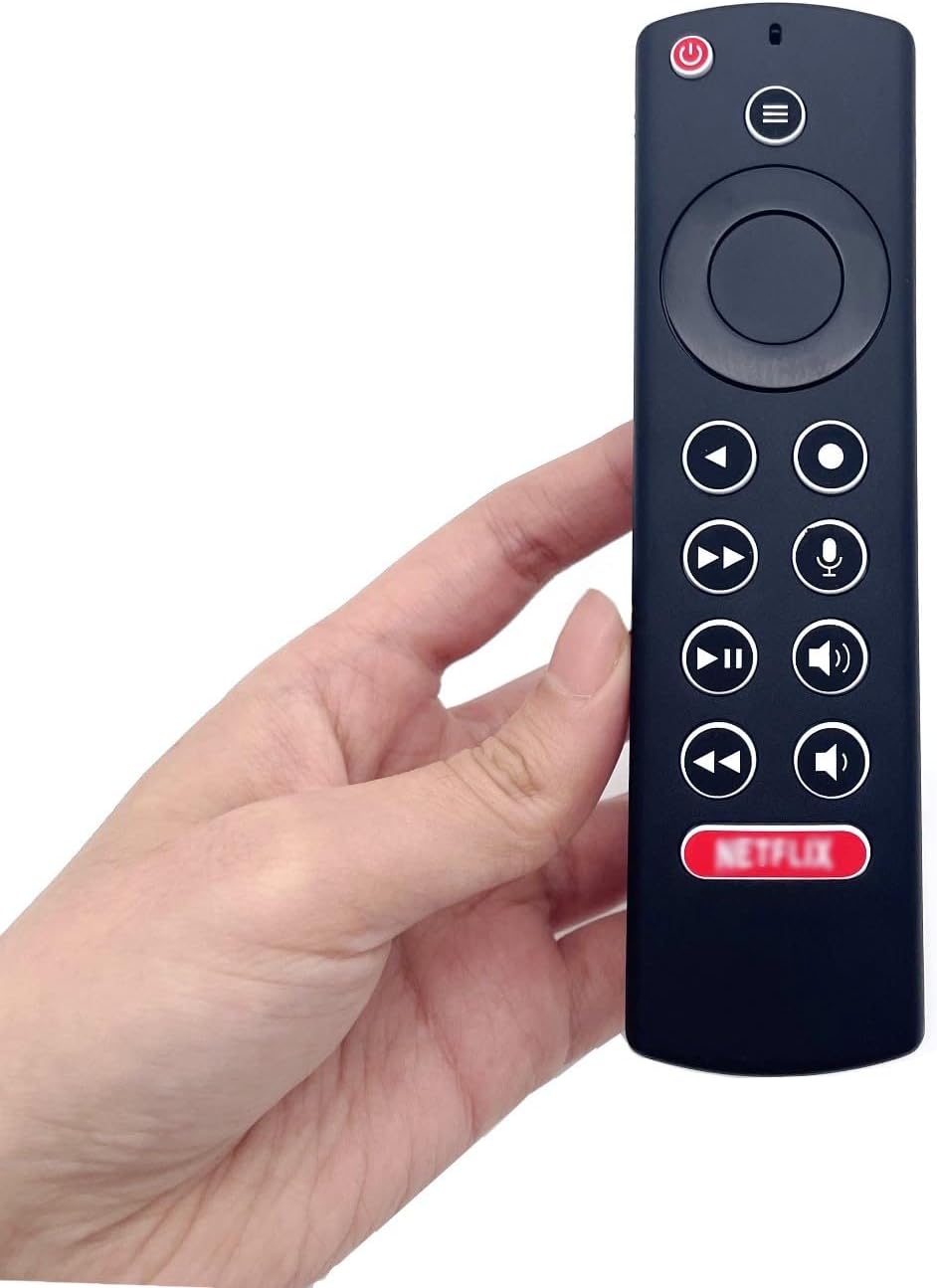
Image: The JZK remote control held in a hand, highlighting its comfortable and ergonomic design.
Warranty Information
Specific warranty details for this JZK product are not provided in the product description. Please refer to the retailer's return policy or contact JZK customer support for information regarding warranty coverage and terms.
Txhawb nqa
For further assistance, troubleshooting, or inquiries about your JZK Voice Remote Control, please contact the retailer where you purchased the product or refer to the official JZK website rau cov neeg siv khoom txhawb kev xaiv.