1. Taw qhia
Thank you for choosing the TECPHILE K936 Wireless Keyboard and Mouse Combo. This product is designed to provide versatile and efficient input for multiple devices, featuring both Bluetooth 5.0 and 2.4GHz USB connectivity. This manual will guide you through the setup, operation, and maintenance of your new keyboard and mouse.
2. Cov ntsiab lus ntawm pob
- TECPHILE K936 Wireless Keyboard
- TECPHILE Wireless Mouse
- USB Receiver (stored in the mouse battery compartment)
- USB-C Charging Cable
- Keyboard Protective Cover
- Cov neeg siv phau ntawv
3. Khoom Tshajview
Familiarize yourself with the components of your TECPHILE K936 Wireless Keyboard and Mouse Combo.

Duab 3.1: The TECPHILE K936 Wireless Keyboard and Mouse Combo in Grey. The keyboard features a full layout with a numeric keypad, and the mouse is a compact, ergonomic design.

Duab 3.2: Diagram showing the dimensions of the keyboard (368mm x 121mm) and mouse (110mm x 63mm x 30mm).
Keyboard Features:
- Multi-device connectivity: 3 x Bluetooth 5.0, 1 x 2.4GHz USB
- Dedicated function keys (F1-F12) with multimedia controls
- Rechargeable 300mAh lithium roj teeb
- Type-C charging port
- Automatic sleep mode for power saving
- Scissor-leg key structure for comfortable typing
- Transparent protective cover included
Nta:
- Dual-mode connectivity: 1 x Bluetooth, 1 x 2.4GHz USB
- Optical movement detection technology
- Ambidextrous tsim
- Quiet click buttons
4. Teeb tsa
4.1 Pib Them Nqi
Before first use, fully charge both the keyboard and mouse. Connect the provided USB-C charging cable to the charging port on the keyboard and mouse, and the other end to a 5V/1A power adapter (not included) or a computer USB port. The charging indicator light will show charging status and turn off when fully charged.
Note: Only use a 5V/1 Amp power adapter for charging to ensure optimal battery life.

Duab 4.1: Illustration of the keyboard's battery specifications: 2-4 hours charging time, 300mAh battery capacity, and up to 180 days standby time.
4.2 Txuas lub Keyboard
The keyboard supports up to three Bluetooth connections and one 2.4GHz USB connection.

Duab 4.2: Diagram illustrating the keyboard's ability to connect to multiple devices via Bluetooth (3 channels) and 2.4GHz USB.
2.4GHz USB Connection:
- Locate the USB receiver inside the mouse's battery compartment.
- Txuas USB receiver rau hauv ib qho chaw nres nkoj USB uas muaj nyob hauv koj lub computer lossis ntaus ntawv.
- Turn on the keyboard. The keyboard should automatically connect.
Kev Txuas Bluetooth (BT1, BT2, BT3):
- Qhib lub keyboard.
- Nias thiab tuav lub Fn key and one of the Bluetooth keys (SIB 1, SIB 2, los yog SIB 3) for 3-5 seconds until the corresponding indicator light flashes rapidly. This indicates pairing mode.
- Ntawm koj lub cuab yeej (lub computer, ntsiav tshuaj, smartphone), mus rau Bluetooth nqis thiab nrhiav cov khoom siv tshiab.
- Select "TECPHILE Keyboard" from the list of available devices to pair.
- Thaum twg txuas ua ke lawm, lub teeb qhia yuav tsum tsis txhob ntsais thiab tseem nyob ruaj khov rau ob peb feeb ua ntej tua.
- Repeat for other Bluetooth channels to connect to additional devices.
4.3 Txuas tus nas
The mouse supports one Bluetooth connection and one 2.4GHz USB connection.
2.4GHz USB Connection:
- Ensure the USB receiver is plugged into your device.
- Switch the mouse to 2.4GHz mode using the switch on the bottom of the mouse.
- Tus nas yuav tsum tau txuas.
Bluetooth Kev Txuas:
- Switch the mouse to Bluetooth mode using the switch on the bottom of the mouse.
- Press and hold the Bluetooth pairing button on the bottom of the mouse for 3-5 seconds until the indicator light flashes.
- On your device, go to Bluetooth settings and search for new devices.
- Select "TECPHILE Mouse" from the list to pair.
5. Cov lus qhia ua haujlwm
5.1 Switching Between Devices (Keyboard)
To switch between connected devices on the keyboard, simply press the Fn key along with the corresponding connection key (SIB 1, SIB 2, SIB 3, los yog 2.4g ua for USB). The keyboard will switch to the selected device instantly.
5.2 Switching Between Devices (Mouse)
To switch between 2.4GHz USB and Bluetooth modes on the mouse, use the toggle switch located on the bottom of the mouse.
5.3 Function Keys (Keyboard)
The keyboard features dedicated function keys (F1-F12) that can be used in conjunction with the Fn key for various multimedia and system controls.
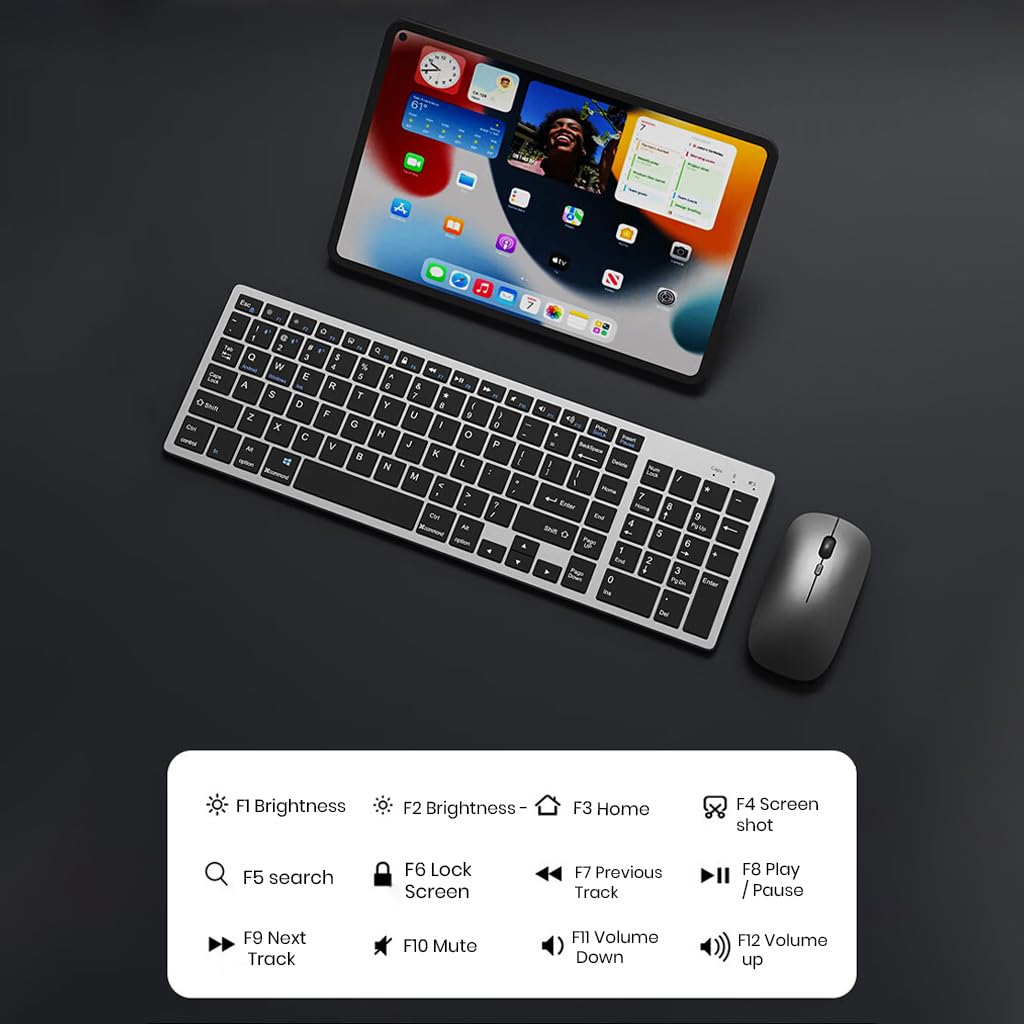
Duab 5.1: The keyboard displaying its function keys and their associated actions, such as brightness control, home, screen shot, search, lock screen, media playback, and volume control.
- Fn + F1: Brightness nqes
- Fn + F2: Brightness Up
- Fn + F3: Tsev
- Fn + F4: Screenshot
- Fn + F5: Nrhiav
- Fn + F6: Xauv npo
- Fn + F7: Yav dhau los Track
- Fn + F8: Ua si / Pause
- Fn + F9: Next Track
- Fn + F10: Ntshai
- Fn + F11: Volume Down
- Fn + F12: Volume Up
5.4 Hom Txuag Lub Zog
The keyboard and mouse are equipped with an automatic sleep mode to conserve battery life. If inactive for 10 minutes, the devices will enter sleep mode. To wake them up, simply press any key on the keyboard or move/click the mouse.

Duab 5.2: Diagram illustrating the auto-sleep mode and how to reactivate the keyboard and mouse by pressing any key.
6. Kev tu
- Ntxuav: Siv daim ntaub mos mos thiab qhuav los ntxuav lub keyboard thiab nas. Yog tias muaj av qias neeg, siv ib daim ntaub mos mos los so.amp siv tau daim ntaub, kom ntseeg tau tias tsis muaj kua nkag mus rau hauv lub cuab yeej.
- Kev tiv thaiv npog: Utilize the included transparent protective cover for the keyboard to guard against dust and accidental spills.
- Cia: Khaws cov khoom siv rau hauv qhov chaw txias, qhuav kom deb ntawm tshav ntuj ncaj qha thiab qhov kub thiab txias.
- Kev them nyiaj yug: Always use a 5V/1A power adapter for charging to prevent damage and ensure battery longevity.

Duab 6.1: The keyboard shown with its transparent protective keyskin, designed to prevent dust and spills.
7. Kev daws teeb meem
| Teeb meem | Ua Tau | Kev daws |
|---|---|---|
| Keyboard/Mouse not connecting via 2.4GHz USB. | USB receiver not properly inserted, low battery, incorrect mode selected. |
|
| Keyboard/Mouse not connecting via Bluetooth. | Not in pairing mode, device's Bluetooth is off, already connected to max devices, low battery. |
|
| Kev sib txuas qeeb lossis tsis tu ncua. | Interference, distance from receiver/device, low battery. |
|
| Keyboard keys not responding. | Low battery, device in sleep mode, connection issue. |
|
8. Cov lus qhia tshwj xeeb
| Feature | Paub meej |
|---|---|
| Hom | TECPHILE |
| Qauv | k936 ua |
| Connectivity Technology | Keyboard: 3 x Bluetooth 5.0, 1 x 2.4GHz USB; Mouse: 1 x Bluetooth, 1 x 2.4GHz USB |
| Compatible Devices | Laptop, Computer Tus Kheej, Smartphone, Tablet |
| Kev Ua Haujlwm | Android, iOS, Windows, macOS |
| Keyboard Roj teeb | 300mAh Lithium Ion (Tau Rov Qab Siv Dua) |
| Charging Chaw nres nkoj | USB Hom-C |
| Them sij hawm | 2-4 teev (kwv yees) |
| Standby Sijhawm | Txog li 180 hnub |
| Qhov Loj ntawm Keyboard (LxWxH) | 36 x 13 x 1.5 cm |
| Mouse Dimensions (LxWxH) | 11 x 6.3 x 3 cm (kwv.) |
| Yam Nyhav | 661 g (combo) |
| Movement Detection Technology | Kho qhov muag |
| Tes Orientation | Ambidextrous |
9. Warranty thiab Support
TECPHILE products come with a standard warranty. For warranty claims, technical support, or any product-related inquiries, please contact TECPHILE customer service through the retailer where the product was purchased or visit the official TECPHILE website rau cov ntaub ntawv tiv tauj.
Thov khaws koj cov ntaub ntawv pov thawj ntawm kev yuav khoom rau lub hom phiaj warranty.
Manufacturer/Importer: TECPHILE, 2nd Floor, A36, Block B, Naraina Industrial Area Phase 2, Naraina, New Delhi, Delhi, 110028