
Taw qhia
This manual provides comprehensive instructions for the TKOWTB MK321U Programmable Macro Mini Keyboard. Please read this manual carefully before using the product to ensure proper operation and to maximize its functionality. This device is designed to enhance your computing experience through customizable key functions for various applications, including gaming, multimedia control, and office tasks.
Khoom nta
- Programmable Keys: Customize button functions for keyboard, mouse, multimedia, character strings, game functions, and macro definitions.
- Mechanical Switches: Features strong tactile feedback and crisp sound for a comfortable typing experience.
- Ergonomic Tsim: Button curves are designed for comfortable use.
- Anti-slip Pads: Equipped with anti-slip pads on the bottom to prevent movement during use.
- Daim ntawv thov dav: Suitable for various uses including office work, gaming, and multimedia control.
- System Compatibility: Key definition setting software is system-based and can be used across various operating systems after initial setup.
Ntim Cov Ntsiab Lus
Thov saib cov khoom hauv pob khoom thaum qhib lub thawv. Yog tias muaj tej yam khoom ploj lawm los yog puas lawm, hu rau kev pabcuam rau cov neeg siv khoom.
- 1 x TKOWTB MK321U Mini Keyboard
- 1 x USB Cable (Hom-C)

Image: The TKOWTB MK321U Mini Keyboard shown with its included USB cable. The keyboard features three large, white mechanical keys and a Type-C port for connection.
Teeb cov lus qhia
- Txuas lub Keyboard: Insert the Type-C end of the provided USB cable into the port on the mini keyboard.
- Txuas rau Computer: Plug the standard USB-A end of the cable into an available USB port on your computer.
- Installation tsav tsheb: The keyboard is typically plug-and-play. Your operating system should automatically detect and install the necessary drivers.
- Software Installation (for Programming): To customize key functions, you will need to download and install the dedicated key definition setting software from the manufacturer's official website. (Note: For Linux or macOS users, initial setup and programming must be done on a compatible system, then the device can be used on your preferred OS.)

Image: Ib qho kev sib ze view of the TKOWTB MK321U Mini Keyboard's ports, showing the Type-C input and an adjacent switch. This illustrates where to connect the USB cable for power and data transfer.
Cov lus qhia ua haujlwm
Kev ua haujlwm yooj yim
Once connected, the mini keyboard will function according to its default settings or previously programmed configurations. Pressing a key will execute its assigned function.
Programming Key Functions
The primary feature of the MK321U is its programmability. Follow these steps to customize key functions:
- Download tau Software: Obtain the key definition setting software from the official TKOWTB webqhov chaw.
- Nruab Software: Follow the on-screen instructions to install the software on your computer.
- Launch Software: Open the installed programming software.
- Txuas Keyboard: Ensure your MK321U keyboard is connected to the computer. The software should detect the device.
- Xaiv tus yuam sij: Hauv qhov interface ntawm software, xaiv tus yuam sij uas koj xav kom program.
- Assign Function: Choose from the available function types:
- Keyboard Function: Assign standard keyboard keys (e.g., A, Ctrl, Shift, Enter).
- Kev Ua Haujlwm ntawm Nas: Assign mouse clicks (left, right, middle), scroll up/down, etc.
- Multimedia Function: Assign media controls (e.g., Play/Pause, Volume Up/Down, Mute).
- Character String Function: Assign a sequence of characters to be typed with a single press.
- Game Function: Assign specific game commands.
- Macro Definition Function: Record and assign a complex sequence of key presses and delays.
- Txuag Configuration: After assigning functions, save the configuration to the keyboard's onboard memory. This allows the settings to persist even when connected to different computers without the software.

Image: The TKOWTB MK321U Mini Keyboard with graphical overlays indicating its key features: good-quality material, multifunctional use, and ease of use. A prominent note highlights that all keys are programmable.

Image: A hand interacting with the TKOWTB MK321U Mini Keyboard, emphasizing its standard as a mini keyboard. Icons illustrate its sensitive switches, smooth linear typing experience, and lower sound profile.
Kev tu
Proper maintenance ensures the longevity and optimal performance of your mini keyboard.
- Ntxuav: Use a soft, dry cloth to wipe the surface of the keyboard. For stubborn dirt, slightly dampen daim ntaub nrog dej los yog tshuaj ntxuav me me. Tsis txhob ntub dej ntau dhau.
- Tsis txhob ua kua: Do not spill liquids directly onto the keyboard. If liquid contact occurs, immediately disconnect the keyboard and allow it to dry completely before reconnecting.
- Cia: Khaws cov keyboard rau hauv qhov chaw txias, qhuav kom deb ntawm tshav ntuj ncaj qha thiab kub heev.
- Handle nrog Care: Tsis txhob poob los yog ua rau lub keyboard raug kev cuam tshuam loj heev.
Kev daws teeb meem
If you encounter issues with your TKOWTB MK321U, refer to the following common problems and solutions:
- Keyboard tsis teb:
- Xyuas kom tseeb tias USB cable txuas ruaj ntseg rau ob lub keyboard thiab lub computer.
- Sim txuas cov keyboard mus rau lwm qhov chaw nres nkoj USB ntawm koj lub computer.
- Sim cov keyboard ntawm lwm lub computer kom tsis txhob muaj teeb meem tshwj xeeb ntawm lub system.
- Restart koj lub computer.
- Keys Not Performing Assigned Functions:
- Verify that the key definition setting software was used to save the configuration to the keyboard.
- Ensure the software is up-to-date.
- If using on Linux or macOS, confirm that the programming was done on a compatible Windows system first.
- Try resetting the keyboard to factory defaults via the software and reprogram the keys.
- Software Tsis Pom Cov Keyboard:
- Make sure the keyboard is properly connected via USB.
- Close and reopen the programming software.
- Reinstall the programming software.
- Check your computer's device manager to see if the keyboard is recognized.
Specifications
| Hom | TKOWTB |
| Qauv Lub Npe | MK321U (500757523) |
| Xim | Dawb |
| Khoom siv | Yas |
| Khoom Dimensions | 3.15 x 2.36 x 1.57 po (8 x 6 x 4 cm) |
| Yam Nyhav | 2.47 ooj (70 grams) |
| Kev sib txuas | USB Hom-C |
| Programmability | All keys programmable via dedicated software |

Image: A close-up of the TKOWTB MK321U Mini Keyboard next to a laptop, highlighting its Type-C charging port and rechargeable design, indicating modern connectivity and power options.

Image: A collage showing the TKOWTB MK321U Mini Keyboard being used in different environments: an office setting, a laboratory, and a gaming setup, demonstrating its wide scope of application.
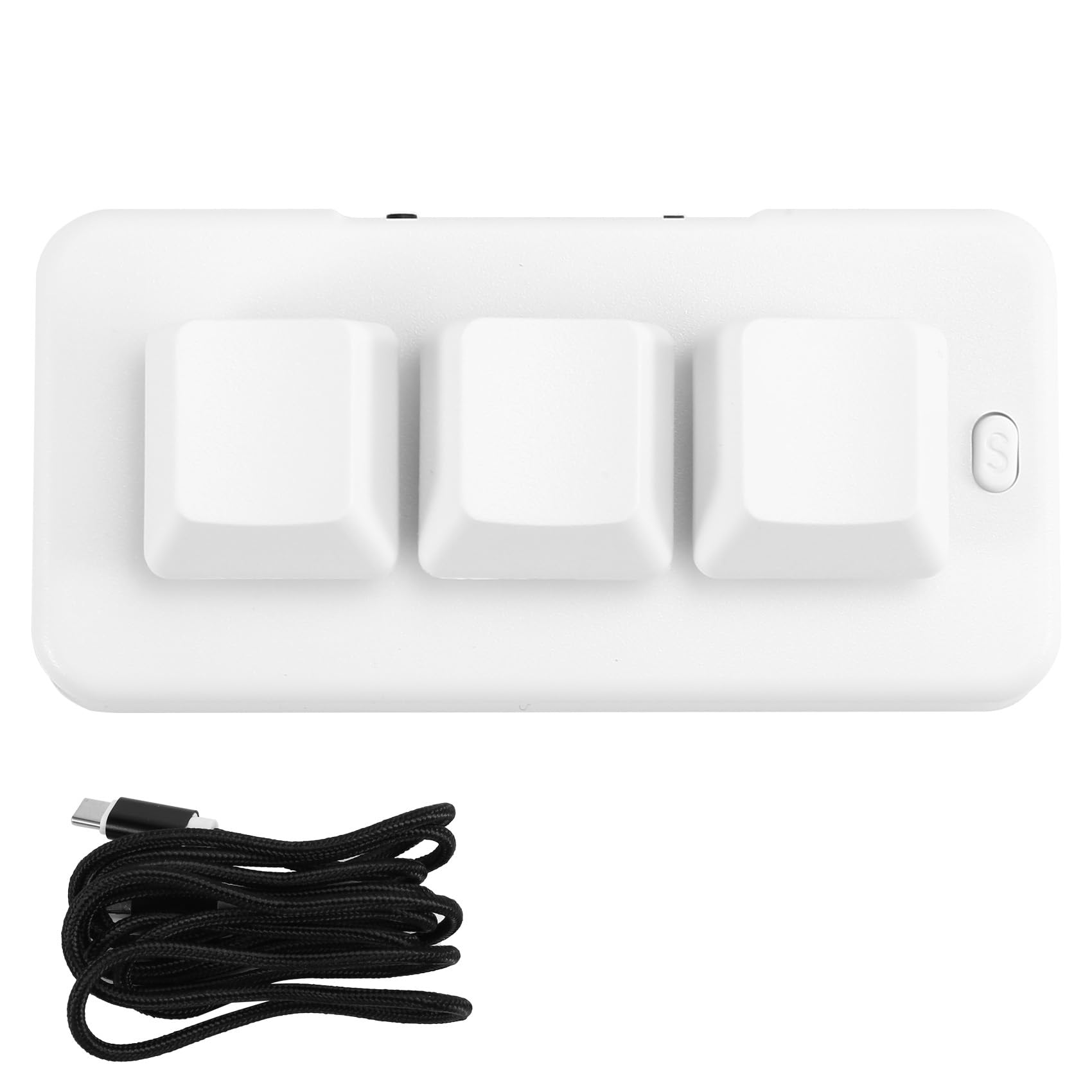
Image: A person placing the TKOWTB MK321U Mini Keyboard into a small carrying pouch, illustrating its compact and portable design, making it easy to transport.
Warranty thiab Support
For warranty information, please refer to the documentation included with your purchase or visit the official TKOWTB website. Support resources, including FAQs and contact information, can also be found on the manufacturer's webqhov chaw.
Chaw tsim tshuaj paus: TKOWTB
Webqhov chaw: TKOWTB Official Page (via Amazon)