
Taw qhia
The VTech Dora Got Your Back Learning Backpack is an interactive bilingual toy designed to engage children aged 3 years and up in educational activities. This manual provides essential information for setting up, operating, maintaining, and troubleshooting your learning backpack. It features 12 interactive games and quizzes in both English and Spanish, focusing on key learning milestones such as letter writing, shape drawing, emotions, numbers, and words.
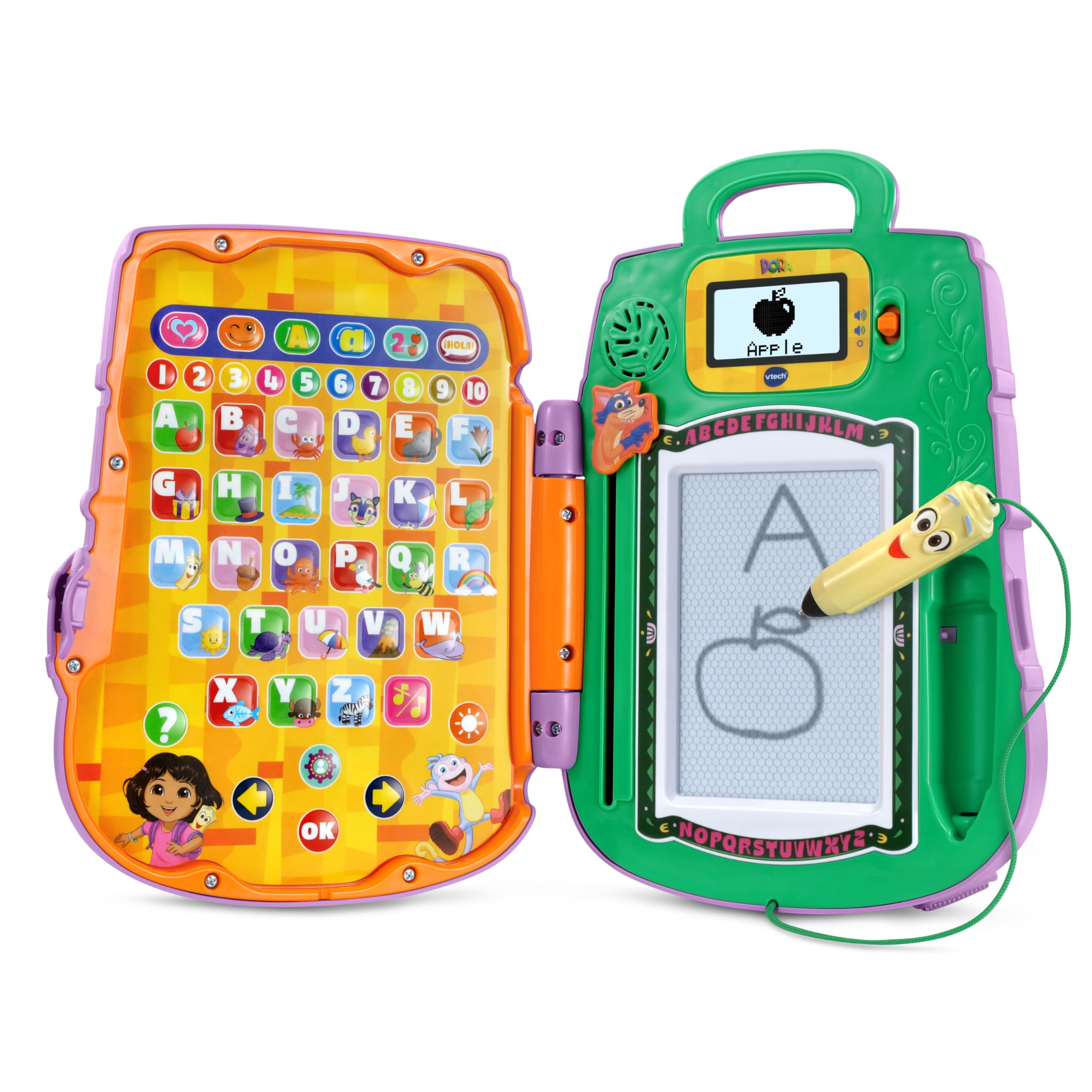
Image: The VTech Dora Got Your Back Learning Backpack in its closed, backpack form.
Muaj dab tsi
Thaum qhib lub pob, xyuas kom meej tias tag nrho cov khoom muaj nyob:
- 1 x Dora Got Your Back Learning Backpack
- 1 x Phau Ntawv Qhia Pib Ceev

Image: The learning backpack opened, showing the interactive button panel on the left and the drawing board with screen on the right.
Teeb tsa
- Kev teeb tsa roj teeb: The toy requires 2 AA batteries. Batteries are included for demonstration purposes only. For regular use, new batteries are recommended. To install, locate the battery compartment on the back of the unit, open it with a screwdriver, insert the batteries according to the polarity markings, and close the compartment securely.
- Attaching Straps: The backpack straps are typically included separately in the packaging. Attach them to the designated loops on the top and bottom of the backpack to enable wearing the toy.
- Pib Pib Pib: Nias lub hwj huam khawm kom qhib lub cuab yeej.
- Personalization: The toy allows for personalization. Follow the on-screen prompts or refer to the Quick Start Guide to enter a child's name. This enables personalized greetings from Dora's friends during play.

Image: The toy's screen displaying a prompt to enter a name for personalization.
Cov lus qhia ua haujlwm
The Dora Got Your Back Learning Backpack features two main interactive areas when opened: a button panel on the left and a drawing board with a small screen on the right.
- Fais fab / Off: Press the orange power button located on the right side of the unit to turn the toy on or off.
- Volume Control: Use the volume buttons (usually located near the screen) to adjust the sound level.
- Xaiv hom lus: The toy supports both English and Spanish. Look for a dedicated language button or follow initial setup prompts to select your preferred language.
- Kev xaiv ua haujlwm: The left panel contains various buttons representing different games and learning activities. Press a button to select an activity.
- Kev Siv Stylus: The Map-shaped stylus is attached to the unit by a string. Use it to interact with the drawing board for writing and drawing activities.
- Swiper Eraser: To clear the drawing board, slide the Swiper character down the designated slot.

Image: A child actively engaging with the open learning backpack, pressing buttons on the left panel and using the stylus on the right drawing board.
Kev Ua Si thiab Kev Ua Si
The learning backpack offers 12 interactive games and quizzes designed to promote early learning skills:
- Kev Sau Ntawv: Follow step-by-step animations on the screen to practice writing uppercase and lowercase letters using the stylus.
- Shape Drawing: Learn to draw various shapes by tracing guided animations.
- Number Recognition: Identify and learn numbers through interactive games.
- Object Identification: Match objects with their corresponding letters or words.
- Emotion Exploration: Learn about different emotions through engaging activities.
- Bilingual Quizzes: Participate in quizzes that reinforce learning in both English and Spanish.

Image: A child using the stylus to draw on the learning backpack's screen, following animated instructions.

Image: A child operating the Swiper slider to clear the drawing board, preparing for a new activity.
Video: An official VTech video demonstrating the features and interactive play of the Dora Got Your Back Learning Backpack.
Kev tu
- Ntxuav: So cov khoom ua si nrog ib daim ntaub so me ntsisamp ntaub. Tsis txhob muab tso rau hauv dej los yog siv cov tshuaj tua kab mob hnyav.
- Cia: Khaws cov khoom ua si hauv qhov chaw txias, qhuav kom deb ntawm tshav ntuj ncaj qha thaum tsis siv.
- Kev kho roj teeb: Tshem cov roj teeb yog tias cov khoom ua si yuav tsis siv rau lub sijhawm ntev los tiv thaiv kom tsis txhob yaig.
Kev daws teeb meem
| Teeb meem | Kev daws |
|---|---|
| Toy does not turn on. | Check battery installation. Ensure batteries are new and correctly inserted. |
| Sound is not working or is too low. | Adjust the volume using the volume buttons. Replace batteries if sound remains low or absent. |
| Drawing board is not clearing. | Ensure the Swiper eraser is slid completely across the board. |
| Stylus is not making marks. | Ensure the stylus tip is making firm contact with the drawing surface. The drawing board is magnetic, not electronic. |
Specifications
- Khoom Dimensions: 11.02 x 8.27 x 2.8 po
- Yam khoom hnyav: 1.7 puj
- Qauv nab npawb: 80-573300 : kuv
- Cov neeg tsim khoom pom zoo hnub nyoog: 3 xyoo thiab nce
- Roj teeb: Yuav tsum muaj 2 lub roj teeb AA (muaj rau kev ua qauv qhia)
- Chaw tsim tshuaj paus: VEEM
- Hnub tso tawm: Lub Rau Hli 5, 2025
Warranty thiab Support
For warranty information, product support, or to purchase replacement parts, please visit the official VTech website or contact their customer service department. Details can typically be found in the Quick Start Guide or on the VTech product page.