
1. Taw qhia
The TMEZON H4 Trail Camera is designed for wildlife monitoring, security surveillance, and game tracking. It features 4K video recording, 48MP still image capture, integrated WiFi and Bluetooth connectivity, and a solar panel for extended operation. This manual provides detailed instructions for setting up, operating, and maintaining your camera to ensure optimal performance.
2. Cov ntsiab lus ntawm pob
- TMEZON H4 Trail Camera
- Hnub Ci Vaj Huam Sib Luag
- Mounting Pluaj
- Mounting Screws
- USB Cable
- 64 GB SD Card
- Cov neeg siv phau ntawv
3. Khoom Tshajview
Familiarize yourself with the main components of your TMEZON H4 Trail Camera.
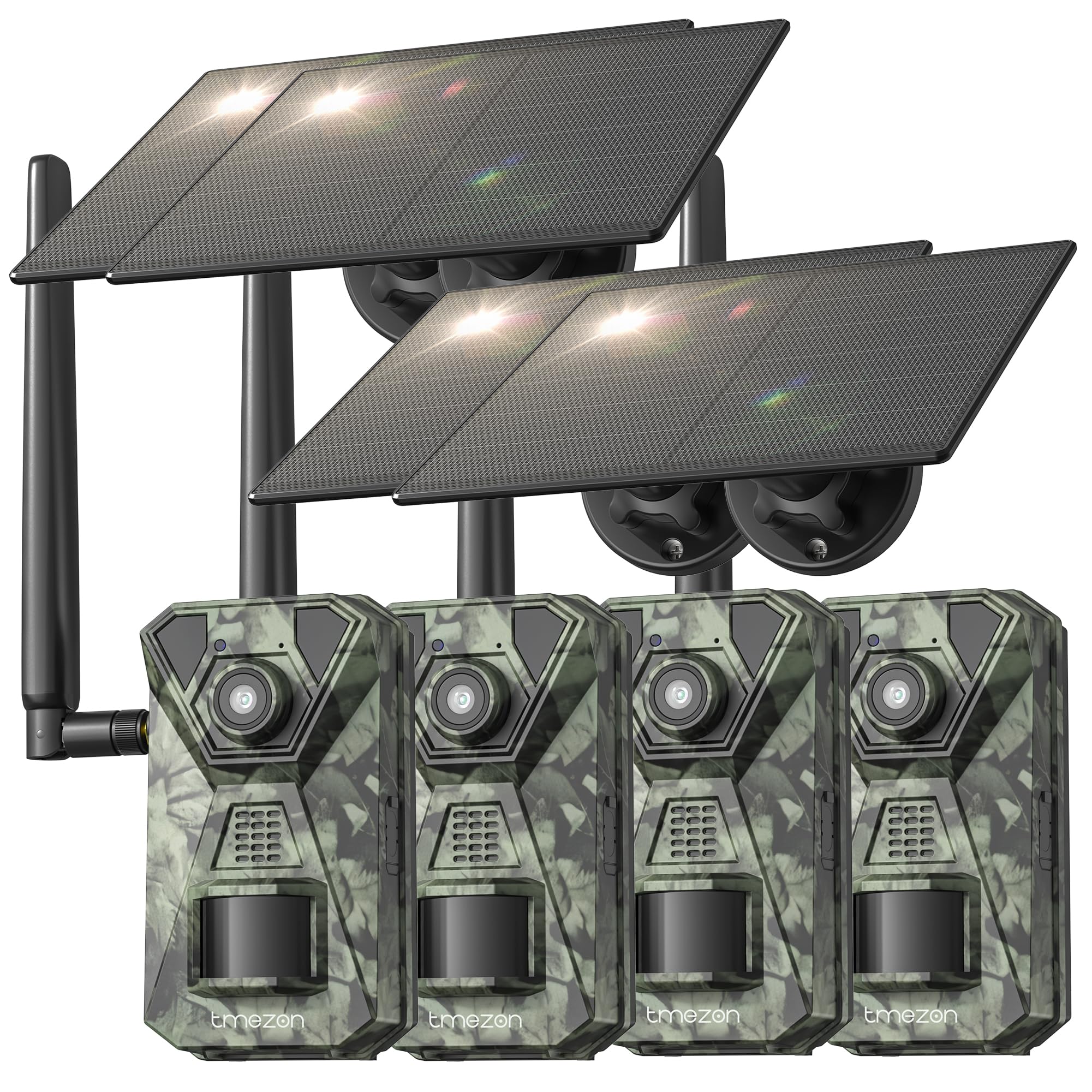
Duab 1: Pem hauv ntej view of the TMEZON H4 Trail Camera, showing the lens, PIR sensors, and integrated solar panel. This image illustrates the compact, camouflage design suitable for outdoor environments.
Lub koob yees duab Cheebtsam:
- Lens: Captures duab thiab yeeb yaj duab.
- PIR Sensors: Passive Infrared sensors detect motion.
- IR LEDs: Infrared LEDs rau kev pom kev hmo ntuj.
- LCD npo: Rau kev navigation ntawm cov ntawv qhia zaub mov thiab viewing captured media.
- Tswj khawm: Navigate menus and settings.
- SD daim npav qhov: Insert the provided 64GB SD card.
- USB Chaw nres nkoj: Rau kev txuas mus rau lub computer.
- Sab Nraud Fais Fab Chaw nres nkoj: For connecting the solar panel or external power source.
- Roj teeb lub thawv: Holds 8 AA batteries (not included) for backup power.
4. Teeb tsa
4.1. Battery and Solar Panel Installation
- Qhib lub roj teeb hauv lub koob yees duab.
- Insert 8 new AA batteries (alkaline or rechargeable NiMH recommended) according to the polarity indicators. These batteries serve as a backup to the solar panel.
- Connect the solar panel cable to the camera's external power port. Ensure the solar panel is positioned to receive maximum sunlight.
4.2. Kev ntxig daim npav SD
- Locate the SD card slot on the side or bottom of the camera.
- Insert the provided 64GB SD card with the metal contacts facing the correct direction until it clicks into place.
- To remove, push the card in gently until it springs out.
4.3. Mount lub koob yees duab
- Use the included mounting strap to secure the camera to a tree or pole. Thread the strap through the slots on the back of the camera and tighten.
- Alternatively, use the mounting screws to attach the camera to a wall or other flat surface.
- Position the camera at a height of 3-6 feet (1-2 meters) and aim it towards the desired monitoring area. Ensure no obstacles block the PIR sensors.
4.4. App Download thiab Pairing
- Download the official TMEZON app from your smartphone's app store (iOS or Android). Nrhiav rau "TMEZON Trail Camera" or scan the QR code provided in the quick start guide.
- Qhib Bluetooth ntawm koj lub smartphone.
- Qhib lub koob yees duab.
- Open the TMEZON app, select "Add Device," and follow the on-screen instructions to connect via Bluetooth.
- Once connected via Bluetooth, the app will prompt you to connect to the camera's WiFi network for faster data transfer and live view.
5. Ua haujlwm lub koob yees duab
5.1. Fais fab rau / tawm thiab xaiv hom
- Tawm: Fais fab lub koob yees duab.
- Teeb tsa: Enter setup mode to configure settings, view photos/videos, or connect to the app.
- ON: Activate the camera for monitoring. The camera will enter monitoring mode after a short countdown.
5.2. Ntawv qhia zaub mov thiab chaw
In SETUP mode, use the control buttons to navigate the menu on the LCD screen. Press the 'MENU' button to access settings. Key settings include:
- Hom: Select Photo, Video, or Photo+Video (Hybrid).
- Yees duab daws teeb meem: 48MP, 30MP, 20MP, thiab lwm yam.
- Video daws teeb meem: 4K, 2.7K, 1080P, 720P.
- PIR Suab: High, Medium, Low. Adjust based on environment to avoid false triggers.
- PIR luv: Time delay between detections.
- Lub Sijhawm Lapse: Capture images at set intervals regardless of motion.
- Hnub & Sijhawm: Teem hnub thiab sijhawm tam sim no.
- Daim npav SD Card: Rho tawm tag nrho cov ntaub ntawv ntawm daim npav SD. Caution: This will delete all files.
5.3. Remote Monitoring via App
Once connected to the TMEZON app:
- View live foomtage los ntawm lub koob yees duab.
- Adjust camera settings remotely.
- Browse and download captured photos and videos to your smartphone.
- Receive notifications for detected motion (if 4G LTE cellular transmission is enabled and configured).
6. Kev tu
6.1. Kev ntxuav
- Wipe the camera lens and PIR sensors with a soft, dry cloth to remove dust or smudges.
- Ensure the solar panel is clean for efficient charging.
- Tsis txhob siv cov tshuaj abrasive los yog cov kuab tshuaj.
6.2. Cia
- If storing the camera for an extended period, remove the AA batteries.
- Khaws lub koob yees duab rau qhov chaw txias thiab qhuav uas tsis txhob raug tshav ntuj ncaj qha.
7. Kev daws teeb meem
- Lub koob yees duab tsis powering rau: Check battery installation and charge level. Ensure solar panel is connected and receiving sunlight.
- Duab/yeeb yaj kiab tsis zoo: Clean the lens. Ensure sufficient lighting or proper night vision settings. Check resolution settings.
- No motion detection: Adjust PIR sensitivity (High for sparse areas, Low for busy areas). Ensure PIR sensors are not obstructed. Check PIR interval settings.
- Yuam kev ntawm daim npav SD: Format the SD card in the camera's settings. If the issue persists, try a different compatible SD card.
- Cov teeb meem kev sib txuas ntawm App: Ensure Bluetooth and WiFi are enabled on your phone. Restart both the camera and the app. Ensure the camera is in SETUP mode for initial pairing.
- Solar panel not charging: Ensure the solar panel is clean and positioned to receive direct sunlight. Check the connection cable.
8. Cov lus qhia tshwj xeeb
| Qauv Lub Npe | H4 |
| Kev daws teeb meem tseem ceeb | 48 MP |
| Kev daws teeb meem Video zoo | 4K |
| Connectivity Technology | Wireless (WiFi, Bluetooth, 4G LTE) |
| Hwj chim Source | Solar Powered, 8x AA Battery Backup |
| Flash Nco Hom | SD Card (64GB included, max 64GB supported) |
| Hmo Zeem Muag Ntau | 65 feet |
| Lub cev nrawm | 0.2s ib |
| PIR Nrhiav Lub Ntsej Muag | 120° Nws |
| Waterproof Rating | IP66 |
| Yam khoom Dimensions | 4 x 3.5 x 6 po |
| Khoom siv | Hlau, yas |
9. Warranty thiab Support
TMEZON products come with a standard manufacturer's warranty. For detailed warranty information, technical support, or service inquiries, please refer to the warranty card included in your package or visit the official TMEZON website. You can also contact customer support through the TMEZON app or the contact information provided on the product packaging.