
1. Taw qhia
This manual provides detailed instructions for the Symcode Wearable Glove Barcode Scanner. This device is designed for efficient, hands-free barcode scanning, featuring dual wireless connectivity (Bluetooth 6.0 & 2.4G) and a long-lasting battery. It is suitable for various applications including warehouses, retail, and logistics, offering fast decoding of 1D, 2D, and QR codes.
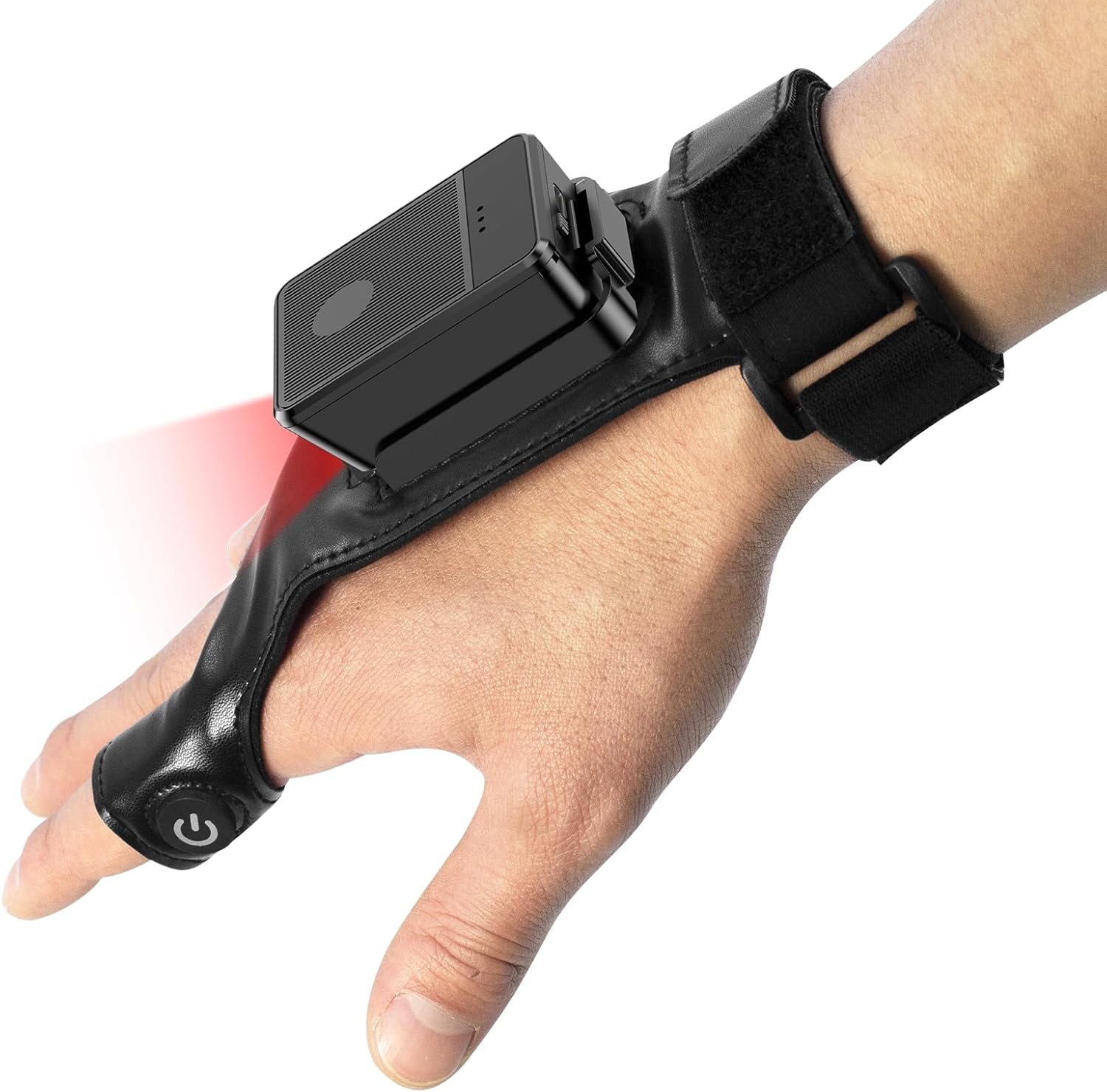
This image shows the Symcode Wearable Glove Barcode Scanner attached to a user's hand, demonstrating its ergonomic, hands-free design. The scanner unit is positioned on the back of the hand, with the scanning beam visible.
2. Cov ntaub ntawv kev nyab xeeb
- Do not expose the device to extreme temperatures, moisture, or corrosive substances.
- Avoid direct eye exposure to the scanning light.
- Tsis txhob sim disassemble lossis kho lub cuab yeej koj tus kheej. Hu rau cov neeg ua haujlwm tsim nyog rau kev pabcuam.
- Tsuas yog siv cov xov hluav taws xob thiab lub adapter uas muab los xwb kom tiv thaiv kev puas tsuaj.
3. Cov ntsiab lus ntawm pob
Thov xyuas cov ntsiab lus ntawm pob thaum tau txais. Yog tias muaj tej yam khoom uas ploj lawm los yog puas lawm, hu rau koj tus neeg muag khoom.
- Symcode Wearable Glove Barcode Scanner
- USB Charging Cable
- 2.4G Wireless Dongle
- Cov neeg siv phau ntawv
4. Khoom Tshajview
The Symcode Wearable Glove Barcode Scanner consists of a compact scanning unit and an adjustable glove-style strap. The scanning unit features a durable trigger button, indicator lights, and a charging port. The glove is designed for comfort and secure fit, allowing for hands-free operation.

Qhov ze-up view of the scanner on a hand, highlighting the red scanning beam and the durable resin material of the trigger button located on the index finger. The image also shows a roll of barcode labels, indicating its primary function.
5. Teeb tsa
5.1 Kev them nyiaj yug ntaus ntawv
Before first use, fully charge the scanner. Connect the USB charging cable to the scanner's charging port and to a power source (e.g., computer USB port or USB wall adapter). The charging indicator light will show charging status. A full charge takes approximately 5 hours.
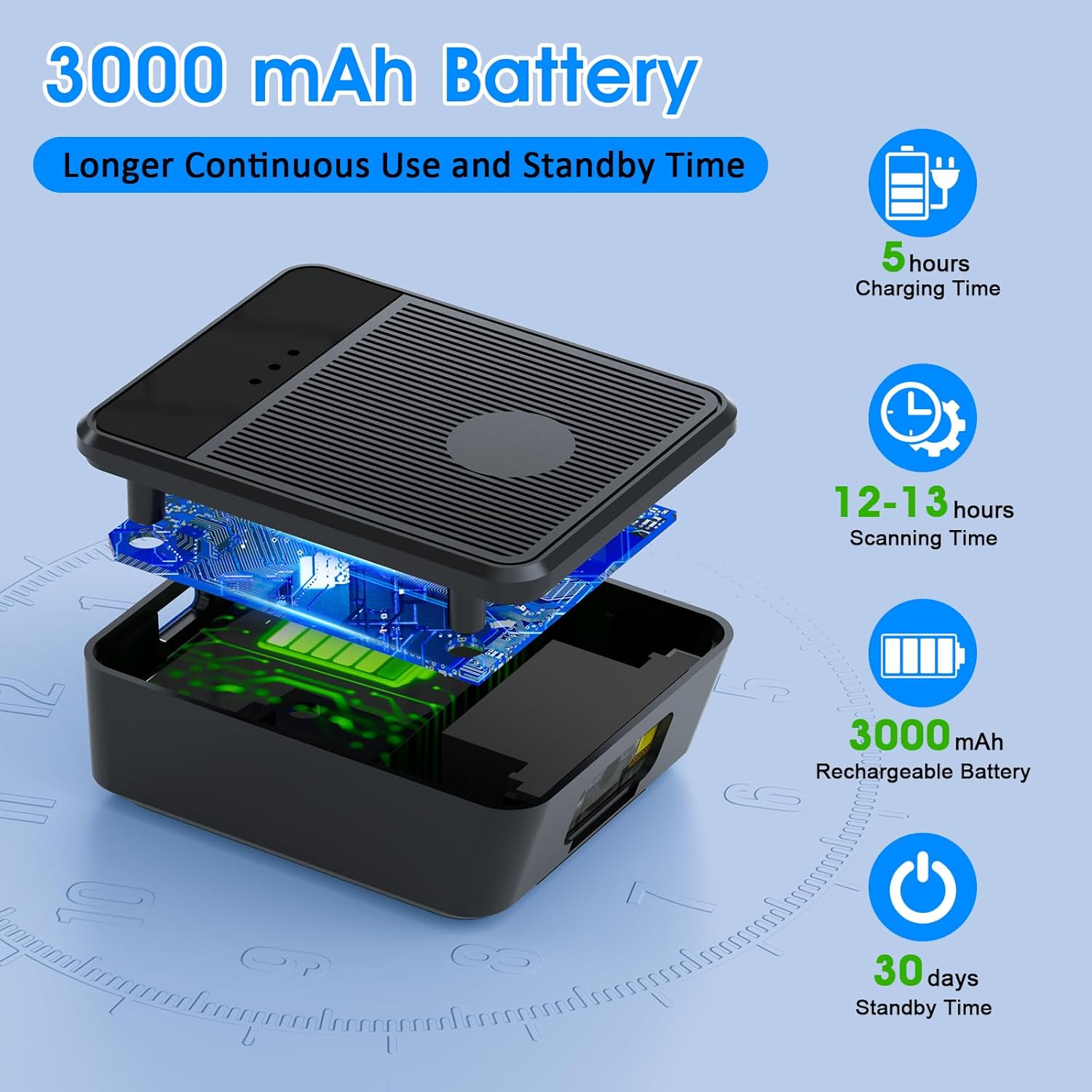
Ib qho tawg view diagram of the scanner unit, emphasizing its 3000 mAh rechargeable battery. Accompanying text indicates a 5-hour charging time, 12-13 hours of continuous scanning, and 30 days of standby time.
5.2 Wearing the Scanner
Slide your hand into the glove, ensuring the scanner unit is positioned comfortably on the back of your hand. Adjust the strap for a secure fit. The trigger button should align with your index finger for easy access.

Two workers are shown in a warehouse environment, handling boxes. One worker is actively using the wearable barcode scanner on their hand to scan a package, demonstrating the hands-free benefit of the device during logistics operations.
5.3 Txuas mus rau ib lub cuab yeej
The scanner supports two wireless connection methods:
5.3.1 2.4G Wireless Dongle Connection
- Plug the 2.4G wireless dongle into a USB port on your computer or compatible device.
- Turn on the scanner. It should automatically pair with the dongle.
- A successful connection is indicated by a specific light pattern or sound (refer to device indicators).
5.3.2 Bluetooth 6.0 Connection
- Qhib lub scanner.
- Qhib Bluetooth ntawm koj lub cuab yeej tswj hwm (piv txwv li, xov tooj ntse, ntsiav tshuaj, lossis khoos phis tawj).
- Nrhiav rau available Bluetooth devices and select the Symcode scanner from the list.
- Pairing may require a confirmation or a default PIN (check device documentation for specific PIN if required).
6. Cov lus qhia ua haujlwm
6.1 Basic Scanning
To scan a barcode, point the scanner's beam at the barcode and press the trigger button located on your index finger. A successful scan will typically be indicated by a beep, a vibration, or a change in the indicator light.
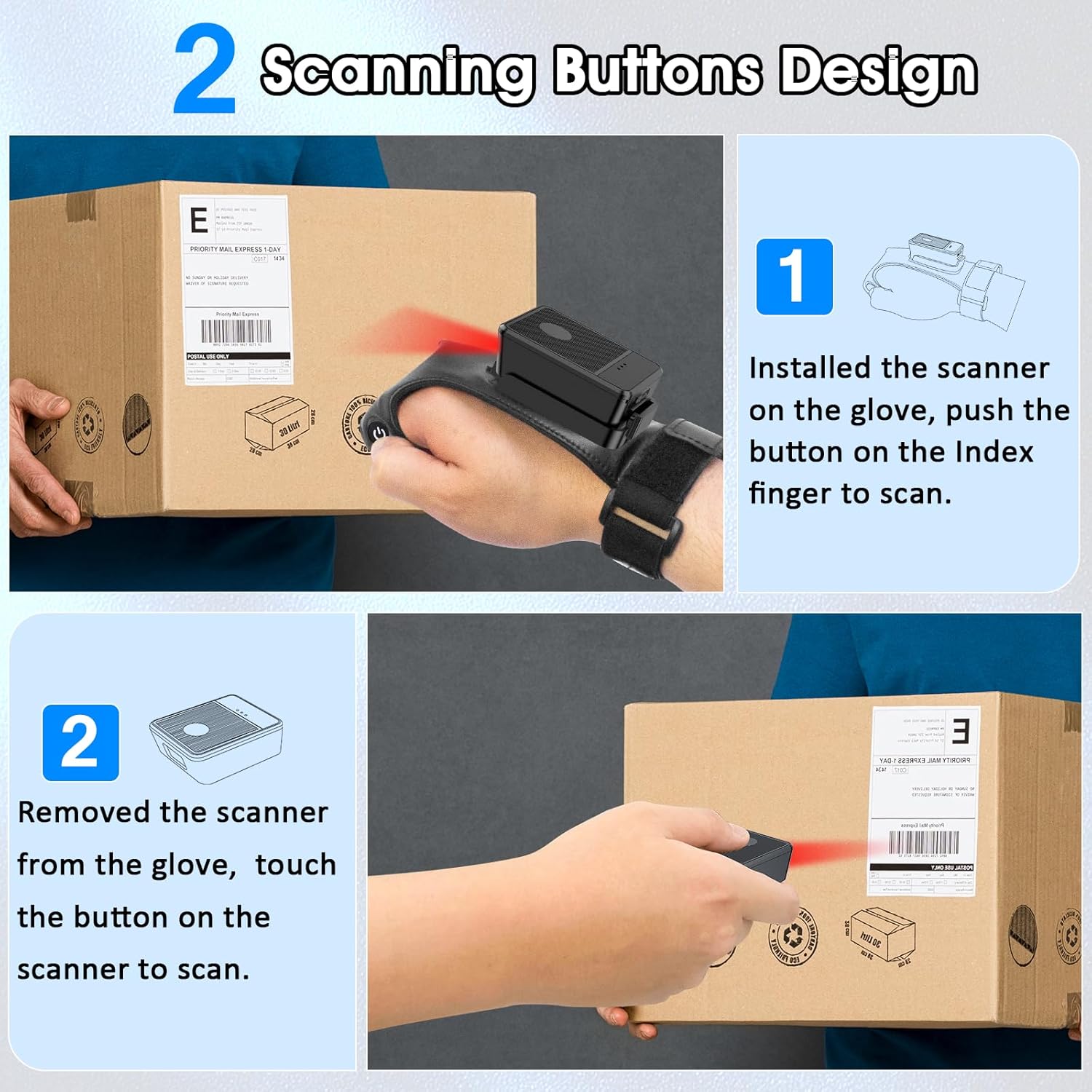
This diagram illustrates two ways to use the scanner: 1) installed on the glove, scanning with the index finger button, and 2) removed from the glove, scanning by touching the button directly on the scanner unit. Both methods are shown with the scanner pointed at a package.
6.2 Hom kev ua haujlwm
The scanner supports two operational modes:
6.2.1 Instant Upload Mode
In this mode, scanned barcode data is immediately transmitted to the connected host device. This is ideal for real-time inventory updates or point-of-sale transactions.
6.2.2 Offline Storage Mode
This mode allows the scanner to store up to 50,000 barcodes internally when not connected to a host device or when connectivity is intermittent. Data can then be uploaded to a computer or POS system at a later time.
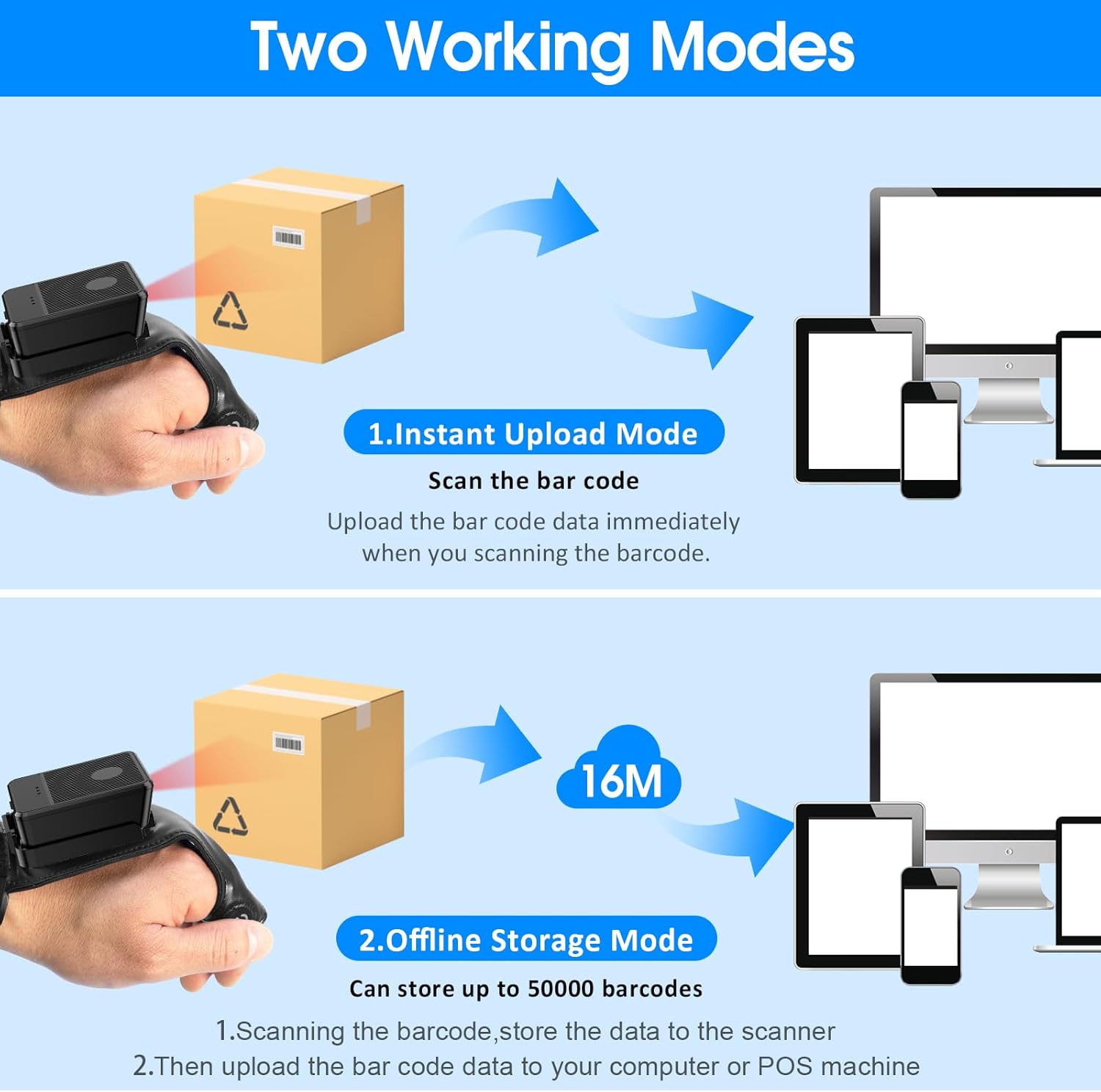
This image explains the two operational modes: Instant Upload Mode, where scanned data is immediately sent to a connected device, and Offline Storage Mode, which allows storing up to 50,000 barcodes internally before uploading them to a computer or POS system.
6.3 Kev Kho Qhov Chaw
The scanner allows for customization of various settings, including:
- Suab: Enable or disable the audible beep for successful scans.
- Kev vibration: Enable or disable vibration alerts for successful scans, useful in quiet environments.
- Keyboard Functions: Add keyboard functions such as TAB or Enter after each scan for seamless data entry into applications.
Refer to the quick setup guide or manufacturer's website for specific programming barcodes to adjust these settings.
7. Kev tu
- Ntxuav: Use a soft, dry cloth to clean the scanner's exterior. For stubborn dirt, slightly dampen daim ntaub nrog dej. Tsis txhob siv cov tshuaj hnyav los yog cov tshuaj abrasive.
- Cia: Store the scanner in a cool, dry place away from direct sunlight and extreme temperatures when not in use.
- Kev kho roj teeb: Txhawm rau kom lub roj teeb lub neej ntev, tsis txhob tso lub roj teeb tas li ntau zaus. Them lub cuab yeej tsis tu ncua, txawm tias tsis siv tas li.
8. Kev daws teeb meem
8.1 Scanner Not Turning On
- Ensure the battery is charged. Connect the scanner to a power source and allow it to charge for at least 30 minutes before attempting to turn it on again.
8.2 Unable to Connect Wirelessly
- 2.4G Kev sib txuas: Verify the 2.4G dongle is securely plugged into the host device. Try plugging it into a different USB port. Ensure the scanner is within range of the dongle.
- Bluetooth Kev Txuas: Ensure Bluetooth is enabled on your host device. Delete any previous pairings for the scanner and attempt to pair again. Ensure the scanner is in pairing mode (refer to device indicators).
- Restart both the scanner and the host device.
8.3 Lub Tshuab Ntsuas Tsis Nyeem Cov Barcodes
- Ensure the barcode is clean, undamaged, and clearly printed.
- Kho qhov nrug thiab lub kaum sab xis ntawm lub scanner thiab lub barcode.
- Check if the scanner is in the correct working mode (Instant Upload or Offline Storage).
- Verify that the barcode type is supported by the scanner (1D, 2D, QR codes are supported).
9. Cov lus qhia tshwj xeeb
| Hom | symcode |
| Qauv | Wearable Glove Barcode Scanner (B0F1FSMWCD) |
| Connectivity Technology | 2.4G, Bluetooth 6.0 |
| Compatible Devices | Desktop, Laptop, Tablet, Smartphone (Windows XP/7/8/10, Android, iOS) |
| Hwj chim Source | Roj teeb Powered |
| Hom roj teeb | 1 Lithium Polymer roj teeb (nrog) |
| Roj teeb muaj peev xwm | 1100mAh (Product Description) / 3000mAh (Image) - Note: Discrepancy in source data, refer to product packaging for accurate capacity. |
| Lub sijhawm ua haujlwm tsis tu ncua | Up to 10 hours (Product Description) / 12-13 hours (Image) - Note: Discrepancy in source data, refer to product packaging for accurate time. |
| Them sij hawm | Kwv yees li. 5 teev |
| Standby Sijhawm | Txog li 30 hnub |
| Scanning ceev | Up to 300 scans per second |
| Scanning Range | 2 mus rau 4.9 feet |
| Offline Storage Capacity | Txog li 50,000 barcodes |
| Yam Nyhav | 5 hli |
| Pob Dimensions | 7.48 x 3.74 x 2.44 po |
10. Warranty Information
This Symcode product is covered by a manufacturer's warranty. For specific warranty terms, duration, and conditions, please refer to the warranty card included with your product or visit the official Symcode webqhov chaw. Khaws koj cov ntaub ntawv pov thawj ntawm kev yuav khoom rau kev lees paub.
11. Cov neeg siv khoom txhawb nqa
If you encounter any issues or have questions regarding your Symcode Wearable Glove Barcode Scanner, please contact Symcode customer support. Contact details can typically be found on the product packaging, the official Symcode website, los yog los ntawm koj lub khw muag khoom.