
1. Taw qhia
This manual provides detailed instructions for the LEVN LE011 Wireless Headset. Please read this manual thoroughly before using the product to ensure proper operation and to maximize its lifespan. This headset is designed for clear communication in various professional and personal environments, featuring AI noise-cancelling technology and dual-mode connectivity.
2. Cov ntsiab lus ntawm pob
Xyuas kom tseeb tias txhua yam khoom teev hauv qab no suav nrog hauv koj pob:
- Wireless Headset nrog Microphone
- USB Dongle
- USB Cable (rau them)
- Tus Neeg Siv Los Siv (cov ntawv no)
Video: Unboxing the LEVN LE011 Wireless Headset, showing the headset, USB dongle, and charging cable.
3. Khoom Tshajview
The LEVN LE011 Wireless Headset features a lightweight design for extended comfort and intuitive controls for ease of use.

Duab: pem hauv ntej view of the LEVN LE011 Wireless Headset, showcasing its single-ear design and adjustable microphone.

Image: Diagram illustrating the headset's controls, including the MFB button, volume controls, and mute button.
Cov ntsiab lus tseem ceeb:
- Adjustable Headband: Rau ib qho yooj yim thiab ruaj ntseg haum.
- Pob ntseg Cushion: Soft memory-foam for prolonged wear.
- Flexible Microphone: 270° rotatable boom mic for optimal voice pickup.
- Multi-Function Button (MFB): For power, pairing, and call management.
- Volume Buttons: Yuav kho cov suab nrov.
- Lub Pob Kom Ncauj: For instant microphone privacy.
- USB-C Charging Port: For recharging the headset.
- USB Dongle: For 2.4G wireless connection to computers without Bluetooth.
4. Teeb tsa
4.1 Them lub mloog pob ntseg
Before first use, fully charge the headset. Connect the provided USB-C cable to the headset's charging port and the other end to a USB power source (e.g., computer USB port, wall adapter). The LED indicator will show charging status. A full charge takes approximately 2 hours and provides up to 50 hours of talk time.
4.2 Hwj chim Rau/Tawm
- Txhawm rau Fais Fab: Press and hold the MFB button for 3 seconds until the LED indicator flashes blue.
- Mus Faib Tawm: Press and hold the MFB button for 5 seconds until the LED indicator flashes red and then turns off.
4.3 Connecting via Bluetooth (to Phone/Tablet/PC)
- Xyuas kom meej tias lub pob ntseg raug kaw.
- Press and hold the MFB button for 5-7 seconds until the LED indicator flashes red and blue alternately, indicating pairing mode.
- On your device (phone, tablet, or PC), enable Bluetooth and search for new devices.
- Select "LEVN LE011" from the list of available devices.
- Thaum txuas nrog lawm, lub teeb LED ntawm lub mloog pob ntseg yuav ci xiav qeeb qeeb.

Image: Illustration showing the headset connecting to a phone via Bluetooth and a laptop via USB dongle.
4.4 Connecting via USB Dongle (to PC/Computer)
- Plug the USB Dongle into an available USB port on your computer.
- Power on the headset. It will automatically connect to the USB dongle. The LED indicator on the USB Dongle will turn solid blue once connected.
- On your computer, navigate to Sound Settings and ensure "LEVN LE011" is selected as the default input (microphone) and output (speaker) device.
- Nco tseg: If using the USB dongle, ensure Bluetooth is disconnected on other devices to avoid conflicts.

Image: Step-by-step diagram for connecting the LEVN LE011 headset to a computer using the USB dongle.
Video: Demonstrating the easy connection process of the LEVN LE011 Wireless Headset via Bluetooth.
5. Cov lus qhia ua haujlwm
5.1 Hu rau Management
- Teb / Xaus Hu: Nias lub pob MFB ib zaug.
- Tsis kam hu: Nias thiab tuav tus MFB khawm rau 2 vib nas this.
- Rov qab tus lej xeem: Double-press the MFB button.
5.2 Volume Control
- Ntim Tuaj: Nias lub '+' khawm.
- Ntim Cia: Nias lub khawm '-'.
5.3 Microphone Mute Function
To mute or unmute the microphone, press the dedicated mute button on the microphone boom. The LED indicator on the microphone will show its status (e.g., red for muted).

Image: Close-up of the headset's microphone boom, highlighting the mute button.
5.4 AI Noise Cancelling
The headset features an advanced Environmental Noise Cancelling (ENC) chip that actively reduces up to 99.9% of background noise, ensuring your voice is clear during calls. This feature operates automatically to optimize your audio experience.
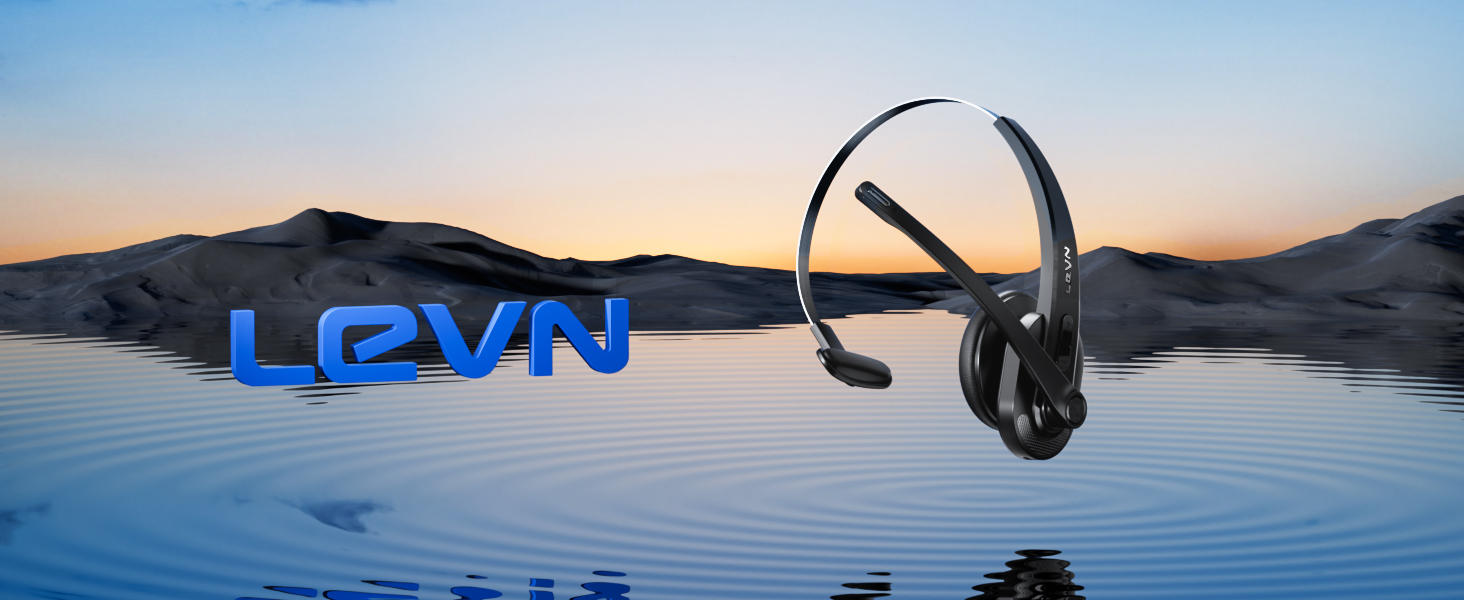
Image: Graphic illustrating the effectiveness of the headset's 99.9% noise cancellation technology in a busy office environment.
6. Kev tu
- Ntxuav lub mloog pob ntseg tsis tu ncua nrog ib daim ntaub mos, qhuav.
- Tsis txhob muab lub mloog pob ntseg tso rau qhov kub thiab txias heev, av noo, lossis tshav ntuj ncaj qha.
- Tsis txhob sim rhuav lossis kho lub mloog pob ntseg koj tus kheej, vim qhov no yuav ua rau lub warranty tsis siv tau.
- Khaws lub mloog pob ntseg hauv qhov chaw txias, qhuav thaum tsis siv.
7. Kev daws teeb meem
| Teeb meem | Ua Tau | Kev daws |
|---|---|---|
| Lub mloog pob ntseg tsis qhib. | Tsawg roj teeb. | Charge the headset fully using the provided USB cable. |
| Tsis tuaj yeem ua khub ntawm Bluetooth. | Lub mloog pob ntseg tsis nyob hauv hom kev sib koom ua ke; ntaus Bluetooth tawm; deb dhau ntawm lub cuab yeej. | Ensure headset is in pairing mode (flashing red/blue). Turn on device Bluetooth. Move closer to the device (within 15 meters). |
| No sound or microphone not working with PC (USB Dongle). | Incorrect audio device selected; USB dongle not properly connected. | Check PC Sound Settings to ensure "LEVN LE011" is selected as default input/output. Re-insert USB dongle. Unplug USB dongle if connected via Bluetooth. |
| Poor audio quality or dropped connection. | Interference; out of range; low battery. | Move closer to the connected device. Avoid strong electromagnetic interference. Charge the headset. |
8. Cov lus qhia tshwj xeeb
| Feature | Paub meej |
|---|---|
| Qauv nab npawb | LE 011 |
| Kev sib txuas | Bluetooth 5.3, 2.4G USB Dongle |
| Bluetooth Ntau | Mus txog 15 meters (50 ko taw) |
| Tsis Siv Neeg Tswj | Kev tshem tawm ib puag ncig lub suab nrov (ENC) |
| Roj teeb Lub Neej (Thaum tham) | Mus txog 50 teev |
| Them sij hawm | Kwv yees li 2 teev |
| Pob ntseg tso | On-Ear (Single Ear) |
| Microphone Rotation | 270° Nws |
| Compatible Devices | Cellphones, Communication Software, Computers, Laptops, Tablets |
| Khoom siv | Tawv (cov ncoo pob ntseg) |
9. Warranty thiab Support
The LEVN LE011 Wireless Headset comes with an 18-lub hlis warranty txij hnub uas koj yuav khoom. Daim ntawv pov thawj no suav nrog cov teeb meem uas tshwm sim los ntawm kev tsim khoom thiab kev ua haujlwm raws li kev siv ib txwm.
For technical support, warranty claims, or further assistance, please contact LEVN customer service through their official website or the retailer where the product was purchased. Please have your proof of purchase and model number ready when contacting support.