
Thundeal TD93 Pro
Thundeal TD93 Pro Mini Projector User Manual
Model: TD93 Pro | Brand: Thundeal
1. Taw qhia
This manual provides detailed instructions for the setup, operation, and maintenance of your Thundeal TD93 Pro Mini Projector. Please read this manual thoroughly before using the product to ensure proper functionality and to extend its lifespan.

Image 1.1: Thundeal TD93 Pro Mini Projector overview.
2. Dab tsi hauv lub thawv
Xyuas kom tseeb tias txhua yam khoom teev hauv qab no suav nrog hauv koj pob:
- Thundeal TD93 Pro Projector
- Chaw taws teeb tswj
- Hwj chim Cord
- Tus Neeg Siv Los Siv (cov ntawv no)
- AV Kab
- HDMI Cable
- Projector Lens Cover

Image 2.1: Package contents of the TD93 Pro Projector.
3. Product Specifications and Features
3.1. Kev qhia tshwj xeeb
| Qauv nab npawb | TD93 Pro (Item Model Number: TD97) |
| Native Resolution | 1920 x 1080 (Full HD) |
| Max Resolution Support | 2K 4K UHD (from HD Signal) |
| Brightness | 12000 Lumens |
| Qhov sib piv piv | 15000:1 ua |
| Aspect Ratio | 4:3 / 16:9 / Aws |
| Kev Ua Haujlwm | Android 9.0 OS |
| Kev sib txuas wireless | 2.4G / 5G WiFi, Bluetooth-compatible |
| Nco | RAM 1G DDR3 + ROM 8G |
| Kho Kom Raug Ntsiab | 6D Keystone (4-point corner +/- 60°, Vertical +/- 60°) |
| Zoom muaj nuj nqi | 50-100% Proportional Reduction |
| Qhov Loj | 49 to 300 inches (recommended 93-150 inches) |
| Projection nrug | 1.6 to 6.5 meters (recommended 3-5 meters) |
| Lamp Lub neej | 50,000 hnu |
| Suab | Built-in 5W stereo speakers with SRS sound system |
| Tshwj xeeb nta | 3D-Ready (Red-Blue 3D), Auto Horizontal Keystone, Built-In Wi-Fi, Portable, Dust Removal Net |
3.2. Cov yam ntxwv tseem ceeb
- High Definition Visuals: Native 1080P resolution with support for 2K/4K UHD signals, delivering clear and vibrant images.
- Smart Android OS: Integrated Android 9.0 operating system allows direct app downloads and streaming.
- Dual-Band WiFi: 2.4G and 5G WiFi connectivity for stable and fast wireless streaming and screen mirroring.
- Bluetooth txuas: Txuas lwm tus neeg hais lus Bluetooth lossis lub mloog pob ntseg rau lub suab zoo dua.
- Advanced Image Correction: 6D Keystone correction (4-point and vertical) for flexible placement and precise image alignment.
- Flexible Projection: Adjustable zoom from 50% to 100% and support for screen sizes up to 300 inches.
- Ntev Lamp: LED l ibamp designed for up to 50,000 hours of operation.
- Multi-Media Compatibility: Supports various input sources including HDMI, USB, AV, and direct office file playback ntawm USB.

Image 3.1: Visual comparison of projector brightness and resolution.
4. Teeb Qhia
4.1. Qhov chaw tso qhov projector
The projector can be placed in various positions to suit your viewib puag ncig kev lag luam:
- Saum Rooj: Muab lub projector tso rau ntawm qhov chaw ruaj khov, tiaj tus.
- Hauv Tripod: Utilize the 6mm screw hole on the bottom for tripod mounting.
- Ceiling Hoisting: Mount the projector to the ceiling using a compatible hanger.
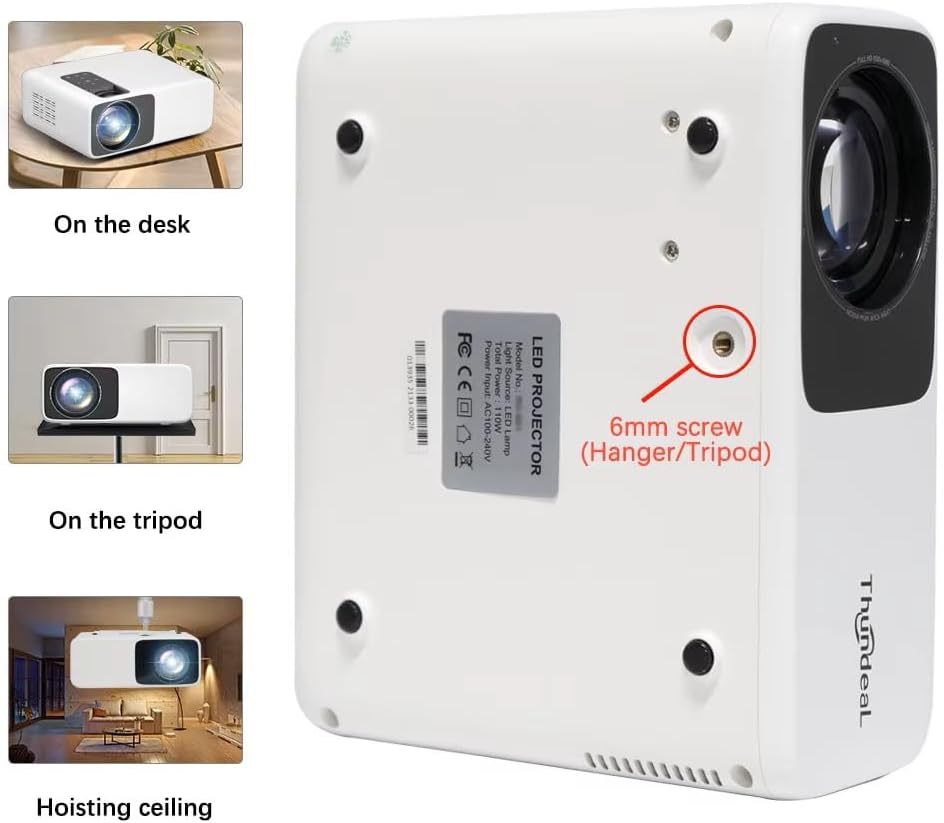
Image 4.1: Projector placement options and mounting point.
Rau qhov zoo viewing, ensure the projector is positioned perpendicular to the screen or wall. Adjust the projection distance (1.6 to 6.5 meters) to achieve your desired screen size (49 to 300 inches). A distance of 3-5 meters for a 93-150 inch screen is recommended for eye comfort.
4.2. Fais fab kev twb kev txuas
- Txuas lub xov hluav taws xob rau lub projector lub qhov hluav taws xob nkag.
- Ntsaws lwm qhov kawg ntawm txoj hlua fais fab rau hauv lub qhov hluav taws xob ib txwm muaj.
- Nias lub hwj chim khawm ntawm lub projector lossis chaw taws teeb tswj kom tig nws.
5. Cov lus qhia ua haujlwm
5.1. Multi-Media Connections
The TD93 Pro projector offers various ports for connecting external devices:
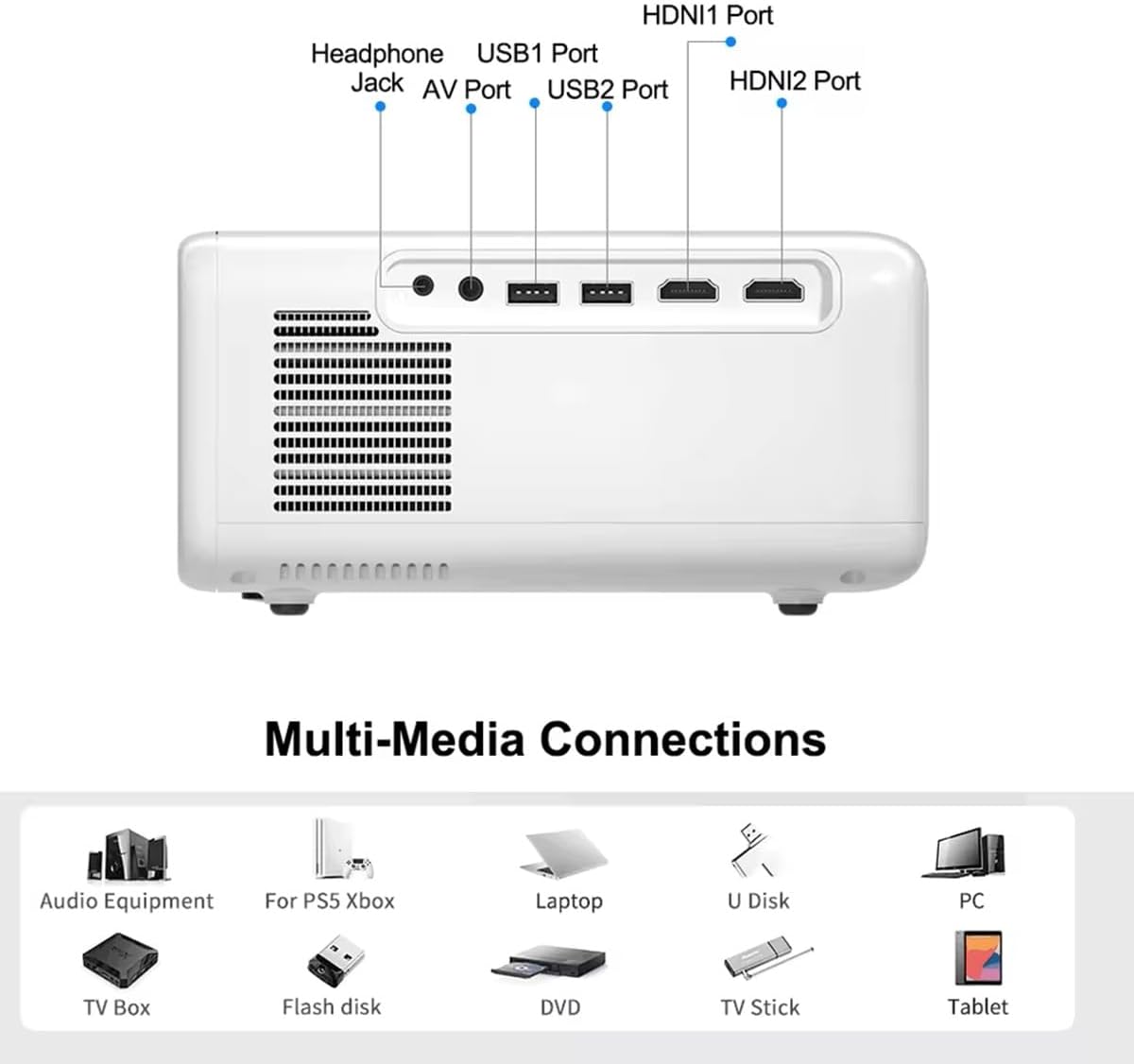
Image 5.1: Available multimedia connection ports.
- HDMI Ports (HDMI1, HDMI2): Connect devices such as TV boxes, gaming consoles (PS5, Xbox), laptops, or Blu-ray players.
- USB Ports (USB1, USB2): Connect USB flash drives for direct media playback (photos, videos, office documents).
- Chaw nres nkoj AV: Connect older devices using the provided AV cable.
- Lub mloog pob ntseg Jack (3.5mm): Txuas lub mloog pob ntseg lossis hais lus sab nraud.
To switch input sources, use the "Source" button on the remote control or the projector's control panel and select the desired input (HDMI1, HDMI2, AV, USB).
5.2. Kev sib txuas wireless
5.2.1. WiFi Connection (2.4G/5G)
The projector supports dual-band WiFi for internet access and network features:
- Navigate to the "Settings" menu on the projector's Android interface.
- Select "Network & Internet" and then "Wi-Fi".
- Qhib Wi-Fi thiab xaiv koj lub network xav tau los ntawm cov npe.
- Nkag mus rau tus password yog tias tau tshwm sim thiab txuas.
5.2.2. Kev Txuas Hluav Taws Xob
Connect Bluetooth-compatible audio devices like speakers or headphones:
- Go to "Settings" > "Connected devices" > "Bluetooth".
- Qhib Bluetooth.
- Muab koj lub cuab yeej Bluetooth tso ua ke.
- Xaiv koj lub cuab yeej los ntawm cov npe ntawm cov khoom siv muaj los ua khub.
5.3. Screen Mirroring (Airplay/WiFi-Display)
Wirelessly display content from your Android or iOS phone:

Image 5.2: Screen mirroring from iOS and Android devices.
- Ensure both your projector and mobile device are connected to the same Wi-Fi network.
- On the projector's main interface, select the "Screen Mirroring" or "Airplay/WiFi-Display" application.
- For iOS devices: Open Control Center, tap "Screen Mirroring" or "AirPlay Mirroring", and select the projector from the list.
- For Android devices: Open the notification panel, find "Cast", "Smart View", "Wireless Display", or similar function, and select the projector.
5.4. Kev kho duab
5.4.1. Keystone Correction (6D)
The projector features 6D keystone correction to adjust image shape:
- Vertical Keystone: Adjust +/- 60 degrees vertically using the remote control.
- 4-Point Corner Keystone: Adjust each of the four corners independently by +/- 60 degrees for side projection or irregular surfaces. This allows for precise rectangular image alignment.
Access keystone settings via the projector's menu or dedicated buttons on the remote.
5.4.2. Zoom muaj nuj nqi
Adjust the display size from 50% to 100% proportionally without moving the projector. This feature is useful for fine-tuning the image size to fit your screen or wall.
Access the zoom function through the projector's menu settings.
5.5. Android OS and App Usage
The integrated Android 9.0 OS allows you to download and install applications directly from the Play Store. Ensure the projector is connected to Wi-Fi to access online services and apps.
- Play Store: Access the Google Play Store to download streaming apps, games, and utilities.
- Rov qab ua si: Use pre-installed media players or download alternatives (e.g., VLC player for AC3 audio support).
6. Kev tu
6.1. Kev Tshem Tawm Pluav Plua Plav
The projector is equipped with a built-in dust net for easy cleaning. Regularly clean the dust net to maintain optimal performance and prevent overheating. Press to pop out the dust net for cleaning.
6.2. Cua txias System
The advanced cooling system is designed to dissipate heat efficiently and extend the lamp's lifespan. Ensure proper ventilation around the projector and avoid blocking air vents during operation.
6.3. Lamp Lub neej
LED teeb lamp has an estimated lifespan of 50,000 hours. No lamp replacement is typically required during the product's operational life under normal usage conditions.
7. Kev daws teeb meem
7.1. No Image Displayed
- Xyuas seb lub projector puas tau qhib.
- Verify the input source is correctly selected (e.g., HDMI1, USB).
- Xyuas kom tag nrho cov cables ruaj ntseg txuas.
- Adjust focus and keystone correction.
7.2. Tsis muaj suab
- Check the volume level on the projector and the connected source device.
- Ensure external speakers or headphones are properly connected and powered on if used.
- If using an external source, verify its audio output settings.
- For AC3 audio, ensure you are using a compatible player like VLC.
7.3. Connectivity Issues (WiFi/Bluetooth)
- Ensure WiFi is enabled and you are connected to the correct network.
- Rov pib dua lub projector thiab koj lub router/Bluetooth.
- For screen mirroring, confirm both devices are on the same Wi-Fi network.
7.4. Image is Blurry or Distorted
- Kho lub nplhaib tsom rau ntawm qhov projector lens.
- Use the keystone correction features to correct any trapezoidal distortion.
- Xyuas kom qhov projection nto yog tiaj thiab du.
8. Warranty thiab Support
For warranty information and technical support, please refer to the documentation provided at the time of purchase or contact your retailer. Keep your purchase receipt as proof of purchase.
Ask a question about this manual
Ask about setup, troubleshooting, compatibility, parts, safety, or missing instructions. Manuals+ will review the question and use this page’s manual context to help answer it.