
1. Khoom Tshajview
The Orbic Speed (RC400L) is a compact and portable 4G LTE MiFi Mobile Hotspot Router designed to provide secure and reliable Wi-Fi connectivity on the go. It allows you to connect up to 10 Wi-Fi enabled devices simultaneously, offering high-speed internet access for various activities such as checking email, streaming media, and working remotely. This device features a long-lasting rechargeable battery and dual-band 802.11ac Wi-Fi for optimal performance and range.
Cov yam ntxwv tseem ceeb
- Unlocked Connectivity: Compatible with various carriers (originally Verizon).
- Extended Battery Life: Txog li 12 teev ntawm kev siv tas li ntawm ib qho nqi.
- Fast Wi-Fi: Dual-band 802.11ac Wi-Fi for high-speed data and extended range.
- Kev them nyiaj yug Multi-Device: Securely connect up to 10 Wi-Fi enabled devices.
- Compact thiab Portable: Lightweight design for easy travel and discreet placement.
- Cov Lus Qhia Txog LCD Zaub: Provides real-time status updates of the mobile hotspot.
Dab tsi nyob hauv lub thawv
- Orbic Speed (RC400L) Mobile Hotspot Router
- USB Cable
- Lub roj teeb Lithium Ion (teem ua ntej los yog cais)
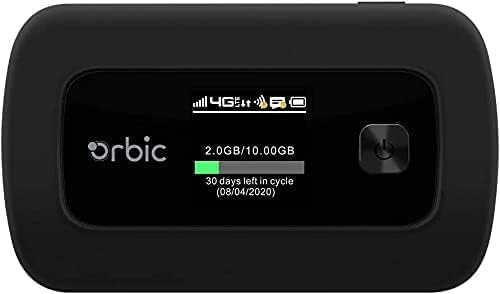
Figure 1: Orbic Speed (RC400L) Front View nrog Display
2. Pib: Teeb
2.1. Kev them nyiaj yug ntaus ntawv
Before initial use, fully charge your Orbic Speed hotspot. Connect the provided USB cable to the device's charging port and the other end to a compatible USB power adapter (not included) or a computer's USB port. The device's display will indicate charging status.
- Use only approved charging accessories.
- Avoid leaving the device plugged in for extended periods after it is fully charged to prolong battery life.
2.2. Muab daim npav SIM ntxig rau hauv
The Orbic Speed (RC400L) requires a compatible 4G LTE SIM card (not included) to access cellular data networks. Follow these steps to insert the SIM card:
- Xyuas kom tseeb tias lub cuab yeej raug kaw.
- Carefully remove the back cover of the device. The back cover is designed to snap off easily without tools.
- Nrhiav lub SIM daim npav qhov.
- Insert the SIM card into the slot with the gold contacts facing down and the notched corner aligned correctly. Push gently until it clicks into place.
- Replace the back cover, ensuring it snaps securely into position.

Figure 2: Orbic Speed (RC400L) Back View (SIM card slot is under the cover)
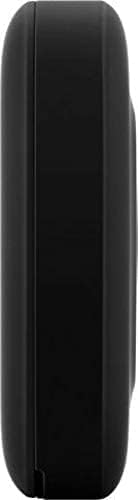
Figure 3: Orbic Speed (RC400L) Side View (Charging port location)
2.3. Fais fab rau / tawm
- Txhawm rau Fais Fab: Press and hold the Power button (usually located on the front or side) until the display lights up.
- Mus Faib Tawm: Press and hold the Power button until the "Power Off" option appears on the display, then confirm. Alternatively, hold the power button for several seconds until the device shuts down.
3. Operating the Hotspot
3.1. Connecting Devices via Wi-Fi
Once your Orbic Speed hotspot is powered on and has established a cellular connection, you can connect your Wi-Fi enabled devices (laptops, tablets, smartphones, etc.) to it.
- Hauv koj lub cuab yeej, qhib qhov chaw teeb tsa Wi-nkaus.
- Luam theej duab rau muaj Wi-nkaus tes hauj lwm.
- Select the network name (SSID) displayed on your Orbic Speed's screen.
- Enter the Wi-Fi password (Key) also displayed on the hotspot's screen.
- Your device should now be connected to the internet through the hotspot.
The Orbic Speed supports both 2.4GHz and 5GHz Wi-Fi bands. You can switch between these or configure them via the web kev tswj hwm interface.
3.2. Nkag mus rau Web Administration Interface
For advanced settings, network monitoring, and configuration, you can access the Orbic Speed's web administration interface from a connected device.
- Ensure your device is connected to the Orbic Speed's Wi-Fi network.
- Qhib a web browser (xws li Chrome, Firefox, Edge).
- In the address bar, type the default IP address for the hotspot (commonly 192.168.1.1 or 192.168.0.1, refer to your device's display or packaging for the exact address).
- Enter the administrator username and password when prompted. Default credentials are often "admin" for both, but it is highly recommended to change these for security.
Los ntawm web interface, koj tuaj yeem tswj hwm Wi-Fi chaw, view connected devices, monitor data usage, change passwords, and configure other network parameters.
3.3. Nkag siab txog LCD zaub
The Orbic Speed's LCD display provides essential information at a glance:
- Teeb liab zog: Bars indicating the strength of the cellular network signal.
- Hom Network: Icons for 4G LTE, 3G, etc.
- Qhov xwm txheej Wi-nkaus: Indicates if Wi-Fi is active and if devices are connected.
- Roj teeb theem: Icon showing remaining battery charge.
- Kev siv cov ntaub ntawv: Displays current data consumption (e.g., GB used out of total plan).
- Txuas Devices: Number of devices currently connected to the hotspot.
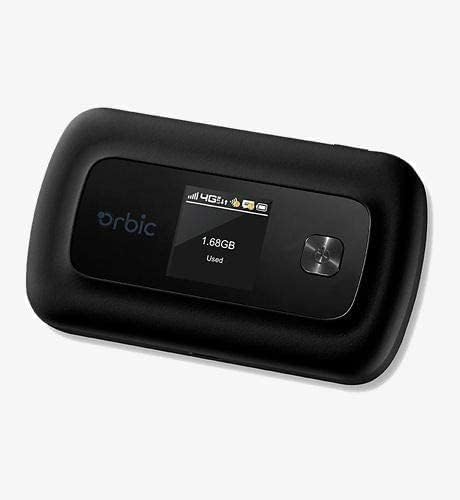
Figure 4: Orbic Speed (RC400L) Display in Use
4. Kev tu
4.1. Kev kho roj teeb
To maximize the lifespan of your device's battery:
- Tsis txhob kub siab heev.
- Do not leave the device continuously plugged in for extended periods (e.g., 24/7) if not necessary, as this can degrade battery health over time.
- If storing the device for a long time, charge it to about 50% before storage.
- The battery is designed for easy replacement. Should replacement be necessary, the back casing can be snapped off to access the battery without tools.
4.2. Ntxuav Cov Ntaus
Use a soft, dry, lint-free cloth to clean the exterior of the device. Do not use liquid cleaners or aerosols directly on the device.
4.3. Kev hloov kho software
Periodically check for software updates through the web administration interface. Updates can improve performance, add features, and enhance security.
5. Kev daws teeb meem
| Teeb meem | Ua Tau | Kev daws |
|---|---|---|
| Tsis muaj Internet txuas | No SIM card, SIM not activated, poor cellular signal, data plan exhausted. |
|
| Device Tsis Powering On | Low battery, faulty charger/cable. |
|
| Slow Wi-Fi Ceev | Poor cellular signal, too many connected devices, interference. |
|
| Nkag tsis tau Web UI | Incorrect IP address, not connected to hotspot Wi-Fi. |
|
If problems persist, consider performing a factory reset (refer to the web administration interface for instructions, as this will erase all custom settings) or contact customer support.
6. Cov lus qhia tshwj xeeb
| Feature | Paub meej |
|---|---|
| Qauv Lub Npe | Orbic Speed (RC400L) |
| Connectivity Technology | USB, Wi-Fi (4G LTE) |
| Wireless Txuj | 802.11ac (Dual-Band) |
| Compatible Devices | Laptop, Tablet, Smartphone, etc. |
| Xim | Dub |
| Yam Nyhav | 7.8 hli |
| Pob Dimensions | 5.75 x 3.46 x 2.2 po |
| Roj teeb | 1 Lithium Ion roj teeb (nrog) |
| Tshwj xeeb Feature | Qhov taw qhia LED |
| Chaw tsim tshuaj paus | Orbic |
7. Warranty thiab Support
This product is sold as an Amazon Renewed item. Amazon Renewed products are pre-owned and refurbished by qualified suppliers to work and look like new. They come with the Amazon Renewed Guarantee, which provides a replacement or refund within 90 days of receipt if the product does not work as expected.
For technical support or warranty claims, please refer to the Amazon Renewed program details or contact the seller directly through your Amazon order history. For general product inquiries or advanced troubleshooting not covered in this manual, you may also visit the official Orbic support website yog muaj.
For additional information regarding your purchase, please visit your Amazon Order History.