
Taw qhia
The ShanWan Wireless Controller is a versatile gaming peripheral designed for use across multiple platforms, including PC, iPhone, Android, Nintendo Switch, and Steam. It offers tri-mode connectivity (Bluetooth, 2.4G wireless, and USB-C wired) to ensure a seamless gaming experience. This manual provides detailed instructions for setup, operation, maintenance, and troubleshooting to help you maximize your controller's performance.
Note: This controller is not compatible with Xbox or PlayStation 4/5 consoles.
Ntim Cov Ntsiab Lus
- ShanWan Wireless Controller
- USB-C Charging Cable
- 2.4G Wireless Dongle
- Tus Neeg Siv Los Siv (cov ntawv no)
Controller Tshajview
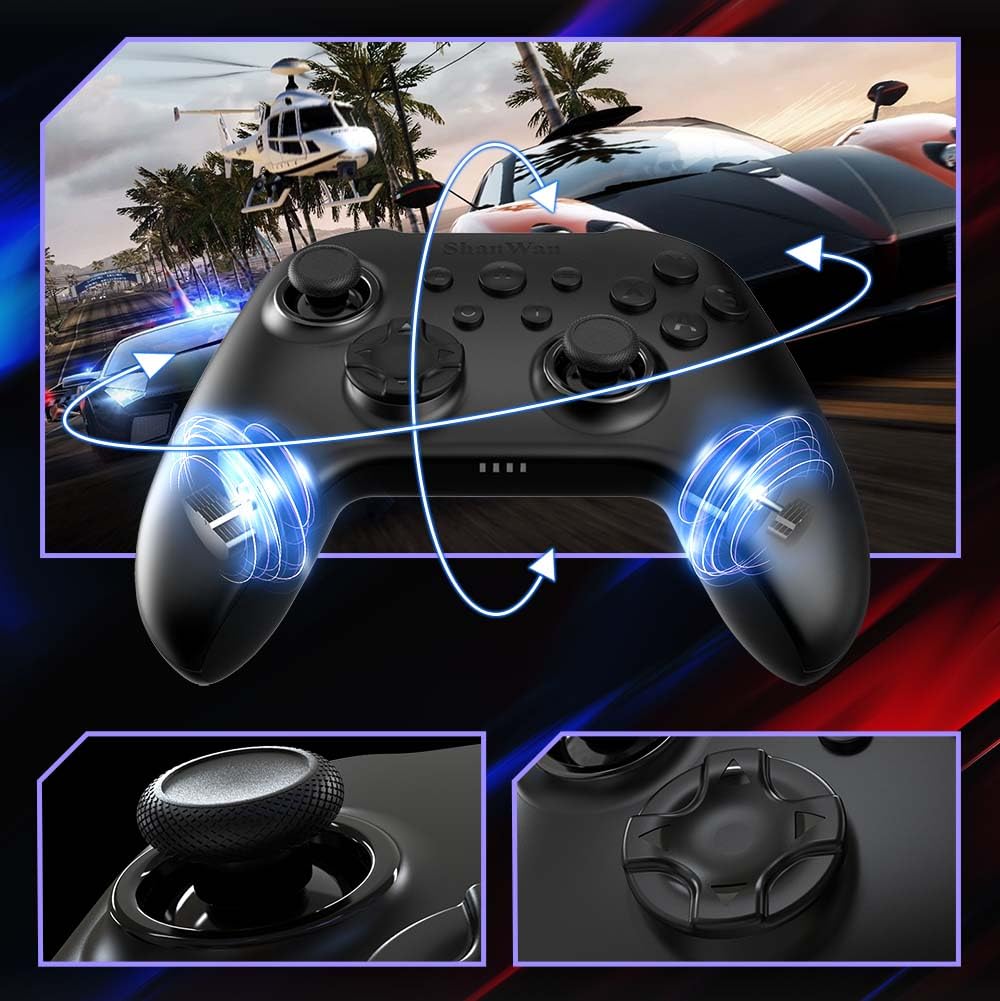
Duab: Pem hauv ntej view of the ShanWan Wireless Controller, showcasing its ergonomic design, dual joysticks, D-pad, and face buttons (A, B, X, Y).
Duab: Rov qab view of the ShanWan Wireless Controller, highlighting the mode switch for different platforms (X, D, S).
Cov yam ntxwv tseem ceeb:
- Hall Effect Joysticks: Designed for precision with no dead zones and anti-drift capabilities.
- Durable Gel Buttons: Conductive gel buttons tested for 1 million clicks for long-lasting performance.
- 6-Axis Gyroscope: Provides precise motion sensing for immersive gameplay.
- Ob Lub Cev Muaj Zog Tsav Tsheb: Delivers strong and subtle haptic feedback for an enhanced gaming experience.
- Turbo Muaj nuj nqi: Allows for rapid, repeated button presses.
Teeb tsa
1. Kev them nyiaj yug Controller
Before initial use, fully charge the controller using the provided USB-C cable. Connect the USB-C end to the controller and the USB-A end to a power source (e.g., computer USB port, USB wall adapter). The charging indicator lights will show charging status and turn off when fully charged.
2. Txuas rau Devices
The ShanWan Wireless Controller supports three connection modes: Bluetooth, 2.4G Wireless, and USB-C Wired. Ensure the mode switch on the back of the controller is set to the appropriate platform before attempting to connect.

Duab: Visual representation of the controller's tri-mode connectivity, illustrating Bluetooth, 2.4G wireless, and USB-C wired options.
Mode Switch Settings:
- 'S' Mode: For Nintendo Switch.
- 'X' Mode: For PC (X-input), Android.
- 'D' Mode: For PC (D-input), iOS.
Bluetooth Kev Txuas:
- Set the mode switch on the back of the controller to the desired platform ('S', 'X', or 'D').
- Press and hold the pairing button (usually a small button on the top or back) until the indicator lights flash rapidly.
- On your device (PC, iPhone, Android, Switch), go to Bluetooth settings and search for new devices.
- Select "ShanWan Controller" or a similar name from the list to pair.
- Once paired, the indicator lights on the controller will become solid.
2.4G Wireless Connection (for PC/Switch):
- Set the mode switch on the back of the controller to 'X' (for PC) or 'S' (for Switch).
- Insert the 2.4G wireless dongle into a USB port on your PC or Switch dock.
- Press the Home button on the controller to power it on. It should automatically connect to the dongle.
- The indicator lights will become solid once connected.
Kev Txuas USB-C:
- Connect the USB-C cable to the controller and the other end to your PC or Switch dock.
- The controller will automatically be recognized as a wired device.
- No specific mode switch setting is required for wired connection, but setting it to the correct platform mode ('X' for PC, 'S' for Switch) is recommended for optimal compatibility.
Cov lus qhia ua haujlwm
Fais fab / Off:
- Hwj chim On: Press the Home button once.
- Fais fab tawm: Press and hold the Home button for 3-5 seconds, or the controller will automatically power off after a period of inactivity.
Motion Control:
The built-in 6-axis gyroscope provides motion control capabilities, particularly useful for games on Nintendo Switch or other compatible platforms. Ensure the game supports motion controls for this feature to function.
Cov lus qhia vibration:
The dual vibration motors provide haptic feedback during gameplay. The intensity of the vibration can often be adjusted through game settings or the Gamepad Space app.
Turbo Muaj nuj nqi:
To activate the Turbo function for a specific button:
- Press and hold the button you wish to set to Turbo.
- While holding the button, press the Turbo button (refer to controller layout for location).
- The button will now repeatedly register presses as long as it is held down.
To deactivate Turbo for a button, repeat the process.
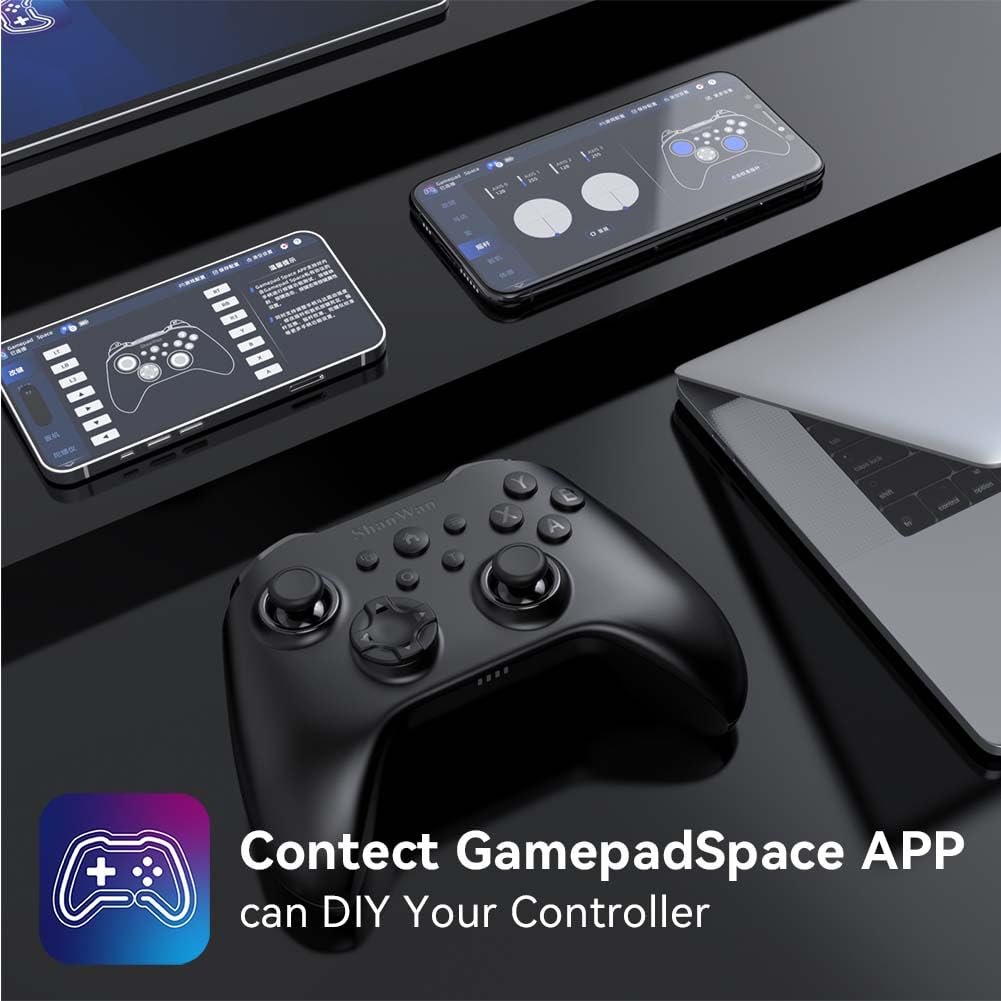
Software Customization (Gamepad Space App):
Enhance your gaming experience by customizing controller settings using the Gamepad Space mobile application.

Duab: A ShanWan controller alongside smartphones displaying the Gamepad Space app, illustrating options for calibration and on-the-fly adjustments.
- Download the "Gamepad Space" app from your mobile device's app store.
- Connect your controller to your mobile device via Bluetooth.
- Hauv lub app, koj tuaj yeem:
- Txhim kho firmware.
- Adjust stick and trigger dead zones.
- Customize vibration intensity.
- Test buttons.
Kev tu
- Ntxuav: Siv ib daim ntaub mos, qhuav los ntxuav tus tswj. Tsis txhob siv cov tshuaj hnyav lossis cov khoom siv abrasive.
- Cia: Khaws tus maub los rau hauv qhov chaw txias, qhuav kom deb ntawm tshav ntuj ncaj qha thiab qhov kub thiab txias.
- Kev kho roj teeb: Yuav kom lub roj teeb siv tau ntev, tsis txhob cia lub maub los tso roj ntau dhau. Muab roj teeb them tas li, txawm tias tsis siv tas li los xij.
Kev daws teeb meem
Controller Tsis Txuas:
- Xyuas kom tus maub los tau them.
- Verify the mode switch on the back of the controller is set correctly for your platform (S, X, or D).
- For Bluetooth, ensure your device's Bluetooth is on and the controller is in pairing mode.
- For 2.4G wireless, ensure the dongle is properly inserted and the controller is in the correct mode.
- Sim rov pib dua ob lub maub los thiab koj lub cuab yeej.
Kev Nkag Mus qeeb lossis Kev Tsis Txuas:
- Xyuas kom tseeb tias tsis muaj kev cuam tshuam hluav taws xob muaj zog nyob ze.
- Move closer to your device for a stronger wireless signal.
- Ensure the controller's battery is not low.
- Consider using a wired USB-C connection for the most stable experience.
Joystick Drift or Unresponsive Buttons:
- Calibrate the joysticks and test buttons using the Gamepad Space app.
- Ensure the controller's firmware is up to date via the Gamepad Space app.
- Ntxuav ib ncig ntawm cov nyees khawm thiab joysticks kom tshem tawm cov khib nyiab.
Specifications
| Qauv | B0FS13DT2B |
| Connectivity Technology | Bluetooth, 2.4G Wireless, USB-C Wired |
| Compatible Devices | Android, iOS, Nintendo Switch, Nintendo Switch 2, PC |
| Hom tswj | Gamepad |
| Khawm Qhov Ntau | 12 |
| Tshwj xeeb nta | Hall Effect Joysticks, 6-Axis Gyroscope, Dual Vibration, Turbo Function, Software Customization |
| Hwj chim Source | Roj teeb Powered |
| Yam Nyhav | 300 Nws |
| Yam khoom Dimensions (D x W x H) | 2.5 "x 4" x 6" |
Warranty thiab Support
ShanWan products are designed for reliability and performance. For specific warranty information, please refer to the documentation included with your purchase or visit the official ShanWan support website. If you encounter any issues not covered in this manual, please contact ShanWan customer support for assistance.
Kev them nyiaj yug hauv internet: Visit the ShanWan Store on Amazon