
Moman Xview M4 Pro
Moman Xview M4 Pro Selfie Monitor User Manual
Qauv: Xview M4 Pro
1. Taw qhia
This manual provides comprehensive instructions for the safe and efficient use of your Moman Xview M4 Pro Selfie Monitor. Please read this manual thoroughly before operating the device and retain it for future reference.
2. Cov ntaub ntawv kev nyab xeeb
Txhawm rau kom muaj kev nyab xeeb thiab tiv thaiv kev puas tsuaj, ua raws li kev ceev faj hauv qab no:
- Do not expose the monitor to water or excessive humidity.
- Tsis txhob tso tseg lossis ua rau lub cuab yeej raug cuam tshuam.
- Do not attempt to disassemble or repair the monitor yourself. Contact qualified service personnel.
- Khaws lub monitor kom deb ntawm lub hnub ncaj qha thiab qhov chaw tshav kub.
- Siv tsuas yog lub adapter fais fab thiab cov khoom siv uas tau teev tseg xwb.
3. Cov ntsiab lus ntawm pob
Xyuas kom tseeb tias txhua yam khoom muaj nyob hauv pob:
- Moman Xview M4 Pro Selfie Monitor (main unit)
- USB-C Charging Cable
- Tus Neeg Siv Los Siv (cov ntawv no)
Note: The package contents may vary slightly depending on the region or specific bundle purchased.
4. Teeb tsa
4.1 Charging the Monitor
Before first use, fully charge the Moman Xview M4 Pro monitor. Connect the provided USB-C cable to the monitor's charging port and the other end to a compatible USB power adapter (not included) or a computer's USB port.
The charging indicator light will typically show red while charging and turn green or off when fully charged.
4.2 Mounting Saib
The Moman Xview M4 Pro is designed to be mounted on various camera rigs or smartphone cages. It features a standard 1/4"-20 screw hole for attachment.
- Attach the monitor to a cold shoe mount or a compatible bracket (sold separately) using the 1/4"-20 screw.
- Securely fasten the monitor to your smartphone cage or camera setup.
- Kho cov viewlub kaum sab xis raws li xav tau.
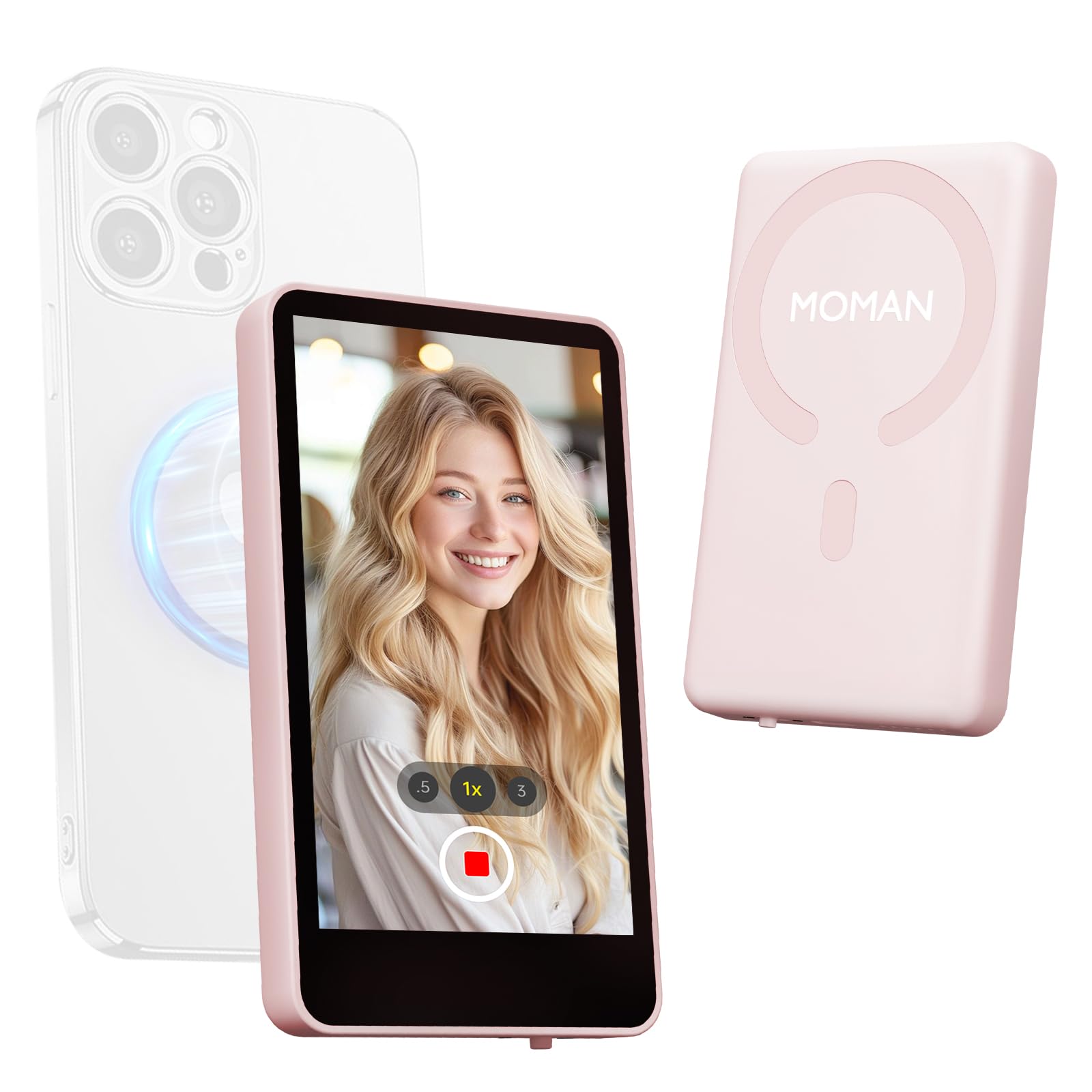
Image: The Moman Xview M4 Pro Selfie Monitor shown attached to a smartphone rig, demonstrating its compact size and mounting flexibility.
5. Cov lus qhia ua haujlwm
5.1 Hwj chim Rau/Tawm
To power on the monitor, press and hold the power button located on the side/back of the device for approximately 3 seconds. The screen will illuminate. To power off, press and hold the power button again until the screen turns off.
5.2 Connecting to a Smartphone
The Moman Xview M4 Pro connects wirelessly to your smartphone (iPhone 7-17 Series & Android). Follow these steps:
- Xyuas kom tseeb tias koj lub xov tooj ntse Bluetooth thiab Wi-nkaus tau qhib lawm.
- Download and install the dedicated Moman Xview app los ntawm koj lub smartphone lub khw app.
- Open the Moman Xview app and follow the on-screen instructions to pair with the M4 Pro monitor. The app will guide you through the connection process, typically involving selecting the monitor from a list of available devices.
- Once connected, your smartphone's camera feed will be mirrored on the M4 Pro monitor.
For optimal performance, ensure your smartphone and the monitor are within close proximity and free from wireless interference.
5.3 Saib Xyuas Kev Ua Haujlwm
The M4 Pro monitor provides various functions to enhance your selfie and video recording experience:
- Kev saib xyuas lub sijhawm tiag tiag: View your smartphone's camera feed in real-time.
- Kev hloov Brightness: Use the dedicated buttons or app controls to adjust screen brightness.
- Mirror/Flip Function: Some models or app versions may offer options to mirror or flip the display for specific shooting scenarios. Refer to the app for available features.
- Qhov taw qhia roj teeb: The monitor displays its current battery level.
6. Kev tu
6.1 Kev ntxuav
To clean the monitor, use a soft, dry, lint-free cloth. For stubborn smudges, lightly dampen the cloth with water or a screen-cleaning solution. Do not use harsh chemicals or abrasive materials.
6.2 Cia khoom
When not in use, store the monitor in a cool, dry place, away from direct sunlight and extreme temperatures. It is recommended to use the original packaging or a protective case to prevent scratches and damage.
7. Kev daws teeb meem
| Teeb meem | Ua Tau | Kev daws |
|---|---|---|
| Monitor tsis muaj zog. | Tsawg roj teeb. | Charge the monitor using the provided USB-C cable. |
| Cannot connect to smartphone. | Bluetooth/Wi-Fi off; App not installed; Monitor not in pairing mode; Interference. | Ensure Bluetooth/Wi-Fi are on. Install Moman Xview app. Restart monitor and app. Move closer to the monitor. |
| Qhov screen yog dawb los yog flickering. | Loose connection; Software glitch. | Ensure secure connection. Restart monitor and smartphone. Check for app updates. |
If the problem persists after trying these solutions, please contact Moman customer support.
8. Cov lus qhia tshwj xeeb
| Feature | Paub meej |
|---|---|
| Qauv | Xview M4 Pro |
| Kev sib txuas | Wireless (Bluetooth/Wi-Fi) |
| Kev sib haum xeeb | iPhone 7-17 Series & Android smartphones |
| Qhov ntev | 12.19 x 9.91 x 1.9 cm (kwv.) |
| Qhov hnyav | 168 grams (kwv yees) |
| Hwj chim Source | USB-C (internal rechargeable battery) |
Cov lus qhia tshwj xeeb yuav hloov pauv yam tsis tau ceeb toom.
9. Warranty thiab Support
Moman products are covered by a limited warranty. For detailed warranty terms and conditions, please refer to the warranty card included with your product or visit the official Moman webqhov chaw.
For technical support, troubleshooting assistance, or service inquiries, please contact Moman customer support through their official webqhov chaw lossis cov ntaub ntawv tiv tauj tau muab rau hauv koj cov khoom ntim khoom.
Moman Official Webqhov chaw: www.moman.co
Ask a question about this manual
Ask about setup, troubleshooting, compatibility, parts, safety, or missing instructions. Manuals+ will review the question and use this page’s manual context to help answer it.