
Taw qhia
This manual provides comprehensive instructions for the setup, operation, and maintenance of your ASUS ROG Strix 27” 5K HDR Gaming Monitor (Model: XG27JCG). Please read this manual thoroughly before using the monitor to ensure proper functionality and to maximize your user experience.
The ROG Strix XG27JCG is a 27-inch 5K (5120 x 2880) Fast IPS display designed for high-performance gaming and detailed visual tasks. It features a 180Hz (overclocked) refresh rate, 0.3ms GTG response time, and a Dual Mode function allowing switching between 5K 180Hz and QHD 330Hz. Advanced features include G-SYNC Compatible technology, VESA DisplayHDR 600, and ROG Gaming A.I. Technology.
Video: Tshajview of the ASUS ROG Strix XG27JCG 27-inch 5K monitor, highlighting its key features and design.
Dab tsi nyob hauv lub thawv
Ua ntej pib teeb tsa, xyuas kom tseeb tias txhua yam khoom muaj nyob hauv lub thawv.
- ASUS ROG Strix XG27JCG Monitor
- DisplayPort cable
- Kev qhia ceev pib
- ROG pouch
- ROG daim nplaum
- ROG tripod stand
- Warranty Card
- Hwj chim Cord
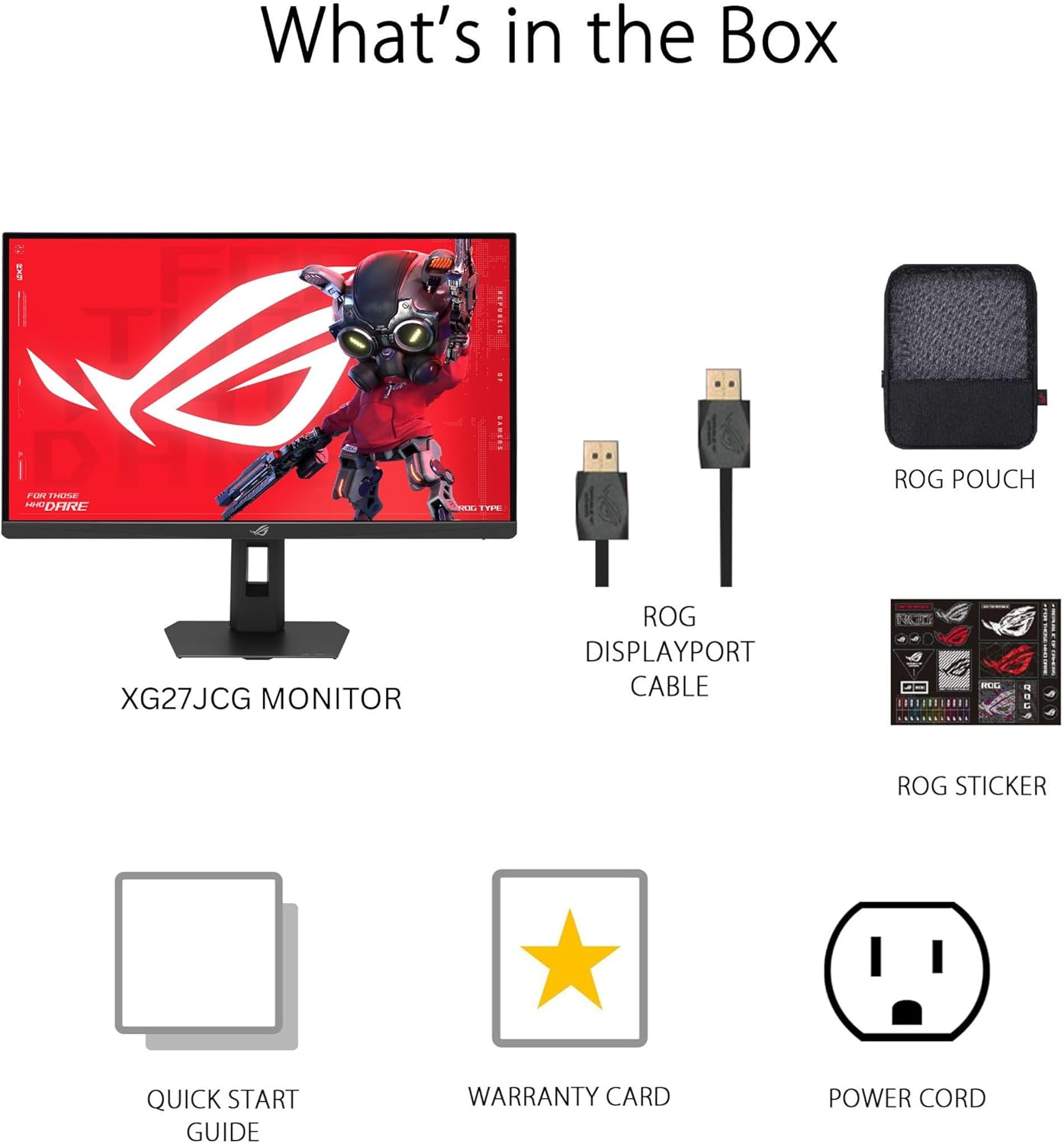
Duab: Contents of the monitor packaging, showing the monitor, DisplayPort cable, ROG pouch, ROG sticker, Quick Start Guide, Warranty Card, and Power Cord.
Teeb cov lus qhia
1. Sib sau ua ke sawv ntsug
Carefully remove the monitor from its packaging. Attach the stand base to the stand neck, securing it with the provided screw. Then, attach the assembled stand to the back of the monitor until it clicks into place. Ensure all connections are firm.
2. Txuas rau Computer
The monitor supports DisplayPort 1.4 (DSC), HDMI 2.1, and USB-C connectivity. Choose the appropriate cable for your system.
- DisplayPort: Txuas ib kawg ntawm DisplayPort cable rau tus saib lub DisplayPort cov tswv yim thiab lwm qhov kawg rau koj lub khoos phis tawj DisplayPort cov zis.
- HDMI: Connect one end of an HDMI 2.1 cable to the monitor's HDMI input and the other end to your computer's HDMI output.
- USB-C: Yog Connect a USB-C cable to the monitor's USB-C port and to a compatible USB-C port on your computer. This connection also supports 15W power delivery.

Duab: Qab view of the monitor's connectivity ports, including HDMI 2.1, DisplayPort 1.4, USB Type-C, and a Headphone Jack.
3. Fais fab kev twb kev txuas
Txuas lub hwj chim qaum mus rau lub monitor lub hwj chim tawm tswv yim, ces ntsaws rau lwm qhov kawg rau hauv lub qhov hluav taws xob.
4. Pib Pib Ua Haujlwm
Press the power button located on the monitor to turn it on. The monitor will automatically detect the input source. If no image appears, ensure all cables are securely connected and the computer is powered on.
Cov lus qhia ua haujlwm
On-Screen Display (OSD) Menu
Use the joystick and buttons on the back of the monitor to navigate the OSD menu. The OSD allows you to adjust various settings such as brightness, contrast, color, input source, and gaming features.
Display Modes and Refresh Rate
The monitor features a Dual Mode function, allowing you to switch between two primary display configurations:
- 5K (5120 x 2880) at 180Hz (OC): Provides ultra-sharp, immersive visuals suitable for cinematic content and detailed work.
- QHD (2560 x 1440) at 330Hz: Offers extremely high frame rates and responsive gaming action, ideal for competitive esports.
Switching between modes can be done via the OSD menu or a dedicated hotkey, if configured.

Duab: Visual representation of the monitor's Dual Mode, allowing users to switch between 5K 180Hz and QHD 330Hz for different gaming experiences.
ROG Gaming A.I. Technology
This monitor includes AI-powered features designed to enhance your gaming experience:
- Dynamic Duab ntxoov ntxoo Boost: Automatically brightens dark areas of the game world without overexposing bright areas, improving visibility of hidden enemies or details.
- Dynamic Crosshair: Provides an on-screen crosshair that can adapt to the game environment, ensuring it remains visible against various backgrounds.
- AI Visual: Optimizes visual settings based on the game content for improved clarity and detail.

Duab: Examples of Dynamic Crosshair and Dynamic Shadow Boost in action, showing how these features enhance visibility in games.
DisplayWidget Center
The DisplayWidget Center software provides seamless control over monitor settings directly from your Windows or macOS operating system. This utility allows for easy adjustment of GameVisual modes, MultiScreen configurations, and system settings without using the OSD buttons.

Duab: Screenshot of the DisplayWidget Center software, demonstrating its user interface for adjusting monitor settings.
Ergonomics and Adjustments
The monitor stand offers multiple adjustment options to optimize your viewhauv kev nplij siab:
- Qaij: +20 ° txog -5 °
- Swivel: +40 ° txog -40 °
- Pivot: +90° to -90° (for portrait mode)
- Kev kho qhov siab: 0-110 hli
Adjust the monitor to an ergonomic position that reduces strain on your neck and eyes. Ensure the top of the screen is at or slightly below eye level.

Duab: Diagram illustrating the monitor's ergonomic adjustments, including tilt, swivel, pivot, and height.
Kev tu
Ntxuav Tus Saib Xyuas
- Txhua zaus lub hwj chim tawm ntawm lub monitor thiab unplug lub hwj chim qaum ua ntej ntxuav.
- Siv cov ntaub mos mos, tsis muaj lint-dawb me ntsis dampnrog dej los yog ib qho me me, uas tsis yog-abrasive tshuaj ntxuav.
- Tsis txhob tsuag tshuaj ntxuav ncaj qha rau ntawm qhov screen. Siv nws rau daim ntaub ua ntej.
- Avoid using alcohol-based cleaners, ammonia, or abrasive materials, as these can damage the screen surface.
Kev saib xyuas dav dav
- Keep the monitor away from direct sunlight, excessive heat, and humidity.
- Xyuas kom muaj cua nkag tau zoo nyob ib puag ncig lub monitor kom tiv thaiv kom tsis txhob kub dhau.
- Tsis txhob tso cov khoom hnyav rau ntawm lub monitor lossis nws cov cables.
Kev daws teeb meem
| Teeb meem | Kev daws teeb meem |
|---|---|
| Tsis muaj duab nyob rau hauv kev tshuaj ntsuam |
|
| Duab yog qhov muag plooj lossis distorted |
|
| Screen flickers or shows artifacts |
|
| No sound from headphones (if connected to monitor) |
|
Specifications
| Feature | Paub meej |
|---|---|
| Hom | ASUS |
| Qauv nab npawb | XG27JCG |
| Qhov Loj | 27 Nws |
| Kev daws teeb meem | 5120 x 2880 (5K UHD) |
| Hom vaj huam sib luag | Fast IPS |
| Refresh Rate | 180 Hz (OC) / QHD 330Hz (Dual Mode) |
| Teb Sijhawm | 0.3 ms (GTG) ceev |
| Aspect Ratio | 16:9 ua |
| Qhov sib piv piv | 600:1 ua |
| Viewhauv Angle | 178 Degrees (H/V) |
| Kev them nyiaj yug HDR | VESA DisplayHDR 600 |
| Xim Gamut | 97% DCI-P3 |
| Adaptive Sync | AMD FreeSync Premium Pro, G-SYNC Compatible |
| Kev sib txuas | 1x DisplayPort 1.4 (DSC), 2x HDMI 2.1, 1x USB-C (with 15W PD), Headphone Jack |
| Kev siv fais fab | 40 Watts |
| Yam khoom Dimensions (D x W x H) | 8.59" H x 24.2" W x 20.1" H |
| Yam Nyhav | 6.9 Ib |
| Ergonomic Kev Kho Kom Zoo | Tilt (+20° ~ -5°), Swivel (+40° ~ -40°), Pivot (+90° ~ -90°), Height (0~110mm) |
Warranty thiab Support
This ASUS ROG Strix XG27JCG monitor comes with a 3 xyoo warranty. For warranty claims, technical support, or service inquiries, please contact ASUS customer support. Refer to the included Warranty Card for detailed terms and conditions.
You can find additional support resources, drivers, and FAQs on the official ASUS support webqhov chaw: www.asus.com/support/