
1. Taw qhia
Thank you for choosing the TOPTRO TP3 4K Google TV Portable Projector. This manual provides essential information for setting up, operating, and maintaining your projector. Please read it thoroughly before use to ensure optimal performance and safety.
The TOPTRO TP3 is designed to deliver a versatile and immersive viewing experience, featuring integrated Google TV, AI-powered image adjustments, and comprehensive connectivity options. Enjoy your content at home, outdoors, or on the go.
2. Khoom Tshajview
2.1 Cov yam ntxwv tseem ceeb
- Integrated Google TV: Access over 10,000 official streaming applications, including Netflix, Prime Video, and YouTube, without additional devices.
- Google Voice Control: Use the remote control's voice assistant button to search for content, adjust settings, and control playback hands-free.
- AI-Powered Image Adjustment: Features automatic focus, automatic keystone correction, obstacle avoidance, and automatic screen adjustment for a perfectly aligned and clear image within seconds.
- Native 1080P Resolution with 4K Decoding: Delivers sharp, detailed images and natural colors, supporting 4K video decoding.
- Short Throw Ratio (0.8:1): Projects a 60-inch image from just one meter distance, ideal for small spaces.
- 90-Degree Rotating Stand: Allows for flexible projection angles, including ceiling projection.
- Advanced Connectivity: Equipped with dual-band WiFi 6, Bluetooth 5.3, HDMI ARC, USB, and a 3.5mm audio jack for wide device compatibility.
- Portable Design: Weighing only 1.2 kg (2.6 lbs) with a hidden carry handle, making it easy to transport.
2.2 Ntim Cov Ntsiab Lus
Xyuas kom txhua yam khoom muaj nyob hauv pob:
- Tom ntej: TOPTRO TP3 Projector
- Chaw taws teeb tswj
- HDMI Cable
- Fais fab Adapter
- Cov neeg siv phau ntawv
3. Teeb tsa
3.1 Qhov chaw pib
Place the projector on a stable, flat surface. The 90-degree rotating stand allows for various projection angles, including wall, ceiling, or tabletop. For optimal image quality, ensure the projection surface is smooth and light-colored.

Image: The TOPTRO TP3 projector can be used in diverse environments, from living rooms to outdoor camping, showcasing nws qhov kev hloov pauv.
3.2 Kev sib txuas fais fab
- Txuas lub hwj chim adapter rau lub projector lub hwj chim nkag.
- Plug the power adapter into a suitable electrical outlet (220V).
- Nias lub hwj chim khawm ntawm lub projector lossis chaw taws teeb tswj kom tig nws.
3.3 Kev Sib Txuas Network
Upon first startup, follow the on-screen prompts to connect to your Wi-Fi network. The projector supports dual-band WiFi 6 for a fast and stable connection.
3.4 Google TV teeb
After connecting to Wi-Fi, sign in with your Google account to access Google TV and download applications from the Google Play Store. This step is crucial for utilizing the integrated streaming services.

Image: The projector's interface showing integrated Google TV with direct access to popular streaming applications.
4. Cov lus qhia ua haujlwm
4.1 Kev ua haujlwm yooj yim
- Fais fab / Off: Press the power button on the remote or projector.
- Kev taw qhia: Use the directional buttons on the remote to navigate menus.
- Kev xaiv: Press the 'OK' button to confirm selections.
- Volume Control: Siv cov nyees khawm ntim suab ntawm chaw taws teeb tswj.
4.2 Kho duab
The TOPTRO TP3 features AI-powered automatic image adjustments:
- Nws pib kom pom tseeb: Lub projector yuav kho qhov meej ntawm daim duab tau.
- Auto Keystone Kho: Automatically corrects distorted images to a rectangular shape.
- Obstacle Avoidance: Detects and adjusts the image to avoid objects on the projection surface.
- Auto Screen Adjustment: Optimizes the image to fit the screen area.
These adjustments occur automatically within seconds of powering on or repositioning the projector. Manual digital zoom (80-100%) is also available for fine-tuning image size.

Image: Visual representation of the projector's AI-powered automatic image adjustment features, ensuring a clear and aligned picture.
4.3 Google Voice Control
Press the dedicated voice assistant button on your remote control and speak your command. For example, say "Open YouTube" or "Play music." The projector will respond to your voice commands for quick access to functions and content.
4.4 Screen Mirroring (Google Cast)
Utilize Google Cast technology to wirelessly mirror content from your smartphone or tablet to the projector. For iPhone users, download the "AirScreen" application from the Google Play Store on the projector for wireless screen mirroring.
4.5 Rotating Stand Usage
The integrated 90-degree rotating stand allows you to easily adjust the projection angle. Simply pivot the projector to direct the image onto a wall, screen, or ceiling. This feature is particularly useful for bedroom viewing or creative setups.
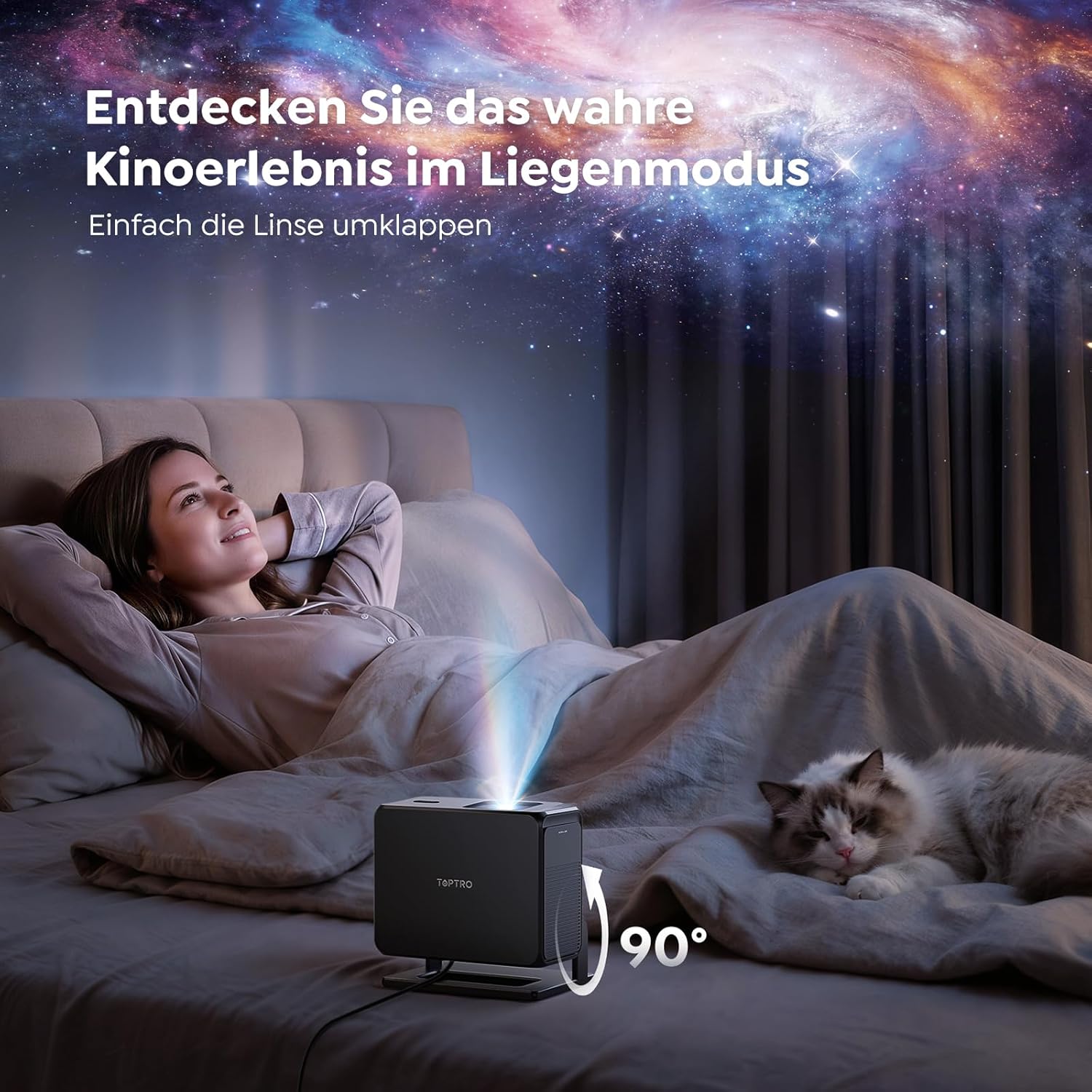
Image: The TOPTRO TP3 projector rotated 90 degrees to project content onto a bedroom ceiling, offering a unique viewhauv kev paub.
5. Kev sib txuas
5.1 Wired Connections
- HDMI ARC/CEC: Connect external devices like laptops, gaming consoles (Xbox/PlayStation 5), or Blu-ray players. The ARC feature allows audio to be sent back to a compatible sound system.
- USB: Txuas USB drives rau media playback.
- 3.5mm Audio Jack: Connect external wired speakers or headphones.
5.2 Kev sib txuas wireless
- Wi-Fi 6: Provides faster and more stable wireless connectivity for streaming and online content.
- Bluetooth 5.3: Cov Connect Bluetooth headphones or speakers for an enhanced audio experience.
6. Kev tu
6.1 Ntxuav Lub Lens
Gently clean the projector lens with a soft, lint-free cloth designed for optical surfaces. Avoid using abrasive cleaners or excessive force, as this can scratch the lens.
6.2 Kev Tu Kom Huv
Wipe the exterior of the projector with a soft, dry cloth. Do not use liquid cleaners directly on the device.
6.3 Cia khoom
When not in use, store the projector in a cool, dry place, away from direct sunlight and extreme temperatures. Use the original packaging or a protective case to prevent dust accumulation and damage.
7. Kev daws teeb meem
7.1 Tsis muaj duab tso tawm
- Xyuas kom tseeb tias lub projector tau qhib thiab txuas nrog lub zog fais fab.
- Check all cable connections (HDMI, USB) to external devices.
- Verify the input source selected on the projector matches the connected device.
- Confirm the lens cap is removed.
7.2 Duab tsis meej
- Allow the auto-focus function to complete its adjustment.
- Xyuas kom meej tias qhov chaw projection tiaj tus thiab lub projector ruaj khov.
- Clean the projector lens if smudges or dust are visible.
7.3 Tsis muaj suab
- Check the volume level on both the projector and the connected source device.
- Ensure external speakers or headphones are properly connected (wired or Bluetooth).
- If using HDMI ARC, verify your sound system is compatible and correctly configured.
7.4 Chaw taws teeb tswj tsis ua haujlwm
- Hloov cov roj teeb hauv cov chaw taws teeb tswj.
- Xyuas kom tseeb tias tsis muaj dab tsi thaiv ntawm qhov chaw taws teeb thiab lub projector lub IR receiver.
For further assistance, refer to the detailed troubleshooting section in the full user manual or contact customer support.
8. Cov lus qhia tshwj xeeb
| Feature | Specification |
|---|---|
| Hom | TOPTRO |
| Qauv Lub Npe | TIAB SA 3 |
| Native Resolution | 1920 x 1080 (1080P) daws teeb meem |
| Video Decoding Support | 4K |
| Hom zaub | LED |
| Tshwj xeeb nta | Auto Focus, Auto Keystone Correction, Obstacle Avoidance, Auto Screen Adjustment, Google TV, Google Voice Control |
| Connectivity Technology | HDMI, USB, Bluetooth 5.3, Wi-Fi 6 |
| Kev Kho Vajtse Interface | HDMI ARC/CEC, USB, 3.5mm Audio |
| Khoom Dimensions (LxWxH) | 19.4 x 15.8 x 14.1 cm |
| Yam Nyhav | 1.2, XNUMX kg |
| Form Factor | Portable |
| Mounting Hom | Ceiling Mount, Tabletop, Wall |
| Yam tsawg kawg duab loj | 40cm ua |
| Cov duab loj tshaj plaws | 120cm ua |
| Qhov Siab Tshaj Plaws Tshaj | 2.13 meters |
| Voltage | 220 Volts |
| Cov Cheebtsam suav nrog | HDMI Cable |
| Xim | Dub |
| Hom tswj | Chaw taws teeb tswj |
| Compatible Devices | Xbox/PlayStation 5, Smartphone, Tablet, Laptop, Speaker, Notebook |
| Pom zoo siv | Gaming, Business, Home Cinema, Education |
9. Warranty thiab Support
9.1 Warranty Information
Please refer to the warranty card included with your product for specific warranty terms and conditions. Keep your proof of purchase for warranty claims.
9.2 Kev Pabcuam Cov Neeg Siv Khoom
If you encounter any issues or have questions regarding your TOPTRO TP3 projector, please contact our customer service team. We provide prompt, professional, and effective support to ensure a smooth user experience.
Contact details can typically be found on our official website los yog nyob rau hauv daim card warranty.