Taw qhia
This instruction manual provides comprehensive guidance for the installation, operation, maintenance, and troubleshooting of your Intel Classic DH61CR Desktop Motherboard. Please read this manual thoroughly before proceeding with installation or operation to ensure proper functionality and to prevent damage to the product or other components.
The Intel DH61CR motherboard is designed to support Intel LGA 1155 socket processors and DDR3 memory, offering a reliable foundation for personal computer systems.
Kev teeb tsa thiab kev teeb tsa
1. Unpacking and Component Overview
Carefully remove the motherboard from its packaging. Inspect all components for any signs of damage. Ensure all accessories listed in the product documentation are present.
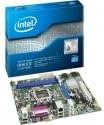
Image: The Intel DH61CR Desktop Motherboard shown alongside its retail packaging. This image provides a visual reference for the product and its initial presentation.
Familiarize yourself with the layout of the motherboard, including the CPU socket, RAM slots, expansion slots, and various connectors.
2. Kev teeb tsa CPU (LGA 1155 Socket)
- Nrhiav LGA 1155 CPU socket ntawm lub motherboard.
- Gently push down the load lever and pull it to the side to open the CPU socket retention frame.
- Ua kom lub cim peb ceg ntawm CPU sib phim nrog lub cim ntawm lub qhov (socket). Ua tib zoo muab lub CPU tso rau hauv lub qhov (socket) yam tsis txhob yuam nws.
- Close the retention frame and secure it by pushing the load lever back into its locked position.
- Apply a thin, even layer of thermal paste to the top of the CPU (if not pre-applied to the cooler).
- Install the CPU cooler according to its manufacturer's instructions, ensuring it is securely fastened and making good contact with the CPU.
3. Kev teeb tsa RAM (DDR3)
- Identify the DDR3 memory slots. The Intel DH61CR supports DDR3 RAM.
- Open the clips at both ends of the memory slot.
- Txuas lub qhov ntawm lub cim xeeb DDR3 kom sib phim nrog tus yuam sij hauv qhov chaw cim xeeb.
- Nias kom ruaj rau ob sab kawg ntawm lub cim xeeb module kom txog thaum cov clips txuas rau hauv qhov chaw, thiab ruaj ntseg lub module.
4. Kev Siv Lub Tshuab Cia Cia
Connect your SATA hard drives or solid-state drives to the SATA ports on the motherboard using SATA data cables. Ensure the power cables from your power supply are also connected to these devices.
5. Kev sib txuas hluav taws xob
- Connect the 24-pin ATX power connector from your power supply to the main power socket on the motherboard.
- Connect the 4-pin (or 8-pin, if applicable) ATX 12V power connector to the CPU power socket.
- Xyuas kom tseeb tias txhua qhov kev sib txuas hluav taws xob ruaj ntseg.
6. Kev Sib Txuas ntawm Vaj Huam Sib Luag Pem Hauv Ntej
Connect the front panel cables from your computer case (power button, reset button, HDD LED, power LED, USB ports, audio jacks) to the corresponding headers on the motherboard. Refer to the motherboard's silkscreen labels for correct pin assignments.
7. Daim npav nthuav dav
Install any necessary expansion cards (e.g., graphics card, network card) into the appropriate PCIe x16 or PCIe x1 slots. Secure them with the case's retention mechanism.
Cov lus qhia ua haujlwm
1. Thawj khau raj
After all components are installed and connected, connect your monitor, keyboard, and mouse. Power on the system. The system should display the BIOS POST screen. If not, refer to the Troubleshooting section.
2. Kev Nkag Mus Rau BIOS/UEFI
To access the BIOS/UEFI setup utility, press the designated key (commonly Del, F2, los yog F10) during the initial boot sequence. The exact key is usually displayed on the screen during POST.
Within the BIOS/UEFI, you can configure boot order, system time, hardware settings, and other advanced options. Save changes before exiting.
Kev tu
1. Kev ntxuav
Regularly clean the interior of your computer case to prevent dust buildup, which can lead to overheating. Use compressed air to remove dust from fans, heatsinks, and motherboard components. Ensure the system is powered off and unplugged before cleaning.
2. BIOS Hloov tshiab
Tshawb xyuas Intel kev txhawb nqa tsis tu ncua website for BIOS updates for your DH61CR motherboard. BIOS updates can improve system stability, add support for new hardware, or fix bugs. Follow the instructions provided by Intel carefully when performing a BIOS update to avoid system damage.
Kev daws teeb meem
Yog koj ntsib teeb meem, rov qabview the following common troubleshooting steps:
- Tsis muaj zog: Ensure all power cables (24-pin ATX, 4-pin CPU) are securely connected. Check the power supply unit (PSU) switch and wall outlet.
- Tsis muaj zaub: Verify the monitor is connected and powered on. Ensure the graphics card (if dedicated) is properly seated and powered. If using integrated graphics, confirm the monitor is connected to the motherboard's video output.
- Lub suab nrov ntawm lub kaw lus: A series of beeps during startup usually indicates a hardware issue. Consult the motherboard's beep code guide (often found on the manufacturer's support website) to diagnose the specific problem (e.g., RAM error, graphics card issue).
- System Instability / Crashes: Check for proper CPU cooler installation and thermal paste application. Ensure RAM modules are correctly seated. Test memory with diagnostic tools. Update drivers and BIOS.
- Operating System Not Loading: Verify the boot order in BIOS/UEFI. Check SATA cable connections to storage devices. Ensure the operating system is correctly installed on a bootable drive.
For persistent issues, consult the Intel support website or contact their technical support.
Technical Specifications
| Feature | Specification |
|---|---|
| Hom | Intel |
| Qauv Lub Npe | DH61CRB3 |
| CPU Qhov (socket). | LWM 1155 |
| Compatible Processors | Intel Core i3-2100, Intel Core i5-2400, Intel Core i7-2600, Pentium |
| Hom Chipset | Intel H61 Express |
| RAM Memory Technology | DDR 3 |
| Qhov siab tshaj plaws RAM | 8 GB ua |
| Lub Clock Ceev | 1333 MHz |
| Compatible Devices | Tus Kheej Computer |
| Cia Interface | Serial ATA/300 |
| Expansion Slots | 1 x PCIe x16 Qhov |
| Video tso zis | CPU Dependent Video |
| Platform | Windows 7, Windows Vista Ultimate |
| Khoom Dimensions | 10.5 x 8.5 x 2 po |
| Yam Nyhav | 1.9 puj |
| Chaw tsim tshuaj paus | INTEL |
| Hnub Ua Ntej Muaj | Lub Plaub Hlis 30, 2012 |
Warranty thiab Support
Warranty information for the Intel Classic DH61CR Desktop Motherboard is typically provided with the product at the time of purchase or can be found on the official Intel webqhov chaw. Thov khaws koj cov ntaub ntawv pov thawj ntawm kev yuav khoom rau kev lees paub.
For technical support, driver downloads, and additional documentation, please visit the official Intel support website. You can often find detailed FAQs and community forums there to assist with common issues.
Note: Intel's official support channels are the primary resource for product-specific assistance.


