1. Taw qhia
This manual provides detailed instructions for the setup, operation, and maintenance of your Amcrest NV4108-A2 4K 8-Channel Network Video Recorder (NVR). The NV4108-A2 is designed to record and manage up to eight 4K IP cameras, offering advanced surveillance capabilities for your home or business.

Duab 1.1: Pem hauv ntej view of the Amcrest NV4108-A2 NVR.
2. Cov ntsiab lus ntawm pob
Verify that all items listed below are included in your package. If any items are missing or damaged, please contact Amcrest support.
- 1 x Amcrest NV4108-A2 4K 8-Channel NVR
- Phau Ntawv Qhia Pib Ceev
- USB nas
- Network Cable
3. Teeb tsa
3.1 Hardware Installation
Before powering on the NVR, it is recommended to install a hard drive (not included) for video storage. The NVR supports up to a 10TB SATA hard drive.

Image 3.1: Illustration of hard drive installation within the NVR chassis.
3.2 Txuas NVR
Connect the NVR to your network and display using the following steps:
- Connect the NVR to your router using the provided network cable. A hardwired Ethernet connection is required for operation.
- Connect a monitor or TV to the NVR using an HDMI or VGA cable. Ensure your monitor has HDMI compatibility for optimal display.
- Connect the USB mouse to a USB port on the NVR.
- Connect the power adapter to the NVR and an electrical outlet.

Image 3.2: Front and back panel connections of the Amcrest NV4108-A2 NVR. The front panel includes a USB 2.0 port and LED indicators for HDD, Network, and Power. The back panel features a DC power port, Ethernet port, VGA output, Audio Input/Output (RCA), HDMI output, and an additional USB 2.0 port.
3.3 Initial Configuration and Remote Access
Upon first power-on, follow the on-screen setup wizard using the connected mouse and monitor. For remote viewing and management, download the Amcrest View Cov app.

Image 3.3: Steps for setting up remote viewing with the Amcrest View Pro app. This involves downloading the app, scanning a QR code on the NVR, and starting live viewing from your mobile device.
Download tau Amcrest View Pro app from the App Store (iOS) lub Google Play Store (Android). Alternatively, visit www.amcrestview.com yog xav paub ntxiv.

Image 3.4: The Amcrest View Pro app displaying live camera feeds on a smartphone and tablet, demonstrating remote monitoring capabilities.
4. Kev ua haujlwm
4.1 Cov ntaubntawv povthawj siv thiab playback
The NVR supports various recording modes including manual, scheduled, and motion detection. It records up to 8 channels at 4K resolution (8MP) at 30 frames per second (fps). Playback is supported for 8 channels at 1080p (30fps), 4 channels at 4MP (30fps), or 2 channels at 4K (30fps).
The NVR utilizes advanced H.265 compression technology, which significantly reduces storage space requirements compared to H.264, allowing for longer recording times without sacrificing video quality.
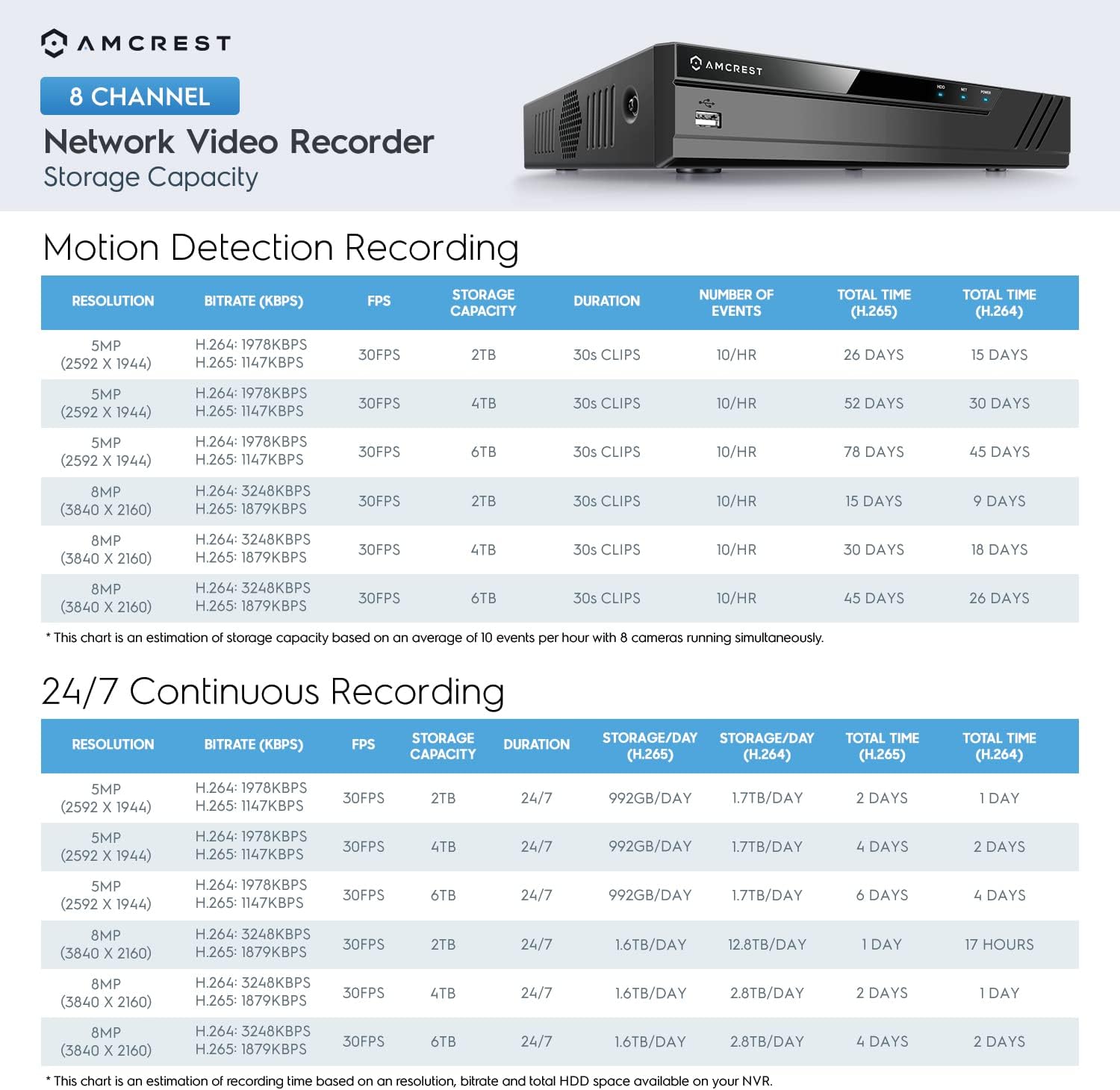
Image 4.1: Diagram illustrating the efficiency of H.265 compression, showing up to 50% storage reduction compared to H.264.
Refer to the following table for estimated storage capacity based on resolution and compression:

Image 4.2: Tables detailing estimated storage duration for motion detection recording and 24/7 continuous recording at various resolutions and compression types (H.264 vs. H.265).
4.2 Camera Compatibility and AI Features
The NV4108-A2 NVR is compatible with all Amcrest WiFi and wired IP cameras, supporting resolutions including 2MP, 3MP, 4MP, 5MP, and 8MP. It also offers limited compatibility with third-party brand compliant IP cameras.
This NVR supports AI features from AI IP cameras. The availability of specific AI features depends on the camera model being used, as AI functionalities are controlled on the camera side. The NVR itself does not have built-in AI features.
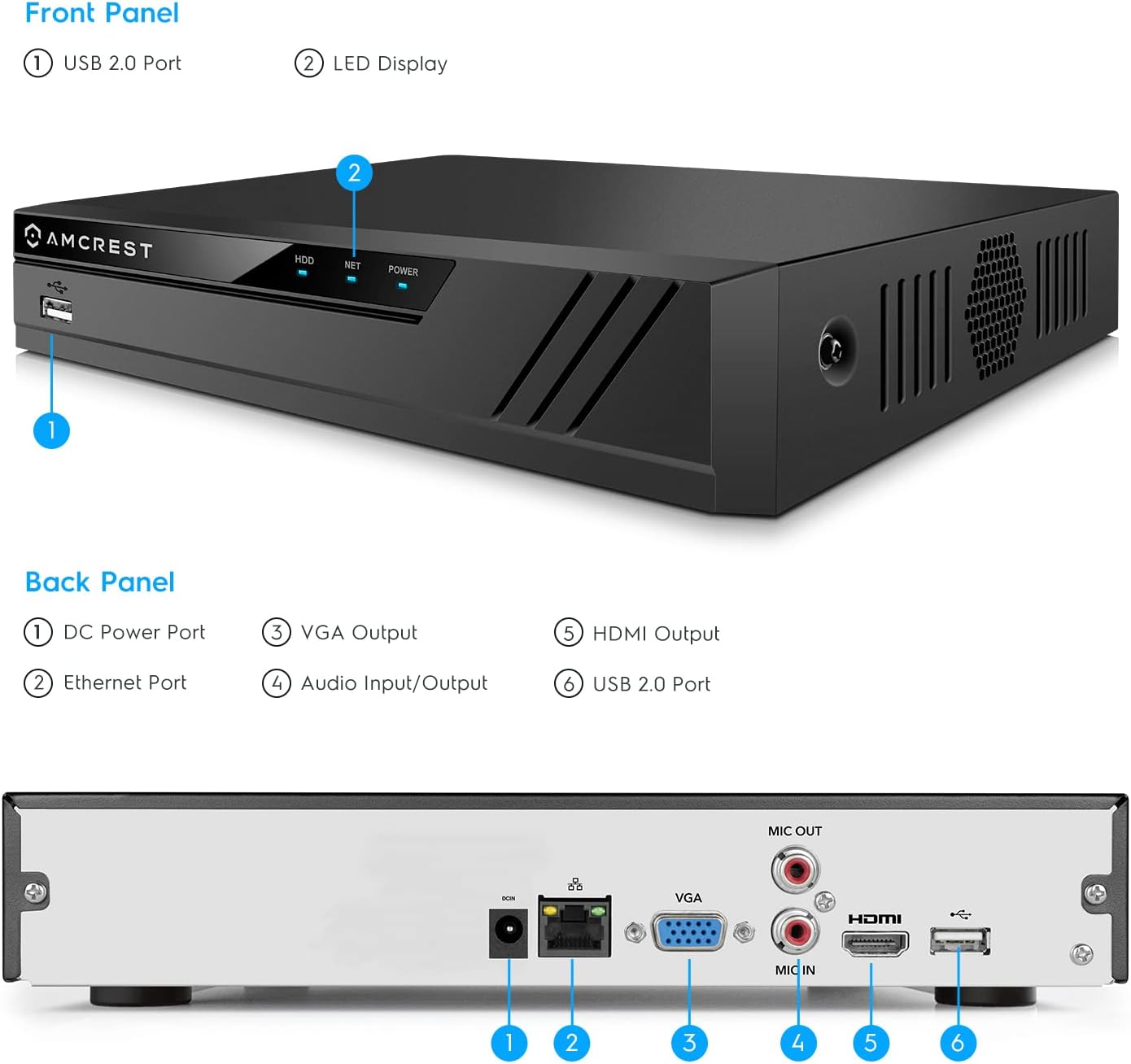
Image 4.3: The Amcrest NV4108-A2 NVR shown with various compatible Amcrest IP cameras, highlighting its support for a full range of IP camera types.
5. Kev tu
To ensure optimal performance and longevity of your Amcrest NV4108-A2 NVR, consider the following maintenance guidelines:
- Hloov tshiab Firmware: Regularly check the Amcrest website for firmware updates. Keeping your NVR's firmware current can improve performance, add new features, and enhance security.
- Hard Drive Health: Monitor the health of your installed hard drive through the NVR's interface. Replace the hard drive if any issues are detected to prevent data loss.
- Ntxuav: Keep the NVR unit clean and free from dust. Ensure ventilation openings are not obstructed to prevent overheating.
- Backup Recordings: Utilize the USB backup feature to periodically save important recordings to an external storage device.
6. Kev daws teeb meem
This section addresses common issues you might encounter with your Amcrest NV4108-A2 NVR.
- No Video Output on Monitor:
- Ensure the HDMI or VGA cable is securely connected to both the NVR and the monitor.
- Verify the monitor is set to the correct input source (HDMI/VGA).
- Confirm the monitor is HDMI compatible if using an HDMI connection.
- Cameras Not Connecting/Recording:
- Ensure all IP cameras are powered on and properly connected to the network.
- Verify the NVR has a stable hardwired connection to your router.
- Check camera settings and network configurations within the NVR interface.
- Confirm camera compatibility with the NV4108-A2 NVR.
- Teeb meem kev nkag mus rau tej thaj chaw deb:
- Ensure your mobile device has an active internet connection.
- Verify the Amcrest View Pro app is updated to the latest version.
- Confirm the NVR is properly connected to the internet and its network settings are correct.
- Password Entry Problems (On-screen Keyboard):
- Some on-screen keyboards may not support all special characters. If encountering issues, try simplifying your password or using a USB keyboard if supported by the NVR's firmware.
For further assistance, please refer to the official Amcrest User Guide PDF available on the product page or contact Amcrest customer support.
7. Cov lus qhia tshwj xeeb
Below are the key technical specifications for the Amcrest NV4108-A2 NVR:

Image 7.1: Diagram outlining the technical specifications and dimensions of the Amcrest NV4108-A2 NVR.
| Feature | Paub meej |
|---|---|
| Qauv nab npawb | NV4108-A2 |
| Cov channel | 8-Channel |
| Kev daws teeb meem | 1080p/3MP/4MP/5MP/8MP/4K |
| Kev daws teeb meem | Up to 8MP/4K @ 30fps |
| Playback daws teeb meem | 8-Channel @1080p(30fps), 4-Channel @4MP(30fps), 2-Channel @4K(30fps) |
| Video Compression | H.265/H.264 |
| Incoming Bandwidth | Max 80 Mbps |
| Kev Txhawb Nqa Hard Drive | Up to 10TB (SATA, not included) |
| Video Outputs | 1 x HDMI, 1 x VGA |
| Suab Input/Output | 1 x RCA Input, 1 x RCA Output |
| USB interface | 2 x USB 2.0 Ports |
| Kev Sib Tham Network | 1 x RJ-45 (100MB) |
| Cov Txheej Txheem Ua Haujlwm | Windows PC, MAC, Mobile Devices (iOS, Android) |
| Qhov Loj (L x W x H) | 10.2 "x 9.15" x 1.9" |
| Qhov hnyav | 3.14 pounds (without HDD) |
8. Warranty thiab Support
Amcrest products are designed for reliability and ease of use. Your Amcrest NV4108-A2 NVR comes with a 1-Year US Warranty thiab Lub Neej Txhawb Nqa provided directly from Amcrest.

Image 8.1: Amcrest's commitment to simple, reliable, and secure products, highlighting the 1-year US warranty and lifetime support.
For technical assistance, troubleshooting, or warranty claims, please visit the official Amcrest support website or contact their customer service team. You can find more information and resources on the Amcrest Store on Amazon.


