Poly Edge E220 IP Desk Phone Manual
Your guide to setting up and using your Poly Edge E220 IP Desk Phone.
1. Taw qhia
The Poly Edge E220 is a versatile IP desk phone designed for modern office environments, offering advanced communication features. It supports up to 16 lines with 4-line keys and includes integrated Bluetooth for seamless mobile phone and headset pairing. This manual provides detailed instructions for setup, operation, and maintenance of your device.
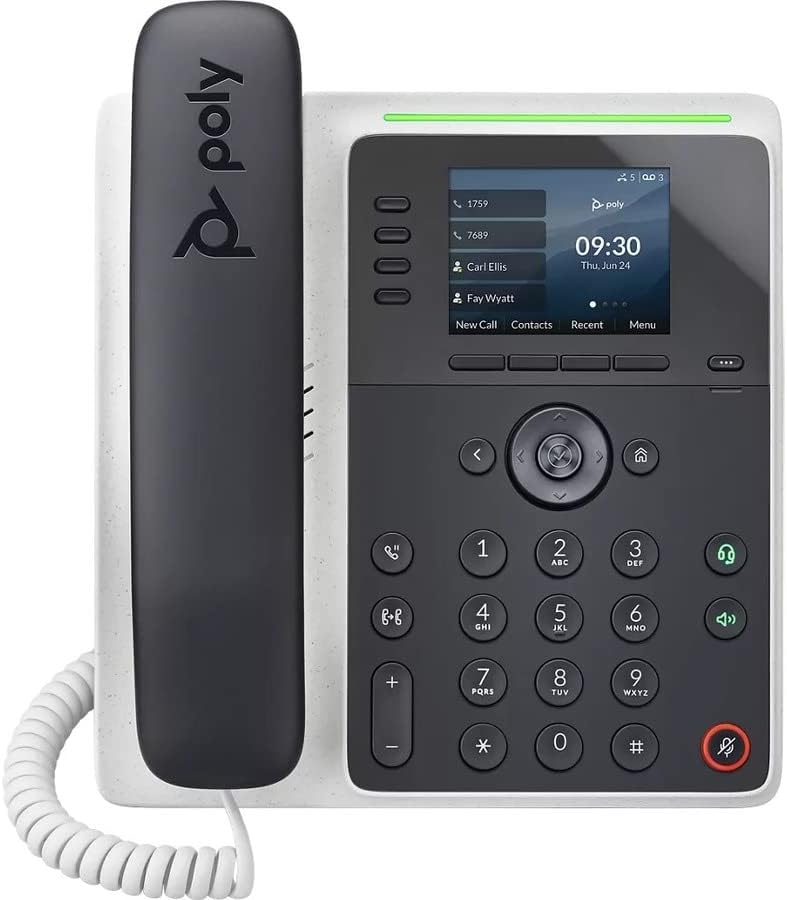
Duab: pem hauv ntej view of the Poly Edge E220 IP Desk Phone, showcasing its display, keypad, and handset.
2. Dab tsi hauv lub thawv
Thov xyuas kom meej tias tag nrho cov khoom hauv qab no suav nrog hauv koj lub pob khoom:
- Poly Edge E220 IP Desk Phone Unit
- Tes tes
- Tes Coil Cord
- Cat5E Ethernet Cable
- Integrated Wall Mount (pre-attached or separate)
- Base Stand
Note: A power supply is NOT included with this renewed product and must be acquired separately if Power over Ethernet (PoE) is not available.
3. Khoom Nta
- 4-Line Keys: Supports up to 16 lines for flexible call management.
- Integrated Bluetooth: Allows for seamless pairing with mobile phones and Bluetooth headsets.
- High-Resolution Zaub: Provides clear visibility for call information and menu navigation.
- HD Suab: Delivers superior audio quality for clearer conversations.
- Multi-Line Operation: Manage multiple active calls simultaneously.
- Conference Call Capability: Supports 3-way conferencing.
4. Kev teeb tsa thiab kev teeb tsa
4.1 Sib dhos lub xov tooj
- Attach the Base Stand: Align the tabs on the base stand with the slots on the back of the phone unit. Slide the stand into place until it clicks securely.
- Connect the Handset: Plug one end of the coil cord into the handset and the other end into the handset port on the side of the phone unit.
4.2 Txuas cov Cables
Locate the ports on the back and side of the phone unit.

Duab: Sab view of the Poly Edge E220 IP Desk Phone, highlighting the various connection ports and the adjustable stand.
- Kev sib txuas Network: Connect one end of the Cat5E Ethernet cable to the LAN port on the phone and the other end to your network switch or router. If your network provides Power over Ethernet (PoE), the phone will power on automatically.
- Power Connection (if no PoE): If PoE is not available, connect an appropriate power adapter (not included) to the power port on the phone and then to a power outlet.
- Optional Headset Connection: If using a wired headset, connect it to the dedicated headset port.
4.3 Pib Fais fab Pib
Once connected, the phone will power on and begin its boot sequence. This may take a few moments. The display will show the Poly logo, followed by network configuration and registration status. If prompted, enter your network credentials or contact your IT administrator for setup assistance.
5. Cov lus qhia ua haujlwm
5.1 Ua thiab txais hu
- Hu rau: Pick up the handset, press the Speaker button, or press a line key. Dial the number and press the Dial soft key or wait for the call to connect.
- Teb ib Hu: Pick up the handset, press the Speaker button, or press the flashing line key.
- Xaus Hu: Replace the handset, or press the End Call soft key.

Image: A man engaged in a phone call using the Poly Edge E220 IP Desk Phone in a professional office environment.
5.2 Siv Bluetooth
The Poly Edge E220 allows you to pair your mobile phone or Bluetooth headset for enhanced flexibility.
- Qhib Bluetooth: Navigate to the phone's menu, select Settings, then Bluetooth, and ensure Bluetooth is enabled.
- Pairing ib Device: Put your Bluetooth device (mobile phone or headset) into pairing mode. On the phone, select 'Add New Device' or 'Scan for Devices'. Select your device from the list and follow the on-screen prompts to complete pairing.
- Kev sib txuas: Once paired, your device should automatically connect when in range. You can manually connect/disconnect from the Bluetooth menu.

Image: A woman working at a desk, utilizing the Poly Edge E220 IP Desk Phone alongside her laptop, demonstrating its integration into a modern workspace.
5.3 Advanced Features
- Tuav: During a call, press the Hold soft key to place the call on hold. Press it again to resume.
- Hloov Mus: During a call, press the Transfer soft key, dial the new number, and then press Transfer again to complete.
- Rooj sablaj: During an active call, press the Conference soft key, dial the number of the third party, and then press Conference again to join all parties.
- Xov tooj cua: Press the Voicemail button to access your voicemail messages.
6. Kev tu
To ensure the longevity and optimal performance of your Poly Edge E220 IP Desk Phone, follow these maintenance guidelines:
- Ntxuav: Siv ib daim ntaub mos, qhuav, tsis muaj lint los ntxuav lub xov tooj saum npoo thiab tso saib. Rau cov cim tawv ncauj, me ntsis dampen the cloth with water. Avoid using harsh chemicals, abrasive cleaners, or aerosol sprays.
- Ib puag ncig: Keep the phone in a dry environment, away from direct sunlight, excessive heat, and moisture.
- Kev Tswj Xyuas Cable: Xyuas kom meej tias txhua lub cables tau teeb tsa zoo thiab tsis muaj zog kom tiv thaiv kev puas tsuaj rau cov chaw nres nkoj lossis cov cables.
- Software hloov tshiab: Periodically check with your IT administrator for available software updates to ensure your phone has the latest features and security enhancements.
7. Kev daws teeb meem
If you encounter issues with your Poly Edge E220, refer to the table below for common problems and solutions.
| Teeb meem | Ua Tau | Kev daws |
|---|---|---|
| Xov tooj tsis muaj hwj chim rau | No power supply or PoE connection | Ensure Ethernet cable is connected to a PoE-enabled port, or connect a compatible power adapter. |
| Tsis muaj suab nrov | Network issue or phone not registered | Check network cable connection. Verify network status on the phone display. Contact IT support if registration fails. |
| Hu tsis tau / Hu tsis tau kuv | Volume too low, faulty handset/headset, or network audio issue | Adjust volume. Test with speakerphone. Check handset/headset connection. Restart phone. |
| Bluetooth ntaus ntawv tsis ua ke | Cov cuab yeej tsis nyob hauv hom kev sib koom lossis tawm ntawm qhov ntau | Ensure Bluetooth device is in pairing mode and within range. Restart both devices. |
If the problem persists after attempting these solutions, please contact your IT department or the product support team for further assistance.
8. Cov lus qhia tshwj xeeb
Key technical specifications for the Poly Edge E220 IP Desk Phone:
| Feature | Paub meej |
|---|---|
| Khoom Dimensions | 12.1 x 10.3 x 3.4 po |
| Yam Nyhav | 2.55 puj |
| Hom xov tooj | Corded IP Xov tooj |
| Hwj chim Source | Corded Electric (Power Supply NOT Included) / Power over Ethernet (PoE) |
| Hom Dialer | Ib qho Keypad |
| Teb System Hom | Digital (requires service provider support) |
| Kev Sib Tham Hu Lub Peev Xwm | 3-txoj kev |
| Multiline Kev Ua Haujlwm | Yes, supports up to 16 lines with 4-line keys |
| Bluetooth | Integrated for mobile phone and headset pairing |
9. Warranty thiab Support
As a renewed product, the Poly Edge E220 IP Desk Phone typically comes with a limited warranty provided by the refurbisher or seller. Please refer to your purchase documentation for specific warranty terms and conditions. For technical support, troubleshooting beyond this manual, or warranty claims, please contact the seller or your IT administrator.


